Apple Studio Display 2 VESA Mount Review: Thunderbolt 5, VESA Mount & Is It Worth Upgrading?
Some of the links in this post are affiliate links, which means I may earn a small commission if you choose to make a purchase at no extra cost to you. As an Amazon Associate, I earn from qualifying purchases. Read my full Ethics & Affiliate Relationship Disclaimer.
Apple’s 2026 Studio Display is a funny product. On paper, Apple upgraded almost everything around the display. You get Thunderbolt 5, an extra Thunderbolt port, a better webcam, improved speakers, and a few quality-of-life improvements that make it a nicer monitor to live with every day.
But at the same time, the design is basically unchanged, the panel is still the same 5K screen, and Apple left it at 60Hz. That last part is the one that is going to bother a lot of people, especially at $1,600. So the real question is simple: did Apple do enough with the new Studio Display, or did they leave out the one upgrade that mattered most?
The Biggest Upgrade Is Thunderbolt 5, And It Matters More Than It Sounds
If there’s one feature that really changes how this monitor fits into a desk setup, it’s the move from Thunderbolt 3 to Thunderbolt 5. That is easily the most important upgrade in the new Studio Display.
Thunderbolt 5 brings more bandwidth overall, including bandwidth specifically reserved for displays. In practical terms, that means the monitor is much better positioned for a clean, high-performance single-cable setup. Apple also added a second Thunderbolt port on the back, and that opens up some genuinely useful options.
Daisy chain a second monitor
Connect fast external SSDs
Plug in audio interfaces and other high-bandwidth accessories
Reduce how many cables need to run directly into your Mac
If you care about desk organization and you use a Mac Studio or a MacBook as the center of your setup, this upgrade makes the Studio Display 2 much more flexible than the original.
It Still Uses A 5K Panel, And Yes, It’s Still 60Hz
The screen itself is still a 5K panel, and to Apple’s credit, it still looks excellent. It is sharp, bright, color-accurate, and crystal clear. For creative work, productivity, and video editing, it still delivers the core thing that made the original Studio Display appealing in the first place: it looks great every single day. But Apple did not raise the refresh rate to 120Hz.
That means no ProMotion here, which is honestly one of the biggest disappointments with this update. At this price, it feels like a feature that should have made the cut. Apple already offers 120Hz on MacBook Pro models, so it is not hard to see why people expected the same treatment here. That said, whether this is a dealbreaker depends on how you actually use your monitor.
For gaming or anyone particularly sensitive to motion smoothness, 60Hz is going to feel old-fashioned. But for someone doing mostly video editing, office work, writing, admin, and general productivity, it may not matter nearly as much as the internet would have you believe. In day-to-day use, the display still feels premium because the image quality is so good. If your priority is color accuracy and clarity rather than motion performance, the 60Hz panel may still be completely fine.
How It Compares To The Studio Display XDR
Apple also launched a higher-end alternative, the Studio Display XDR, and that changes the conversation a bit. The XDR gives you the upgrades many people expected on this model:
120Hz ProMotion
Higher brightness
Mini-LED backlighting
Localized dimming zones for much deeper blacks
Up to 140W power delivery
Those are all real improvements. The problem is the price. The XDR starts at $2,900 for the VESA version or $3,200 with the tilt and height adjustable stand. That means you can almost buy two of the regular Studio Displays for the price of one XDR.
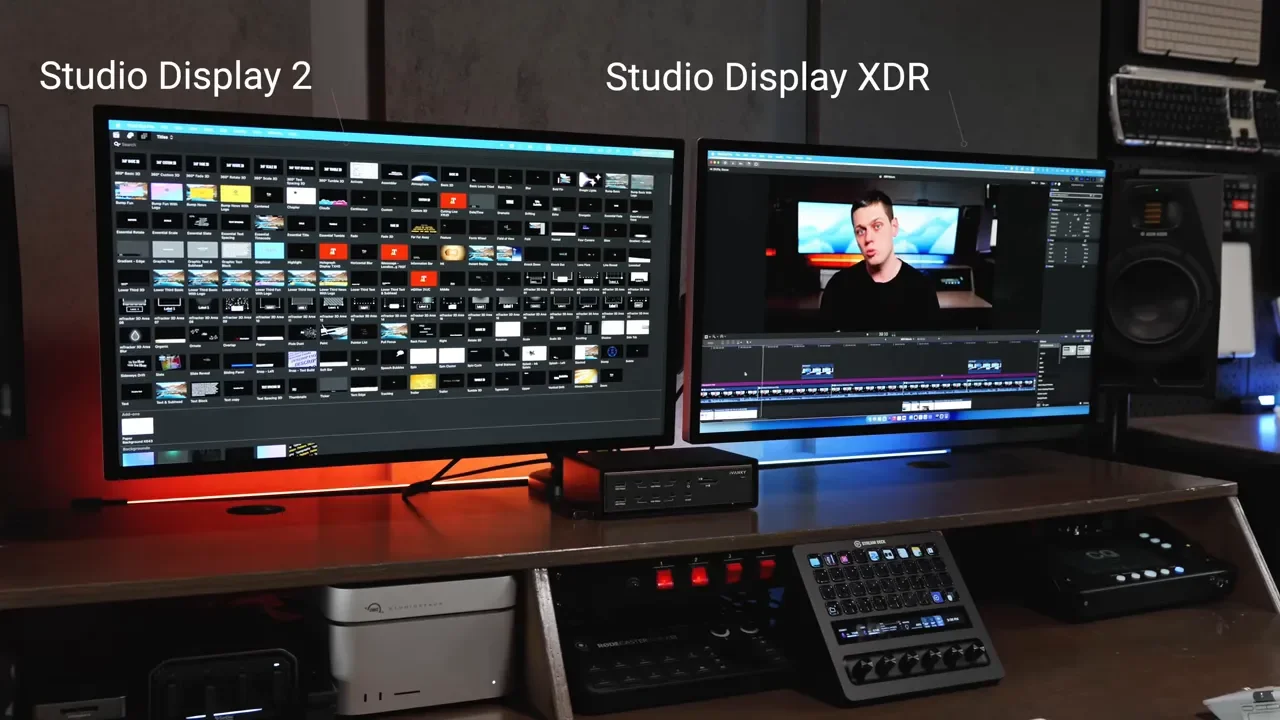
And that is what makes the standard Studio Display 2 compelling despite its missing features. The XDR is better, but not necessarily double-the-price better. If you mostly care about editing, productivity, and having a beautiful Mac-friendly display, the gap is smaller than the price difference suggests. Even after using both side by side, the extra brightness and higher refresh rate felt subtle enough that the XDR was hard to justify unless those specific features are mission-critical for your work.
The Webcam Is Finally Better
The original Studio Display webcam was one of the weakest parts of the monitor. Apple improved that here, and it’s a welcome upgrade. The new webcam looks noticeably better than the old one and now supports:
Center Stage, which keeps you framed in the middle
Desk View, though it still doesn’t look particularly great
As with most built-in webcams, the quality still depends a lot on your lighting. In a well-lit room, it will do a solid job. In poor lighting, it is only going to look as good as the environment allows. Still, compared to the previous version, this is a meaningful quality-of-life improvement for calls and meetings.
The Speakers Are Surprisingly Good
One of the more underrated upgrades is the built-in speaker system. The speakers on the new Studio Display are good enough that it is easy to forget you’re not listening through dedicated desktop speakers. In fact, that’s kind of the point. They are not replacing a serious set of studio monitors, but they sound good enough to make everyday listening enjoyable. That matters more than people think. Built-in monitor speakers are usually an afterthought. Here, they are actually useful.
Apple also keeps the system integration that makes the Studio Display feel so seamless with a Mac:
You can control volume directly from the Mac keyboard
You can adjust brightness from the keyboard as well
That kind of integration is not flashy, but it makes the monitor feel more polished than many third-party alternatives.
Mac Compatibility Is Excellent, But Connectivity Is Still Limited
If you’re using a MacBook, the Studio Display works exactly how you’d hope. One Thunderbolt cable handles the display connection and charging, and it also works with lower-end USB-C Macs and even an iPad Air.
There are a few important details here:
MacBook Air can still drive the full 5K resolution
Up to 96W power delivery is available from the Studio Display
The XDR model goes higher, at 140W
That 96W figure is enough for a lot of setups, but it is worth noting that a 16-inch MacBook Pro can benefit from more power than that under heavy loads. So if maximum charging headroom matters, the XDR does have an advantage.
Where the Studio Display still falls short is external compatibility. You need to connect it over Thunderbolt or USB-C. There is no HDMI input, which means no easy connection for game consoles or other HDMI-only devices. If you want a monitor that can double as a general-purpose display for multiple systems, this is still very much not that.
The Extra Ports Make It A Better Desktop Hub
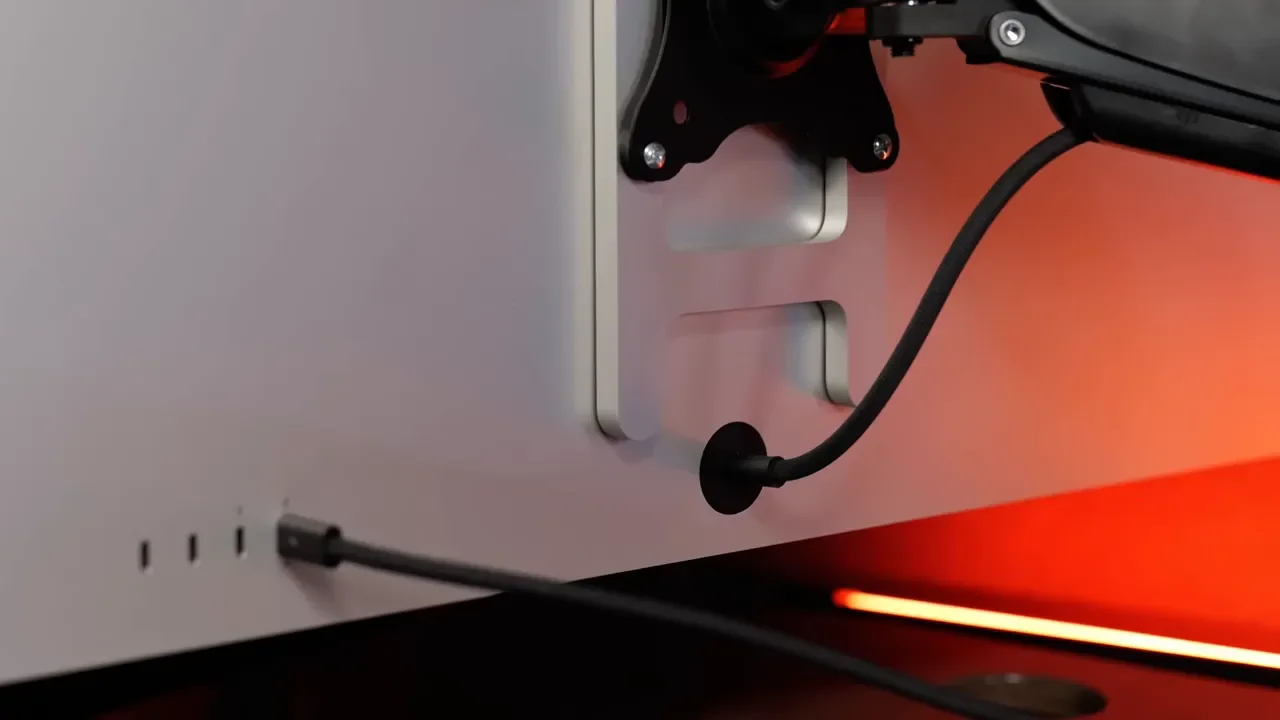
Besides the added Thunderbolt port, Apple also includes two additional 10Gbps USB-C ports. That makes the display much more useful as a hub for permanently attached desk gear. This is especially nice for things like:
Audio interfaces
External drives
Accessories you don’t want to keep unplugging
If your setup revolves around minimizing cable clutter, this is one of the strongest practical arguments for the new model over the old one.
The Annoying Hardware Compromises Are Still Here
For all the improvements, Apple kept some of the most frustrating design decisions.
1. The Power Cord Is Still Not Removable
This is one of those little things that becomes a big thing if you care about cable management. A non-removable power cord makes routing everything cleanly through a desk setup more annoying than it should be.
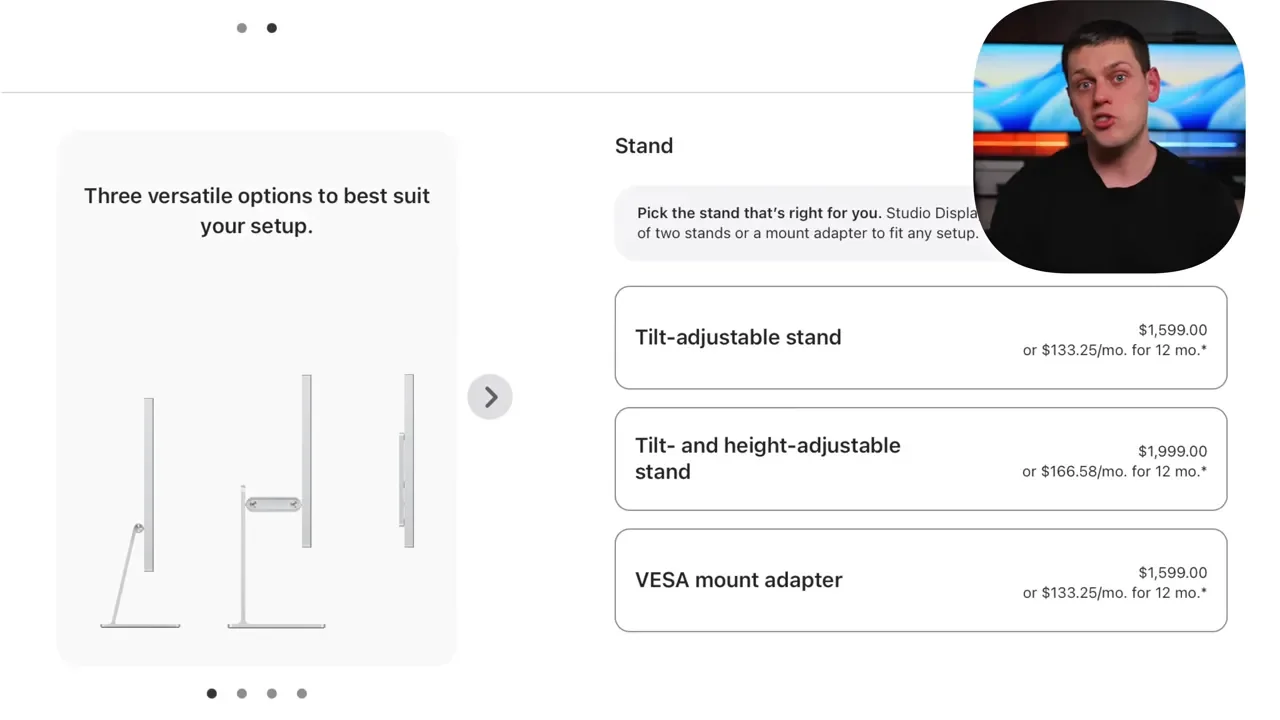
2. You Still Have To Pick Your Stand Up Front
Apple continues to make the stand choice permanent at purchase. You can get the Studio Display in one of three configurations:
VESA mount version
Standard tilt-adjustable stand
Tilt and height-adjustable stand
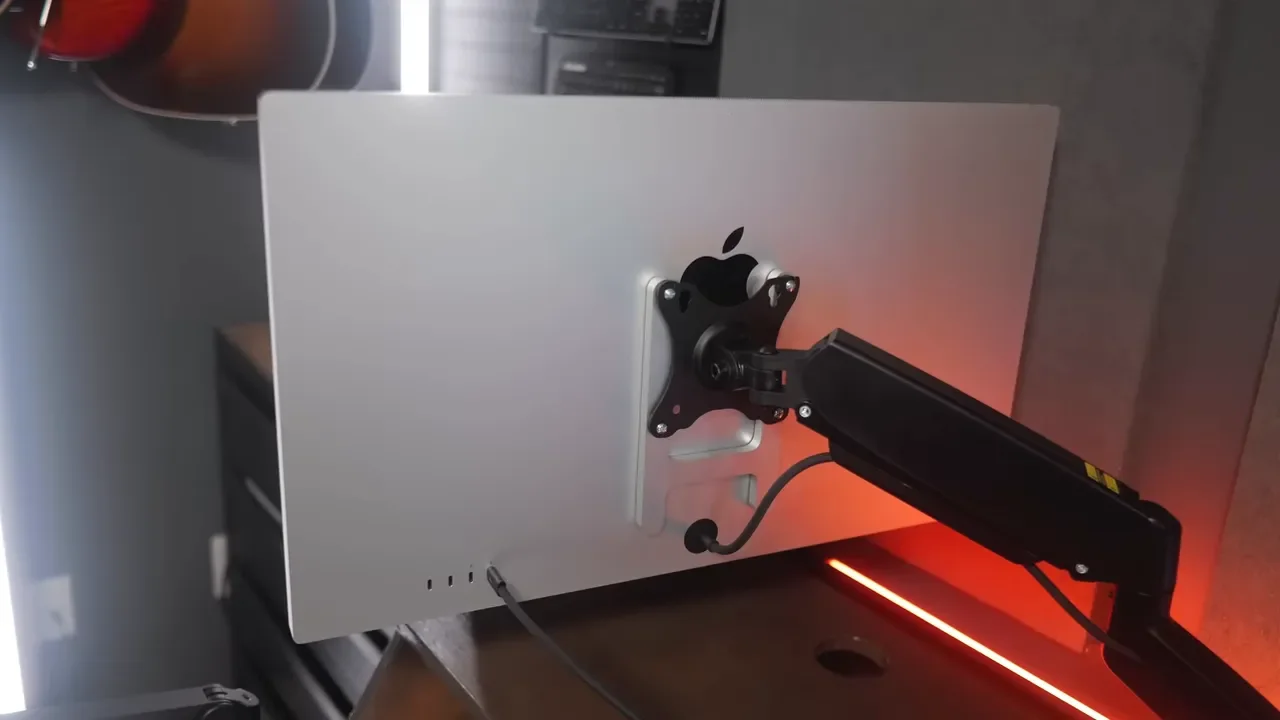
The problem is that the stand is not removable. So if you buy the wrong version, you are stuck with it. If you know you want to VESA mount the display, you need to buy the VESA model from the start. You cannot just swap later. That is especially frustrating on a premium monitor where flexibility should really be better.
VESA Mount vs. Apple’s Stands
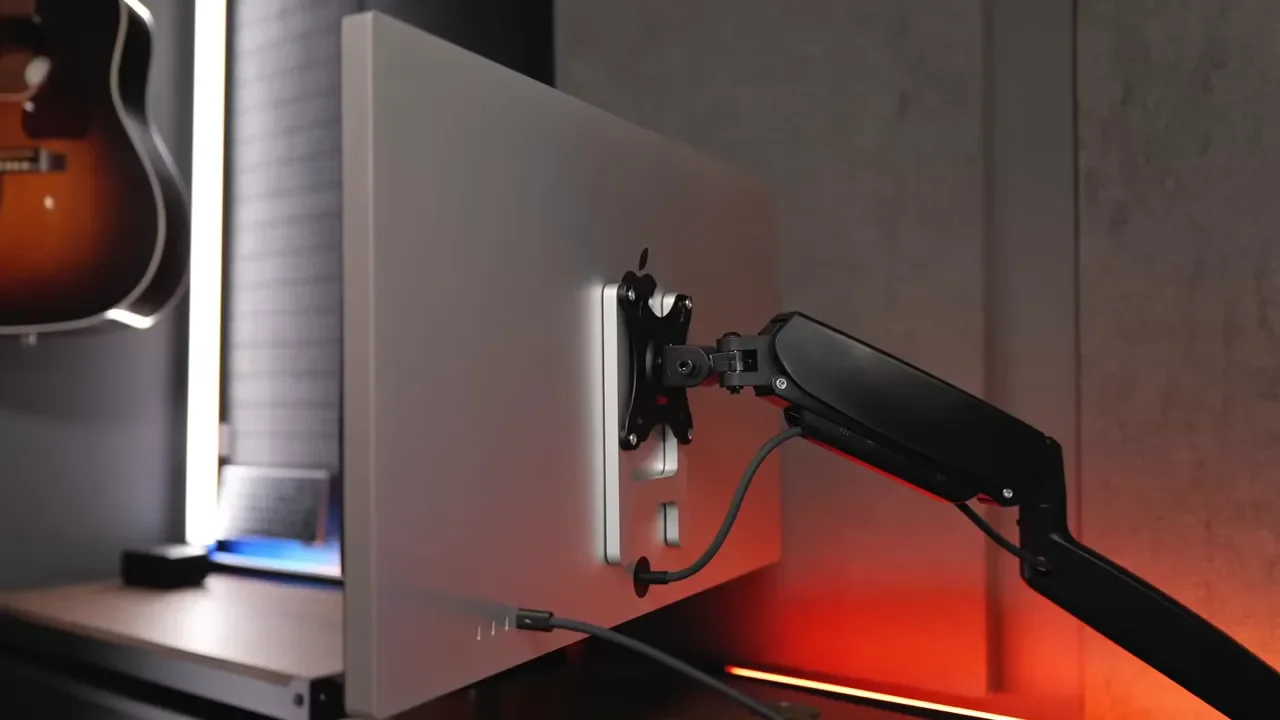
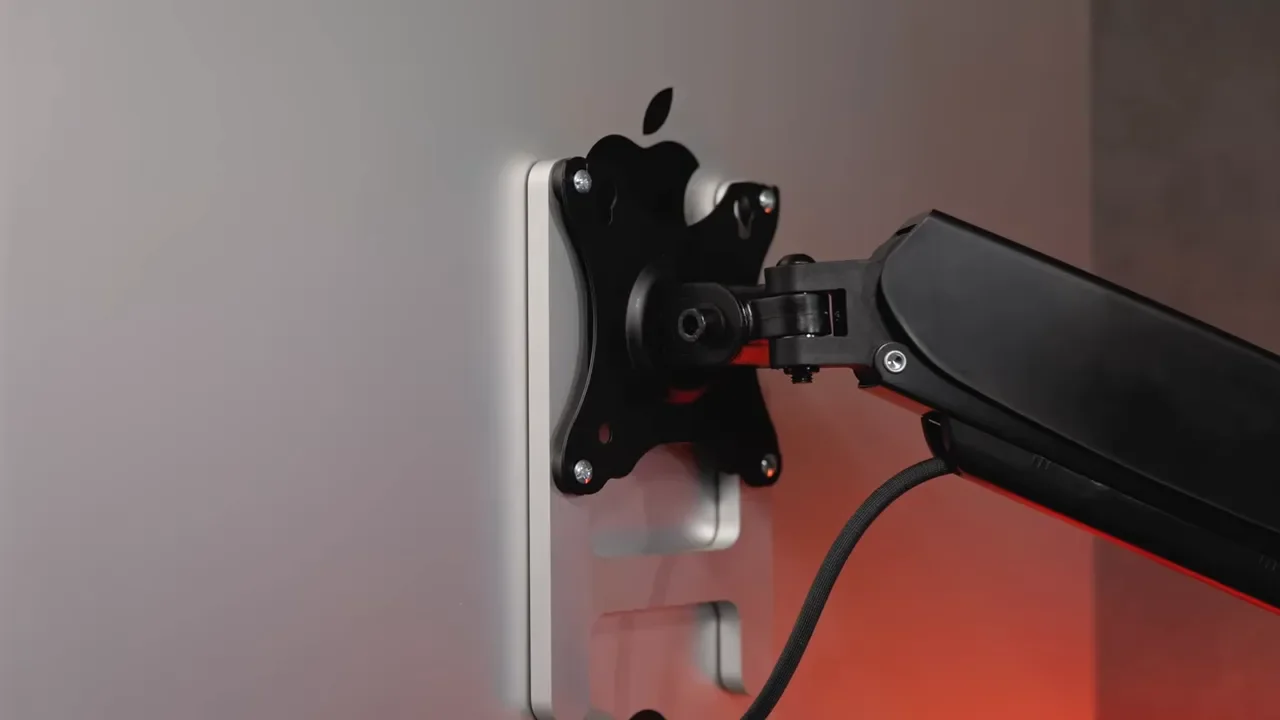
The VESA version does have some real advantages.
A good monitor arm lets you:
Pull the display closer
Push it farther back
Fine-tune the position for your desk depth and seating position
Free up some desk space
That said, a good VESA arm is not cheap. A low-cost arm may technically work, but balance, stability, and overall feel can be disappointing. If you want a setup that feels as premium as the monitor itself, you usually have to spend real money on the arm too.
For some desks, the simpler answer is still the basic tilt stand, especially if the height already works for you or you use a riser. The standard stand does sit a little low for some setups, but depending on desk height and ergonomics, it can still be perfectly usable. The tilt and height adjustable stand is a better all-around option if you want flexibility without going full VESA, though it costs more.
Glossy vs. Nano-Texture: Which Finish Should You Get?
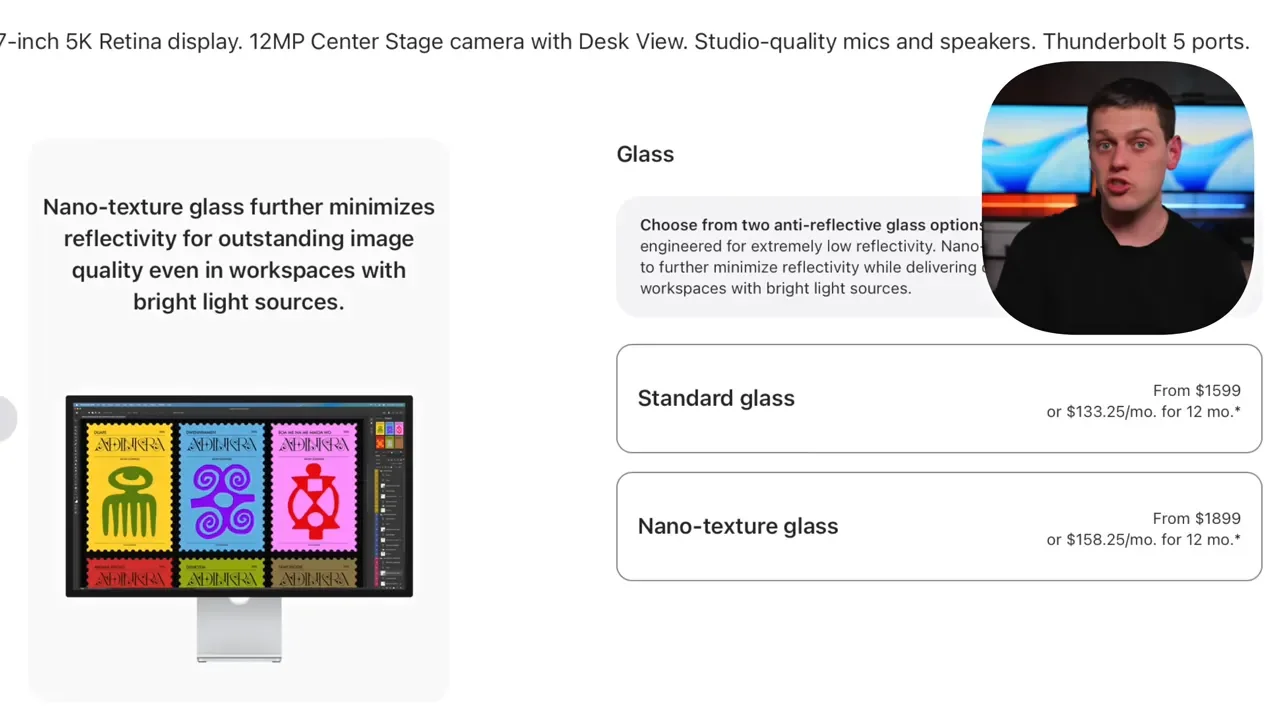
Apple gives you two finish options:
Standard glossy glass
Nano-texture glass
The standard glossy finish looks sharper and has great contrast. For most people, this is the one to get. The nano-texture option helps reduce glare if you have a lot of light hitting the screen, especially from windows. The tradeoff is a slight reduction in contrast. If your workspace is reasonably controlled and you are not dealing with harsh reflections all day, the standard finish is probably the better buy.
So Who Should Actually Upgrade?
If you already own the original Studio Display, the answer is probably don’t. That is really the bottom line. The new model is better in several ways, but most of the improvements are subtle. The webcam is better. The speakers are better. Thunderbolt 5 is a real upgrade. The extra Thunderbolt port is useful. But unless you specifically need that extra connectivity, it is hard to justify selling the old one and spending another $500 to $600 to move to the new model. The original Studio Display still holds up extremely well.
Both generations share the same core limitations:
60Hz refresh rate
No HDMI input
No higher brightness on the standard model
Stand choice locked at purchase
So while the 2026 model is better, it is not dramatically better.
Who Should Buy The New Studio Display?
If you are shopping for a display right now and want a premium Mac-focused monitor, the new Studio Display is still a very strong option. It makes the most sense for people who want:
A sharp and color-accurate 5K screen
Excellent macOS integration
Built-in speakers that are actually good
A better built-in webcam
Thunderbolt 5 connectivity and hub functionality
It becomes even more attractive if you can find it on sale or grab an open-box unit. A couple hundred dollars off makes the value proposition much easier to swallow.
Why A Mixed Two-Display Setup May Be The Smartest Move
One of the most practical setups is not replacing an original Studio Display at all, but adding one new Studio Display 2 alongside it. That is especially true if your goal is a dual-monitor setup with matching panels.
Compared to using something like an LG DualUp next to a Studio Display, running two Studio Displays gives you a more seamless visual experience. The colors match better, the image quality is more consistent, and the whole desk setup feels more cohesive. And because the new model has the additional Thunderbolt port, you can plug the original Studio Display into the new one and run both into a Mac Studio using just one cable. That is a genuinely useful benefit of Thunderbolt 5 and the added downstream connectivity.
For anyone who already owns one Studio Display, this may be the sweet spot:
Keep the original
Buy one new model
Use the new one as the hub
Get dual displays without paying for two full replacements
Final Verdict: Apple Improved The Studio Display, But Didn’t Fully Finish The Job
The 2026 Apple Studio Display is a better monitor than the original. There’s no question about that. Thunderbolt 5 is the standout improvement. The extra port makes a real difference. The webcam is better. The speakers are better. As a premium Mac display, it feels more polished and more capable than before. But Apple also left out the upgrade that would have made this feel like a complete next-generation product: 120Hz ProMotion. At $1,600, that omission stings.
So the buying advice is pretty straightforward:
Already own the original Studio Display? Keep it unless you specifically need the extra Thunderbolt functionality.
Buying your first premium Mac monitor? The new Studio Display is a great option if 60Hz does not bother you.
Considering the XDR? It is better, but for most people it is not better enough to justify nearly doubling the price.
For a lot of setups, the smartest move is not chasing the most expensive model. It is building a system that actually makes sense for the way you work. And right now, for many Mac users, that still makes the regular Studio Display 2 the more practical choice.