13-Inch iPad Air M4: Is the Bigger Screen Actually Worth It?
Some of the links in this post are affiliate links, which means I may earn a small commission if you choose to make a purchase at no extra cost to you. As an Amazon Associate, I earn from qualifying purchases. Read my full Ethics & Affiliate Relationship Disclaimer.
Table of Contents
Intro: 13-Inch Vs 11-Inch iPad Air M4
The 13-inch iPad Air M4 is a very different experience from the 11-inch model. It gives you a huge touchscreen, more breathing room for apps, and a much better setup for multitasking without stepping all the way up to the iPad Pro. But bigger is not automatically better. The 13-inch model changes how the iPad feels in your hands, how it works on a desk, how useful it is for video, and even how practical it is on a couch.
The real question is not whether you want a larger screen. It is whether you will actually use that extra space for work, creative apps, gaming, or a laptop-style setup. If you are comparing models, here you can find the 11-inch iPad Air M4 and the 13-inch iPad Air M4.
Comfort and Handling
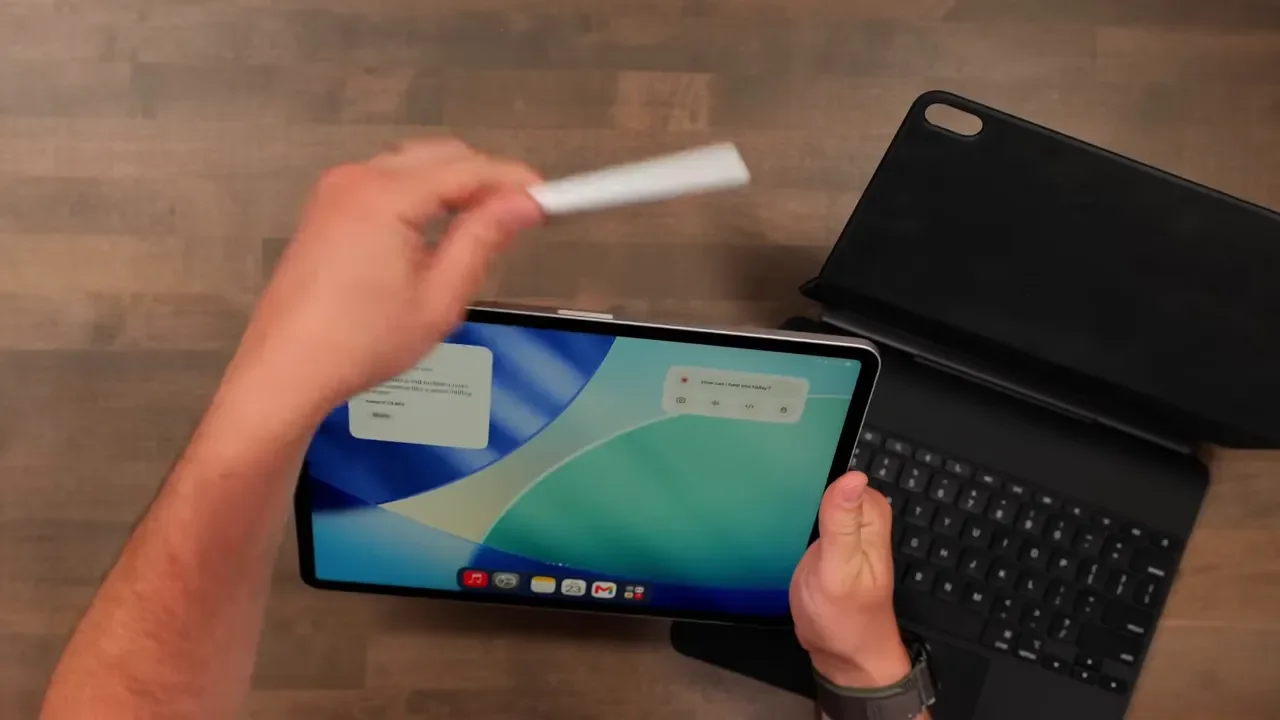
The first thing I noticed is that the 13-inch iPad Air is not especially comfortable to handhold for long periods. It is a large tablet, and that size becomes obvious pretty quickly when you are trying to use it casually. For quick interactions, reading, or short note-taking sessions, it is manageable. But if you plan to write, draw, annotate documents, or work for an extended period, I would strongly recommend using a stand, keyboard, or desk setup. At this size, the iPad really wants to live in front of you rather than in your hands.
Display Quality Tested
One major advantage of the 13-inch iPad Air is the display. It has the same 264 pixels per inch resolution as the smaller model, so it maintains a sharp image despite the larger physical size. Both models support the P3 wide color gamut, but the 13-inch Air reaches up to 600 nits of brightness, compared with 500 nits on the 11-inch. A 100-nit difference is not massive on paper, but the larger model still feels a little crisper and more premium when using it side by side. It is a really nice display for the Air lineup. Just keep expectations in check if you are coming from an iPad Pro, because this is not the same class of screen.
Refresh Rate Limitation
The biggest display compromise is the 60Hz refresh rate. For normal use, the iPad Air feels quick and responsive, especially with the M4 chip and 12GB of RAM. But scrolling, swiping between apps, and moving around iPadOS does not have the same fluid feel as an iPad Pro with ProMotion. Once you get used to 120Hz, going back to 60Hz can make the Air feel a little less polished. It is not slow, but it can look less smooth during motion. If ultra-smooth scrolling is high on your priority list, this is one of the clearest reasons to consider the Pro instead.
Aspect Ratio and Video Playback
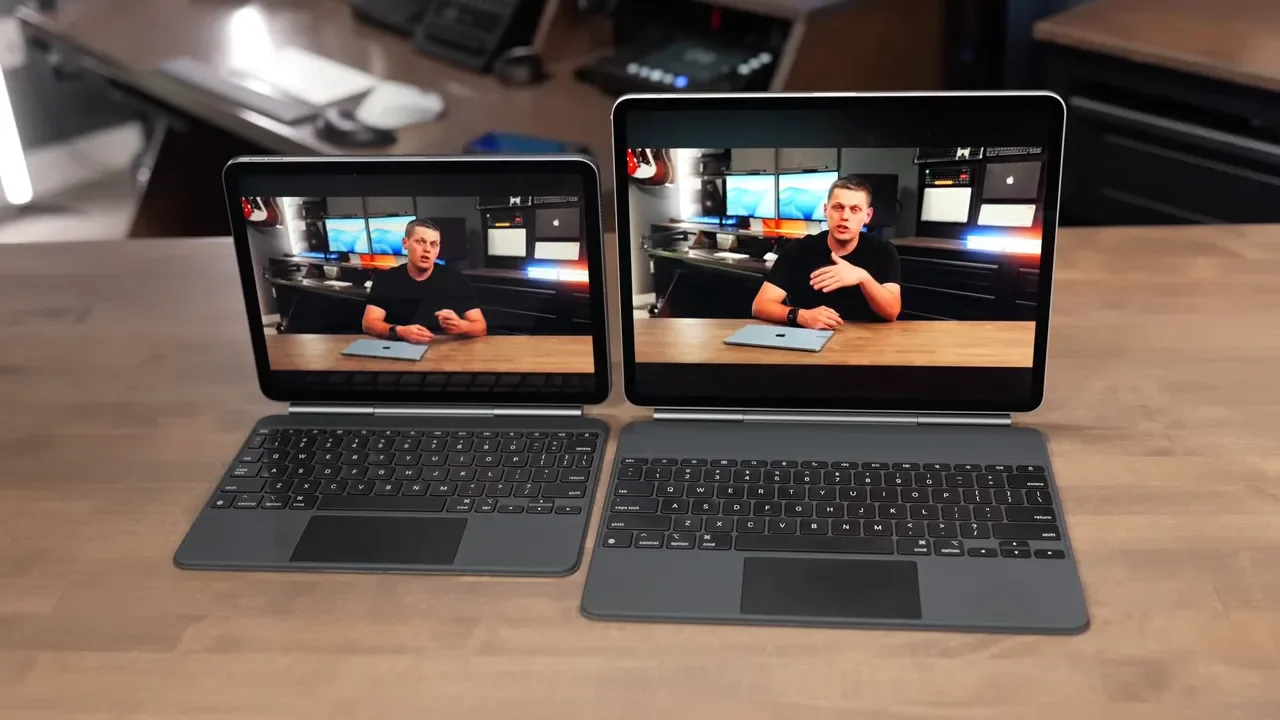
The 13-inch model uses a 4:3 aspect ratio, which is more square and closer to the shape of a standard sheet of paper. That aspect ratio is excellent for documents, notes, browsing, and split-screen work. It is less ideal if your main goal is watching widescreen video. Movies and many streaming shows will have noticeable black bars at the top and bottom. The actual video image is larger than on the 11-inch, but probably not as dramatically larger as you would expect from a 13-inch screen.
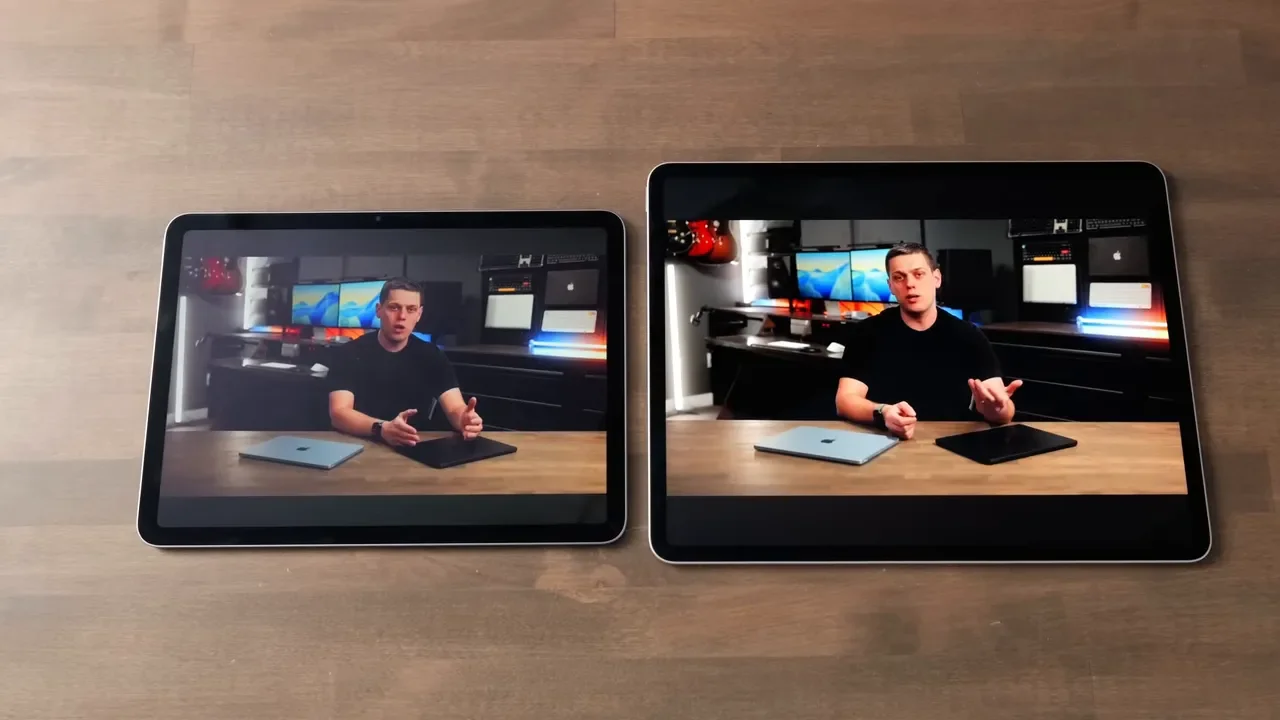
I would not buy the 13-inch iPad Air just for a bigger movie screen. The aspect ratio makes the difference more subtle than the larger dimensions suggest.
Multitasking Space
This is where the 13-inch iPad Air starts to make a lot of sense. The extra room is fantastic for having multiple apps open side by side. You can keep a web browser open for research while taking notes, referencing a document, or working in another app without everything feeling cramped. The 4:3 display is especially useful here because it can feel like having two smaller portrait-oriented iPads next to each other. Instead of squeezing two narrow windows onto the 11-inch display, the 13-inch gives each app meaningful room to breathe.
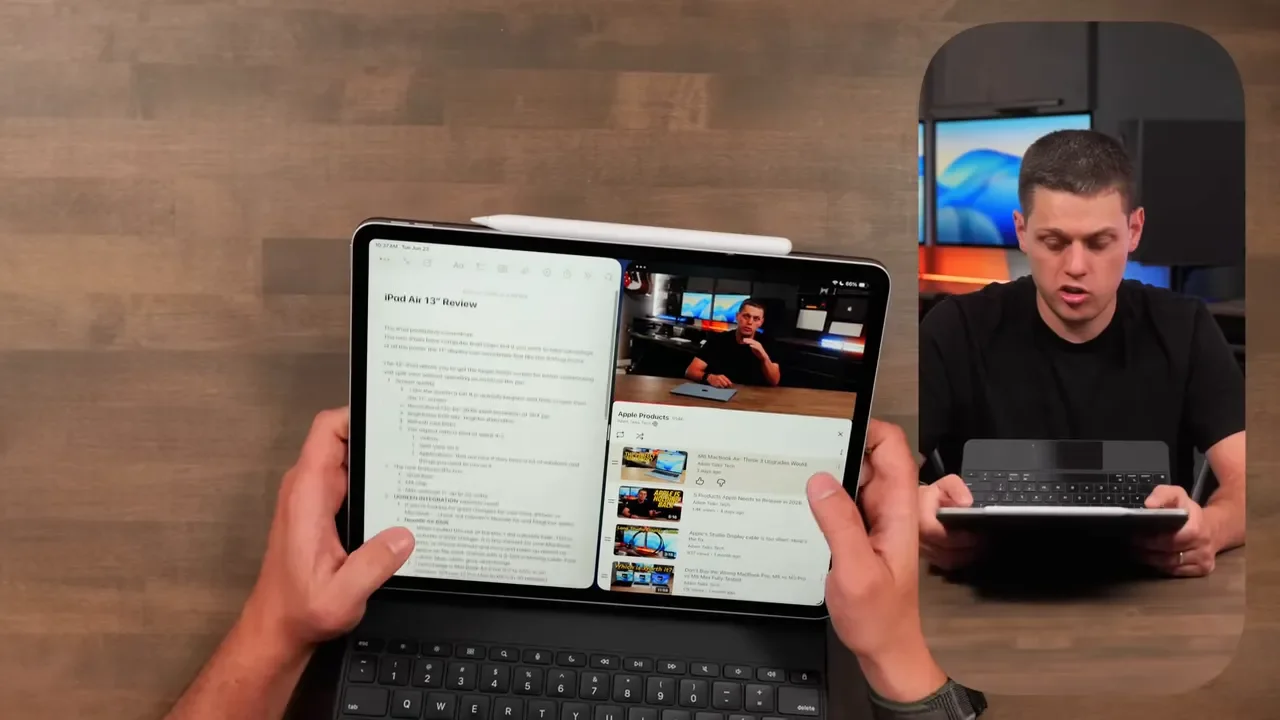
If you regularly use more than one app at a time, the large Air is a significant improvement. It is also a much better option if you are trying to use an iPad as a laptop replacement.
Creative Apps: Lightroom, Final Cut, Resolve
The extra display space is also great for creative apps such as Lightroom, Final Cut, and DaVinci Resolve. Those apps often have side panels, adjustment sliders, media browsers, timelines, and preview windows competing for space. On the 13-inch iPad Air, you can see more of your media and timeline while still keeping controls accessible. That makes photo editing and video work feel less constrained than on the 11-inch model.
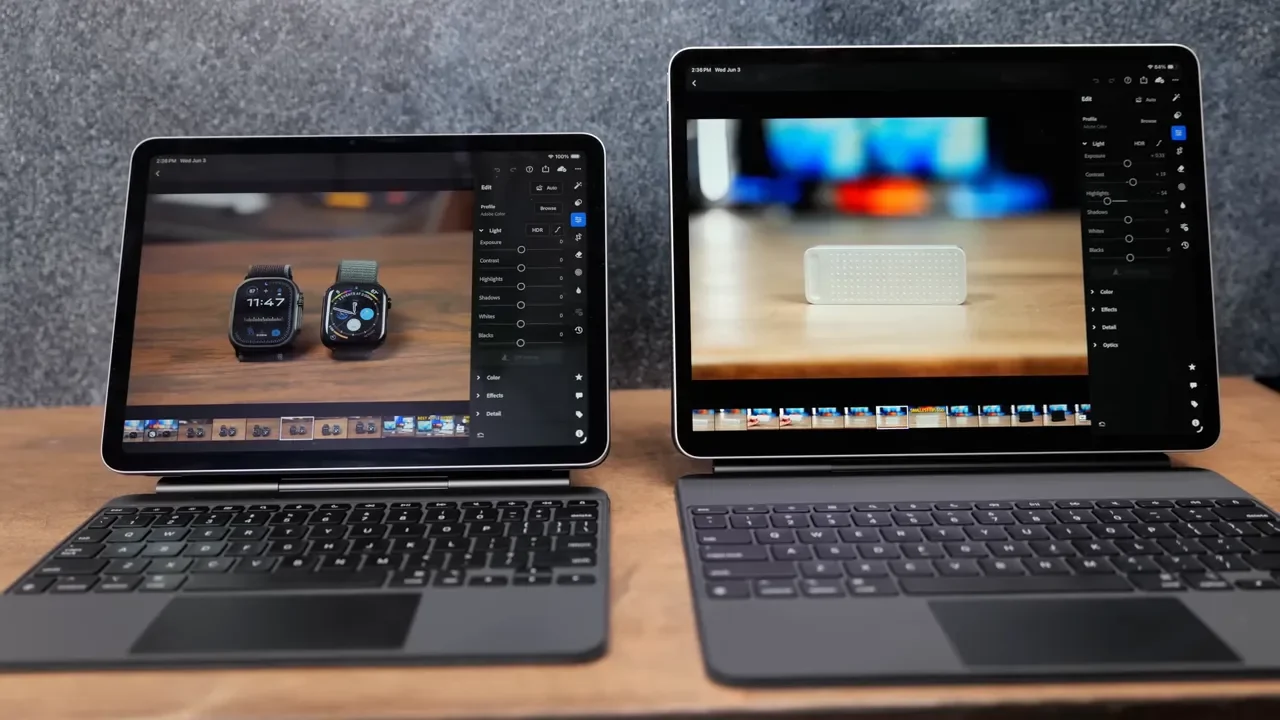
The 11-inch can absolutely run these apps, but the 13-inch makes working inside them more comfortable. It is the difference between being able to do the work and having enough space to enjoy doing it.
Gaming and Immersive Use
Gaming is another area where the 13-inch display can be a lot of fun. A larger screen creates a more immersive experience and gives games more visual impact, particularly when the iPad is sitting on a keyboard or stand. The larger model also feels more laptop-like while keeping the touchscreen and Apple Pencil experience that make the iPad unique. It is a good fit for anyone who wants a more substantial device for games and interactive apps, rather than the most portable tablet possible.
12GB RAM and the M4 Chip
The new iPad Air gets 12GB of RAM, and that upgrade makes a real difference in everyday use. Switching between apps, resizing windows, and multitasking all feel quick and smooth from a performance perspective. The M4 chip is powerful and capable, even if it is not Apple’s latest-generation chip. It gives the Air plenty of performance for demanding apps and also supports extended display functionality. Plug a monitor into the USB-C port, and you can use an external display with content that is different from what is on the iPad itself. Apple includes a 20W charger and USB-C cable, but the iPad Air can charge at up to 35W. If you want faster charging for an iPad, iPhone, MacBook, or AirPods, a compact higher-wattage charger makes much more sense.
Apple Pencil Compatibility
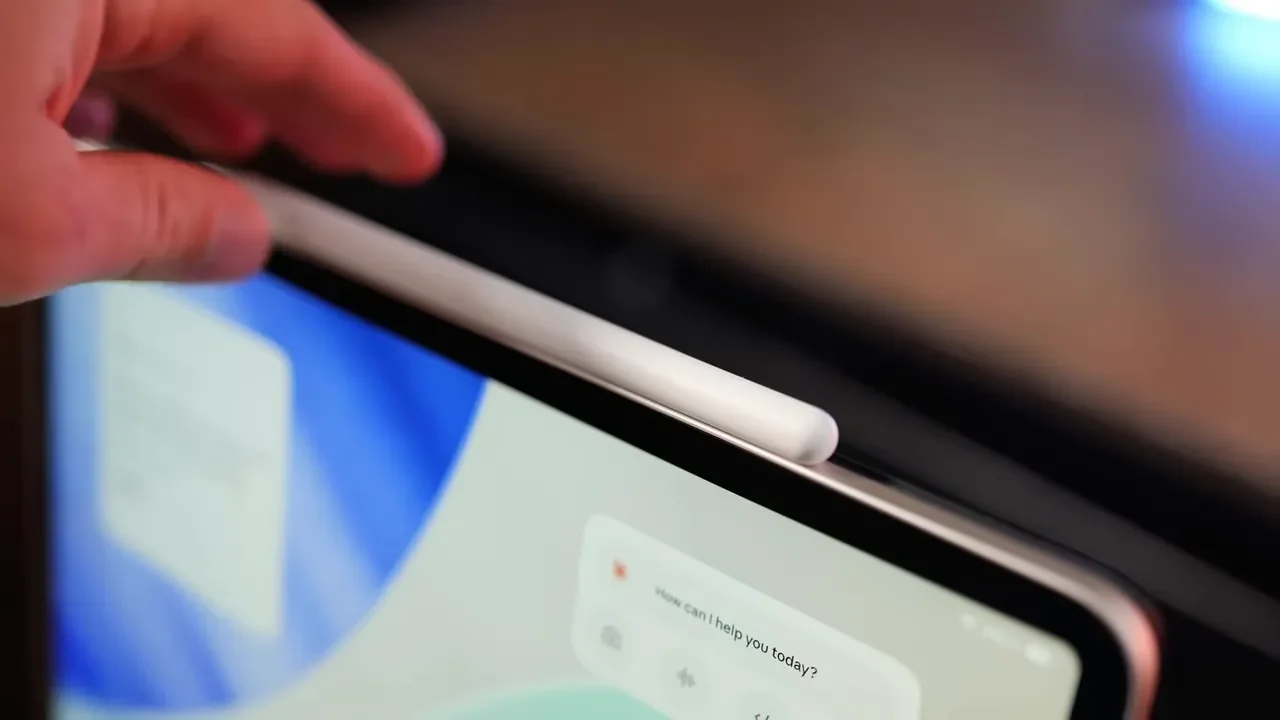
The 13-inch iPad Air works with both the Apple Pencil Pro and the Apple Pencil USB-C. I recommend the Apple Pencil Pro because magnetic pairing and charging are far more convenient than connecting a cable whenever you need to charge it. The iPad Air supports Apple Pencil features such as hover, and the fully laminated display gives writing and drawing a more direct, natural feel. For note-taking, sketching, or marking up documents, it is a very good experience.
Magic Keyboard Comparison
The Magic Keyboard changes the entire experience of the 13-inch iPad Air. The magnetic connector makes setup effortless, and you immediately gain a trackpad, physical keyboard, adjustable viewing angle, and a more laptop-like workflow. It is especially helpful for resizing apps and using iPadOS tiling shortcuts to set up multitasking quickly. There is no battery to charge, and the keyboard adds a USB-C port on the side.
The 13-inch Magic Keyboard has full-size keys that feel much closer to a MacBook Air keyboard. The 11-inch iPad Air keyboard uses smaller, more tightly packed keys, which can be less comfortable for long typing sessions. If you need one, here is the 11-inch iPad Air Magic Keyboard and the 13-inch iPad Air Magic Keyboard.
Balance and Top-Heavy Issue
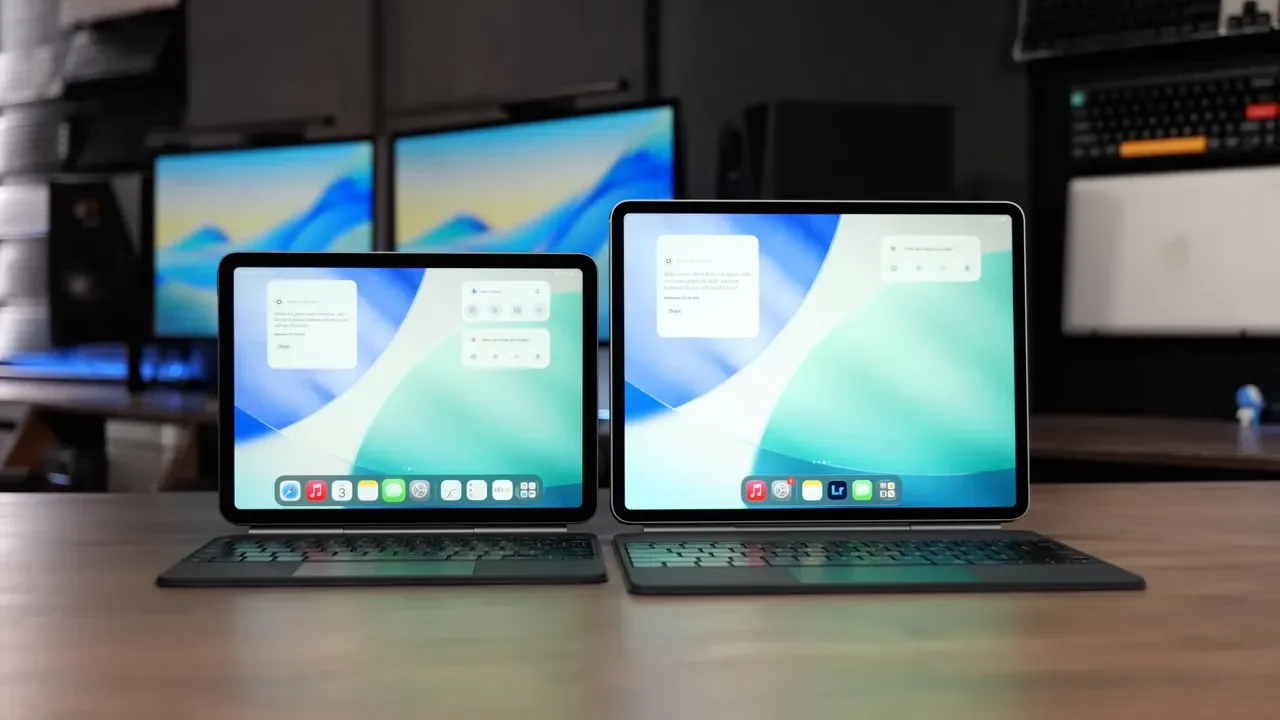
The floating design of the Magic Keyboard is great because it makes angle adjustments easy. Its solid base also means you can use it on a couch reasonably well. However, the 13-inch model is taller and more top-heavy than the 11-inch. You need to pay a little more attention to balance when it is on your lap or on a soft surface, because it can feel like it wants to tip backward. Some people have noticed the larger display shaking when they use it on their lap. That was not the main issue for me. The bigger concern was simply that the balance feels a little off compared with the smaller model.
Who Should Buy the 13-Inch
The 13-inch iPad Air M4 is the model to buy if you want to use an iPad throughout the day. It is a great fit for people who constantly multitask, keep multiple apps open, work in creative apps with lots of controls, or want their iPad to feel as close to a laptop as possible.
Buy it for:
Frequent split-screen work with research, documents, browsers, and notes.
Photo editing and video work in apps with sliders, timelines, and panels.
Gaming or immersive app experiences where a larger display matters.
Typing on a full-size Magic Keyboard.
A desk-first or laptop-replacement-style workflow.
Do not buy it simply because you want a bigger screen for video. The 4:3 aspect ratio limits the benefit for widescreen movies and shows.
Storage Still Starts at 128GB
One of the biggest downsides is storage. The iPad Air still starts at 128GB, which can fill quickly if you store movies, large apps, project files, photos, or downloaded media on the device. For a premium iPad, Apple really should raise the base storage. If you rely heavily on cloud storage, the entry model can work. But if you want to keep a lot of files locally, 128GB may become frustrating much faster than expected.
Missing iPad Pro Features
Compared with the iPad Pro, there are a few features you may miss:
A brighter display: The Pro’s brighter XDR screen matters more outdoors and in bright environments.
ProMotion: The 120Hz refresh rate makes scrolling and animations noticeably smoother.
More included storage: The iPad Pro starts with more storage than the Air.
A more premium Magic Keyboard: The Pro keyboard has an aluminum top case and backlit keys.
The lack of backlit keys on the iPad Air Magic Keyboard is especially disappointing. It is a feature that should have been included.
13-Inch Air Vs iPad Pro
If you already know that you need the large display, the 13-inch iPad Air M4 is a great value as long as you do not care much about ProMotion, extra brightness, or storing a lot of files locally. The iPad Pro makes more sense if smooth 120Hz scrolling is important to you or if you regularly use an iPad outdoors, where the brighter XDR display becomes more useful. It also offers the more durable keyboard design with its aluminum top and backlit keys.
The iPad Air saves a meaningful amount of money compared with the Pro, though, and its M4 chip, 12GB of RAM, large display, Apple Pencil support, and extended display capability still make it a very capable machine.
My Honest Verdict
After using the 13-inch iPad Air M4, I have really liked the overall experience. The larger screen is excellent for multitasking and makes everything feel bigger and more comfortable when several windows are open. That said, the 11-inch iPad Air still does everything I personally need from an iPad. I value the smaller, lighter, more portable size, and I have gotten used to the smaller keyboard. Most of the time, I use one main app or a browser with a small notes window beside it, and the 11-inch handles that just fine. The 13-inch is better for a work-first iPad setup. The 11-inch remains the better all-around option if portability matters most.
Outro and Final Thoughts
The 13-inch iPad Air M4 is a compelling choice for multitasking, creative work, gaming, and anyone who wants an iPad that feels closer to a laptop while preserving the touchscreen and Apple Pencil experience. It is not the best choice for everyone. Its size makes it less comfortable to hold, its 60Hz display is a real step down from the Pro, the 4:3 ratio is not ideal for widescreen video, and 128GB of starting storage is still too limiting for many people.
If your priority is the most portable iPad, stick with the 11-inch. If your priority is workspace, split-screen productivity, and a larger canvas for apps, the 13-inch Air is absolutely worth considering. For personalized help choosing the right iPad, visit the iPad buying advice page. You can also explore my full video-making kit and gear recommendations.