Apple Magic Keyboard with Touch ID: Compact vs Full-Size Comparison
Some of the links in this post are affiliate links, which means I may earn a small commission if you choose to make a purchase at no extra cost to you. As an Amazon Associate, I earn from qualifying purchases. Read my full Ethics & Affiliate Relationship Disclaimer.
If you use a MacBook, you already know what makes Apple’s keyboard layout so easy to like. The keys are low profile, the shortcuts are familiar, and everything feels instantly natural. The problem starts when you move into a desktop setup with a Mac mini, Mac Studio, or a docked MacBook. Suddenly, you can lose two of the best parts of the laptop experience: Touch ID and that familiar Apple keyboard feel.
That is exactly where the Apple Magic Keyboard lineup comes in. The tricky part is figuring out which one actually makes sense for your setup, because Apple offers several versions, and the pricing jumps quickly depending on whether you want Touch ID, a numeric keypad, or the black key version.
If you are trying to choose between the compact Apple Magic Keyboard with Touch ID and the full-size Apple Magic Keyboard with Touch ID and Numeric Keypad, here is the practical breakdown.
The Magic Keyboard Lineup and Pricing
Apple’s keyboard options are a little more fragmented than they first appear. There is not just one Magic Keyboard. There are multiple versions, and the price spread is fairly wide.
Magic Keyboard without Touch ID: about $100
Compact Magic Keyboard with Touch ID: about $150
Full-size Magic Keyboard with Numeric Keypad, no Touch ID: about $130
Full-size Magic Keyboard with Numeric Keypad and Touch ID in white: about $180
Full-size Magic Keyboard with Numeric Keypad and Touch ID in black: about $200
So yes, you definitely pay extra for two things:
Touch ID
The full-size layout with number pad
That makes the buying decision a little more important, because this is one of those Apple accessories where a small feature change can add up to a pretty big price jump.
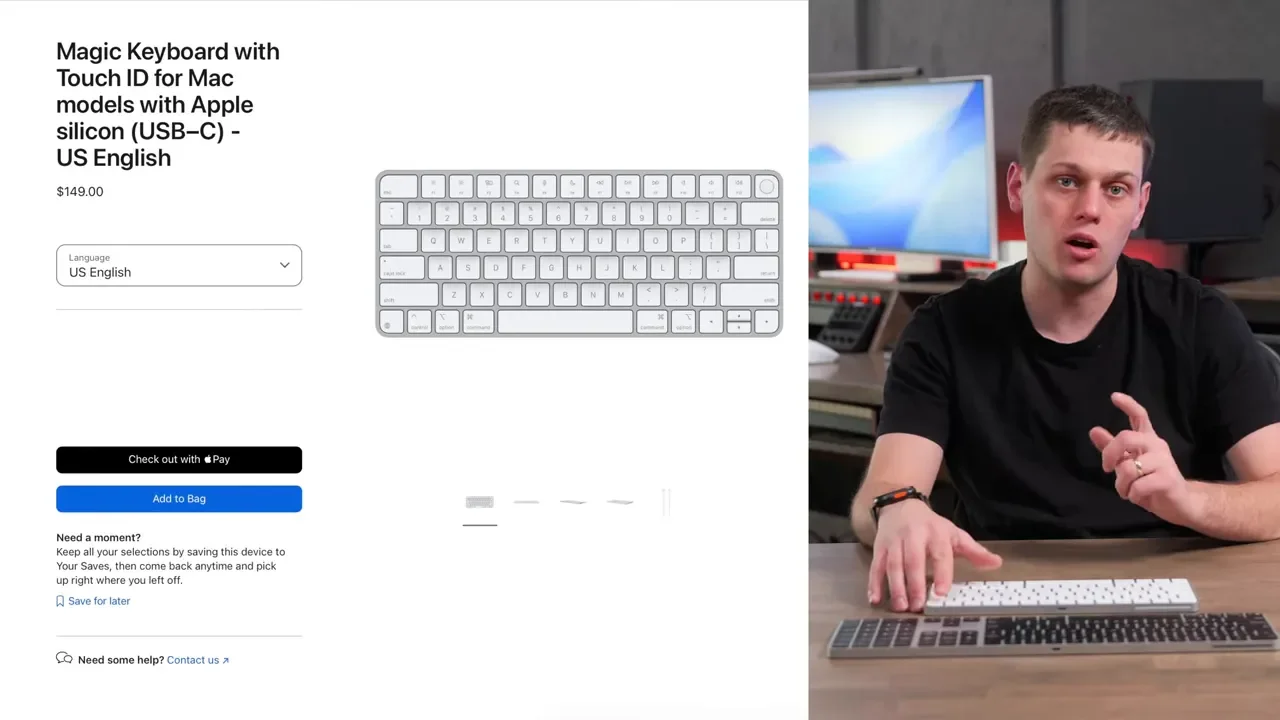
Why Touch ID Matters More Than You Might Think
If you are deciding whether Touch ID is worth the extra money, I would say yes, pretty emphatically. Touch ID is one of those features you stop thinking about until it is gone. On the Magic Keyboard, it lets you:
Unlock your Mac quickly
Access saved passwords
Approve Apple Pay purchases
Use authentication prompts without typing your password constantly
For a Mac mini or Mac Studio, this is especially important because the Magic Keyboard is the only way to add Touch ID to those desktop Macs.
There is one compatibility catch: Touch ID on the Magic Keyboard requires Apple silicon. That means an M1 Mac or newer. If you are not sure what your Mac has, open About This Mac and check the chip listed there.
If you are using a MacBook in a desktop setup, the keyboard can still pair and work normally, but there is a limitation worth knowing. If you want to use the laptop’s own Touch ID, the MacBook needs to be open. You cannot keep it in clamshell mode and still reach for that built-in fingerprint sensor. That is one more reason the external Touch ID keyboard is such a nice upgrade for a docked setup.
How Pairing Works
Apple handles pairing a little differently than most Bluetooth keyboards. There is no dedicated pairing button.
To pair a Magic Keyboard with your Mac:
Plug a USB-C cable into the keyboard.
Connect that cable to your Mac.
The keyboard pairs automatically.
That same connection also means you can use the keyboard in wired mode if you want to avoid thinking about battery life. Once you unplug the cable, the keyboard stays paired and continues working wirelessly.
If you want to switch the keyboard to another device, like an iPad, the process is a little less elegant. First, go into the Bluetooth settings on the current Mac and forget the keyboard. Then toggle the keyboard’s power switch off and on a couple of times to put it into pairing mode. Apple does at least include a nice braided USB-C to USB-C cable in the box, which is a small but appreciated touch.
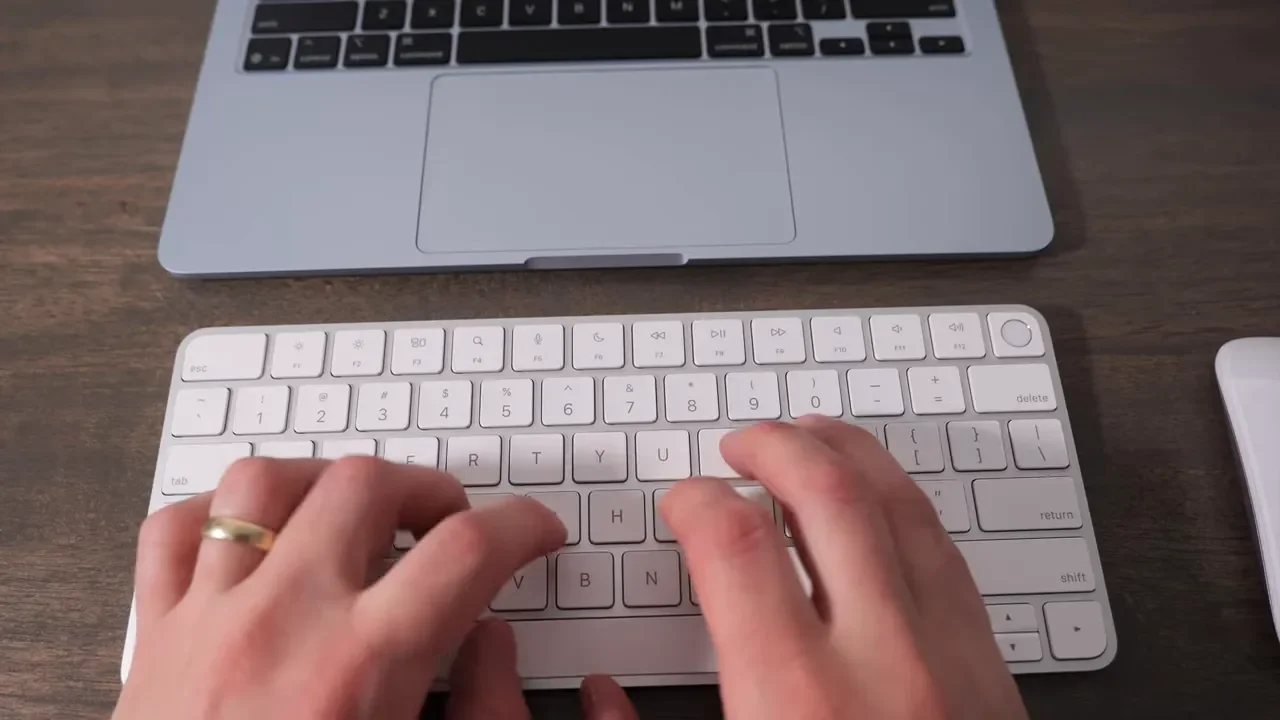
Build Quality and Typing Feel
Both the compact and full-size Magic Keyboard share the same basic construction:
Aluminum body
Plastic keycaps
Very quiet, low-profile switches
The typing feel is extremely close to a modern MacBook keyboard. If that is what you want on your desk, Apple absolutely nails it here. Typing is fast, light, and accurate. Key travel is minimal, but not so shallow that every press feels vague. There is enough feedback to know you completed the keystroke, without turning the keyboard into something loud or fatiguing.
Just as important, the compact and full-size versions feel identical when typing. There is no penalty in switch feel if you go smaller, and there is no premium typing upgrade if you go bigger. The core experience is the same.
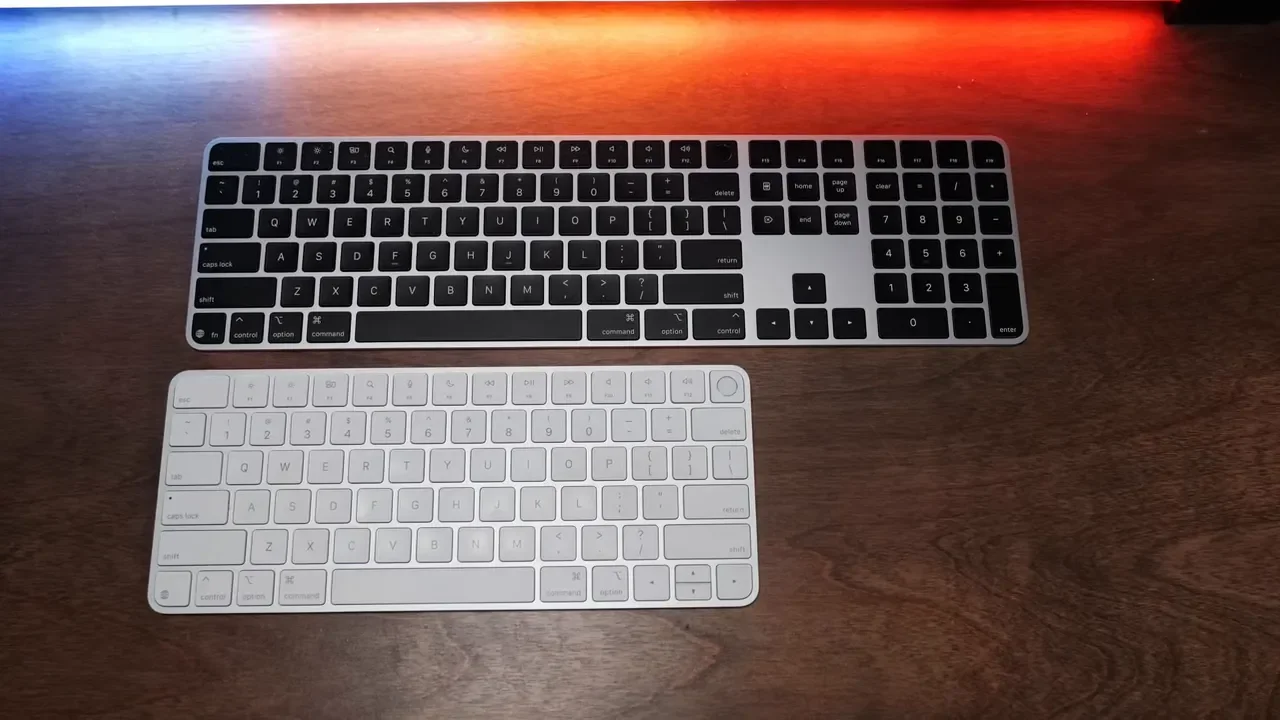
Compact vs. Full-Size Layout: What Actually Changes
The biggest difference between these two keyboards is not the typing feel. It is what happens on the right side of the board.
What The Compact Magic Keyboard Gives Up
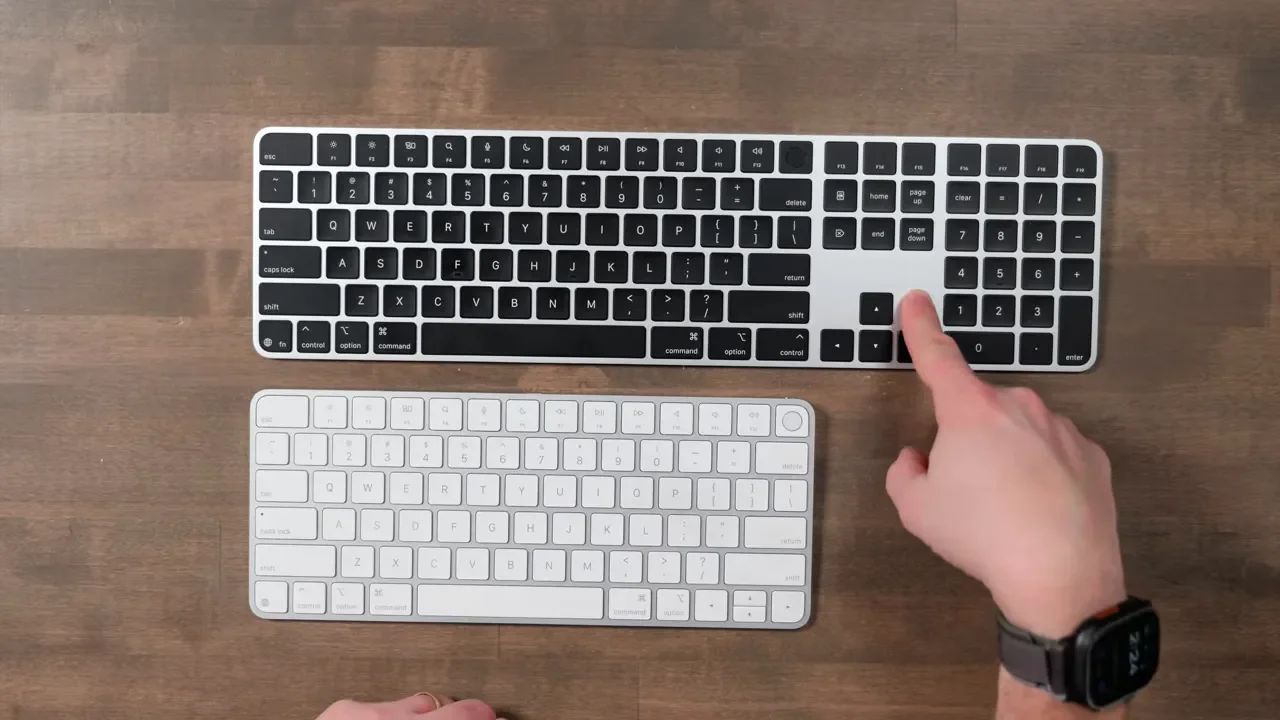
The compact model saves desk space, but there are a few layout compromises:
No right-side Control key
Slightly smaller Command and Option keys on the right
Half-height Up and Down arrow keys
No number pad
No dedicated Home, End, Page Up, or Page Down keys
What The Full-Size Magic Keyboard Adds
The full-size model stretches the same design outward and adds:
Numeric keypad
Full-size arrow keys
Dedicated Home, End, Page Up, and Page Down keys
Extra shortcut/navigation keys in the middle section
A right-side Control key
If you work in spreadsheets, accounting software, or anything data-entry heavy, the number pad is the obvious reason to go full-size. But the navigation keys matter too. Home, End, Page Up, and Page Down are genuinely useful for coding, document navigation, and spreadsheet work.
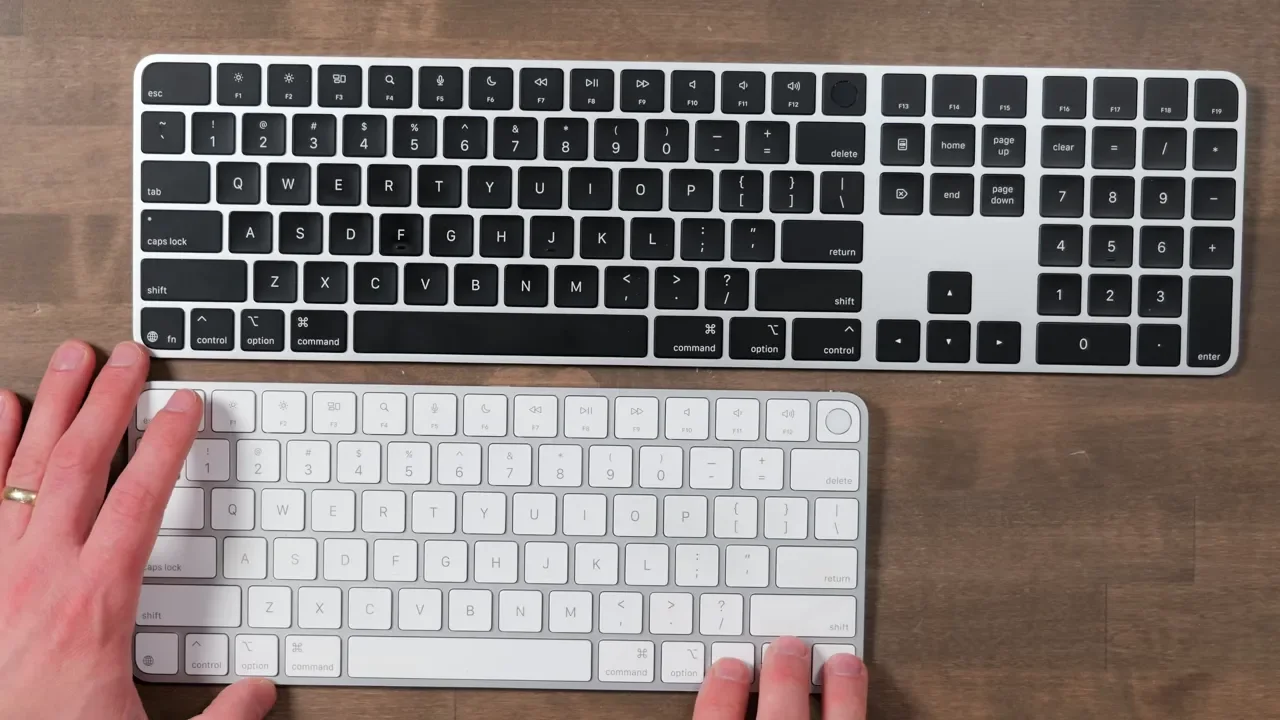
The Function Row and Globe Key Are A Big Deal
One of the best parts of the Apple Magic Keyboard is that the function row actually feels like a natural extension of macOS instead of a generic Bluetooth keyboard trying its best. Both models include the same Apple-style top row, matching what you would find on a MacBook, including:
Dictation
Do Not Disturb
Brightness, media, and other standard macOS controls
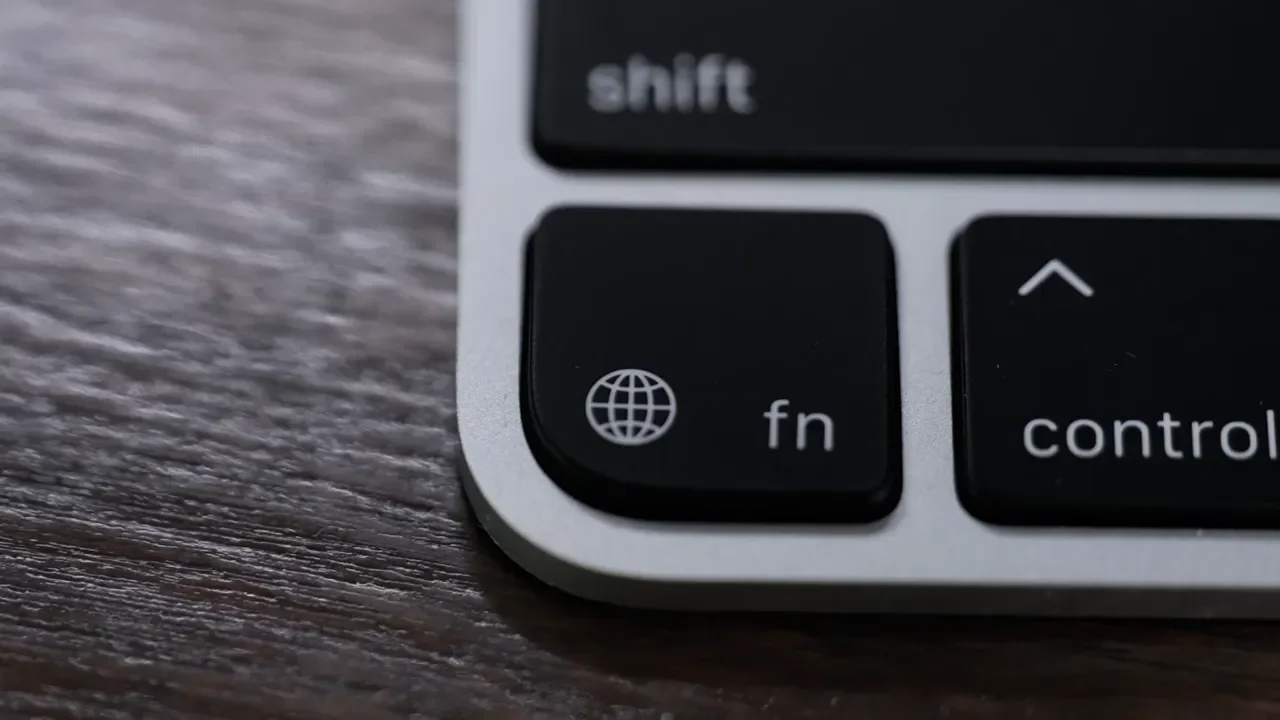
And then there is the Globe key. This is one of the more underrated advantages of Apple’s own keyboards. These are effectively the only Bluetooth keyboards that give you a fully functional Globe key experience in macOS.
A favorite shortcut here is for window tiling. Press and hold Globe + Control + an arrow key, and you can move a window to the left, right, top, or bottom of the screen. It is a super quick way to build a dual-window workflow without fiddling around with trackpad gestures or menu options.
If your goal is to make a desktop Mac feel as seamless as a MacBook, this kind of native shortcut support is exactly why people buy Apple’s keyboard instead of a third-party alternative.
White Keys vs. Black Keys
This is partly functional and partly aesthetic, but it matters if you care how your desk looks. The full-size Magic Keyboard is available with either:
White keys
Black keys
The compact Magic Keyboard only comes with white keys. That means if you want the darker, more space black style to match your Mac setup, the full-size version is your only option. It is a little frustrating, honestly, because a black-key compact Magic Keyboard would probably be the sweet spot for a lot of people.
The Ergonomic Tradeoff Nobody Talks About Enough
This is where the decision gets more personal. The full-size keyboard is more capable on paper. It gives you more keys, better navigation, and a number pad. But there is a real ergonomic downside: it pushes your mouse farther away.
If you use a mouse heavily, that extra width matters more than you might expect. With the compact keyboard, your mouse can sit closer to your typing position, so going back and forth between keyboard shortcuts and mouse input feels faster and more natural.
It almost sounds lazy to say, but after spending time with a number pad keyboard, you really do notice how much more your arm has to travel across the desk. The wider board changes your whole posture a bit. So while the full-size version looks like the “more serious” option, the compact version can actually be the more comfortable one for a lot of setups, especially if:
You use a mouse all day
You do not need a number pad constantly
You prefer a tighter, cleaner desk layout
Who Should Buy The Full-Size Magic Keyboard?
The full-size Apple Magic Keyboard with Touch ID and Numeric Keypad makes the most sense if you want the Apple keyboard experience but need the added functionality.
It is the better choice if you:
Live in Excel or spreadsheets
Need a number pad available all the time
Prefer full-size arrow keys
Rely on Home, End, Page Up, and Page Down
Work in coding, finance, accounting, or data-heavy apps
Want the black key aesthetic
If you are a coder, a CPA, or someone who spends all day punching numbers into spreadsheets, the larger keyboard earns its extra width.
Who Should Buy The Compact Magic Keyboard?
The compact model is the better buy for more people than you might initially think.
It is a great fit if you:
Do not care about a number pad
Can live without dedicated Home, End, Page Up, and Page Down keys
Are okay with the half-height Up and Down arrows
Want your mouse closer to your keyboard
Want a setup that feels more like using a MacBook on a desk
You still get the most important Apple-specific features:
Touch ID
Globe key shortcuts
The same function row layout
The same typing feel
That is why the compact version is such a strong option. It keeps almost all of the Magic Keyboard experience while taking up less space and often feeling better in a mouse-heavy workflow.
What You Are Really Paying For With Apple’s Magic Keyboard
This is probably the most important way to think about the Magic Keyboard lineup. You are not buying one of these because it has mechanical switches. You are not buying it for niche enthusiast features. And you are probably not buying it because it is the absolute most luxurious keyboard in terms of raw materials or switch character. You buy a Magic Keyboard for seamless macOS integration.
That means:
Native Apple layout
Matching MacBook-style function keys
Real Globe key support
Touch ID integration
Easy wired and wireless use
A typing experience that feels immediately familiar if you already use a MacBook
If your goal is to make your desk feel exactly like your MacBook, both of these keyboards do that extremely well.
Final Verdict: Compact Or Full-Size?
Both are excellent, and they overlap a lot more than they differ. The full-size Magic Keyboard is basically the same keyboard, just stretched wider with more keys. That makes it the right choice for spreadsheet-heavy work, coding, navigation-heavy tasks, and anyone who really wants full arrow keys or a number pad.
The compact Magic Keyboard is the smarter choice if you value desk space, better mouse ergonomics, and a setup that feels as close as possible to a MacBook keyboard without dragging extra width into the equation.
If I had to simplify it:
Choose full-size for numbers, navigation, and aesthetics.
Choose compact for ergonomics, simplicity, and the cleanest everyday desktop experience.
Either way, if Touch ID matters to you, make sure you are pairing it with an Apple silicon Mac. That one detail makes all the difference.