CalDigit Thunderbolt 5 Dock Comparison: Element 5 vs TS5 vs TS5 Plus
Some of the links in this post are affiliate links, which means I may earn a small commission if you choose to make a purchase at no extra cost to you. As an Amazon Associate, I earn from qualifying purchases. Read my full Ethics & Affiliate Relationship Disclaimer.
CalDigit’s Thunderbolt 5 lineup gives you three very different options that all solve the same core problem: adding high-speed ports, display support, charging, and bandwidth to your setup without turning your desk into adapter chaos. But these are not interchangeable products.
The Element 5 is the compact, simpler option. The TS5 adds more power and more practical ports. The TS5 Plus is the one to look at if you need maximum USB connectivity, faster networking, and more charging headroom for accessories. I’ve spent time using all three with a Mac Studio setup and laptops, and the choice really comes down to how much host charging you need, whether you need Ethernet, SD card slots, or audio jacks built in, how many Thunderbolt devices vs USB devices you actually use, and whether your workflow benefits from 2.5GbE or 10GbE networking.
All Three Docks Solve The Same Basic Problem
Before getting into the differences, it helps to start with what these have in common. All three are Thunderbolt 5 docks or hubs designed to keep your computer connected to external displays, SSDs, storage, and peripherals through a single main connection. They also all include a Thunderbolt 5 cable in the box.
The TS5 and TS5 Plus step things up a bit with a nicer braided cable, which is a small touch, but a nice one. They’re also backward compatible with USB and older Thunderbolt devices. That is important, because a lot of real-world desks are still a mix of newer and older gear. Just keep in mind that the total bandwidth you actually get depends on your host computer and the devices connected to it.
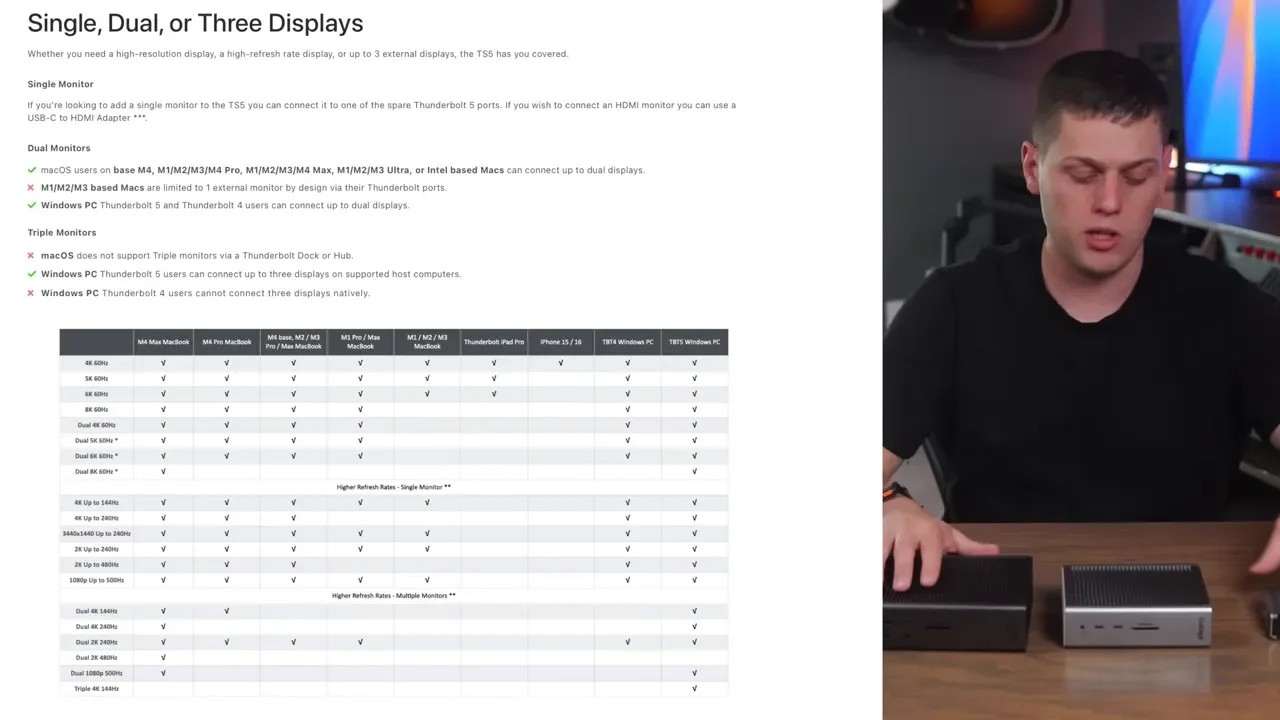
Display support also depends on platform:
Mac: up to two external displays
Older M-series Macs: you may be limited to one external display
Windows: up to three external displays
Power Is The First Big Separator
If you are trying to decide between these quickly, start with power delivery.
Element 5 Power
The Element 5 provides up to 90W of power to the host computer. It also has the smallest power adapter and the smallest overall footprint, which makes it the easiest one to travel with or tuck into a tighter desk setup.
For a Mac mini or Mac Studio, that lower host charging number usually does not matter much. For laptops, it matters more.
TS5 Power
The TS5 provides up to 140W to the host device. That is a major step up if you want one cable handling both your dock and your laptop charging.
It also gives you three downstream Thunderbolt ports on the back, each providing up to 15W, and all the USB ports provide up to 7.5W. On the front, you also get a 20W USB-C port.
TS5 Plus Power
The TS5 Plus also provides up to 140W to the host computer, but the overall power budget is larger thanks to its 330W power adapter, compared to the TS5’s 240W adapter.
That extra power budget shows up in the ports:
Host Thunderbolt 5 port: up to 140W to the computer
Two downstream Thunderbolt ports: up to 36W each
Rear USB-C ports: up to 7.5W each
Two rear USB-A ports: up to 7.5W each
Front USB-C port: 36W, which is especially handy for fast charging an iPad
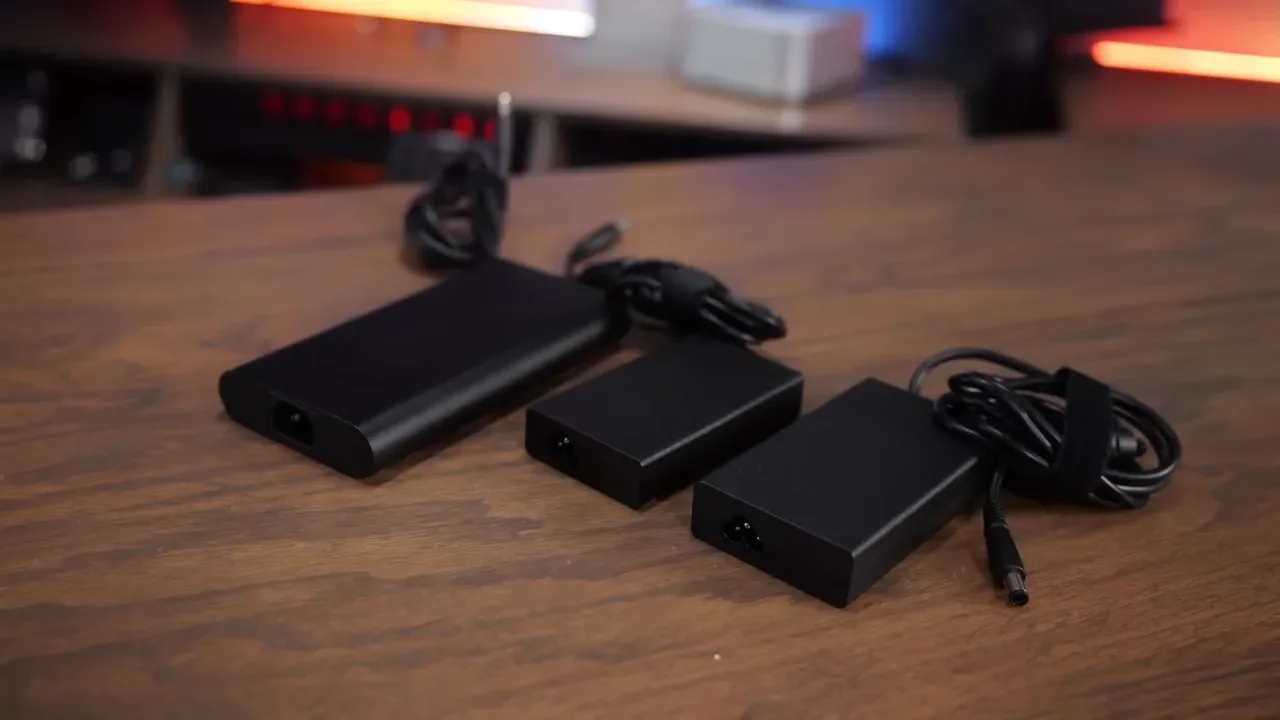
So if your setup includes power-hungry USB or Thunderbolt accessories, the TS5 Plus has the most room to breathe. If it’s mostly about charging a laptop and keeping the basics connected, the TS5 may be enough. If your desktop setup already has its own power sorted out, the Element 5 can still make a lot of sense.
Port Layout Is Where The Real Buying Decision Happens
The easiest way to choose between these is not just to compare specs on paper. It is to look at the devices you actually plug in every day.
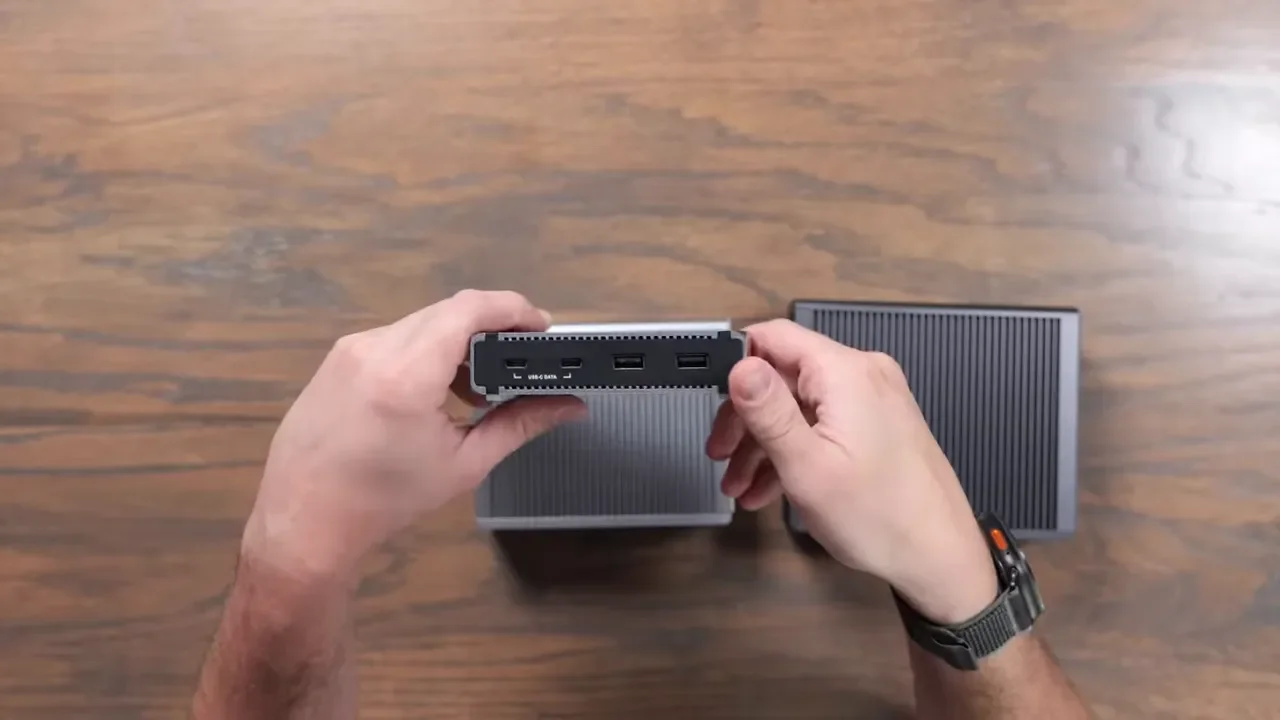
CalDigit Element 5 Ports
The Element 5 keeps things simple:
1 Thunderbolt host port on the side
3 downstream Thunderbolt ports on the back
1 rear USB-A port
2 additional USB-C ports
2 additional USB-A ports
This is a really flexible option if all you need is to add a few fast ports and keep a clean setup. It works especially well with a Mac mini or Mac Studio, where you may already have built-in Ethernet and audio available on the computer itself. That is why the Element 5 can feel surprisingly complete even though it is the least expensive option in the lineup.
CalDigit TS5 Ports
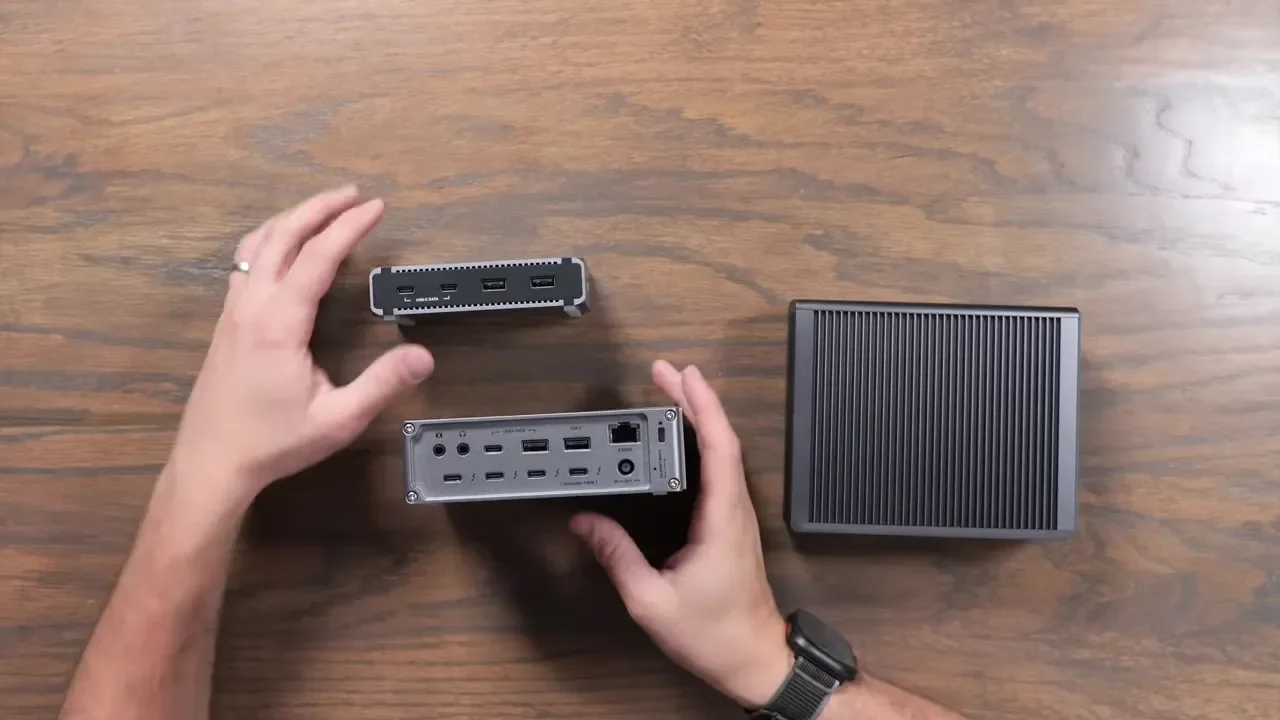
The TS5 is where CalDigit starts adding the practical “docking station” features a lot of people actually want.
Compared to the Element 5, you get:
One fewer USB-A port
One additional USB-C port
The same number of Thunderbolt ports
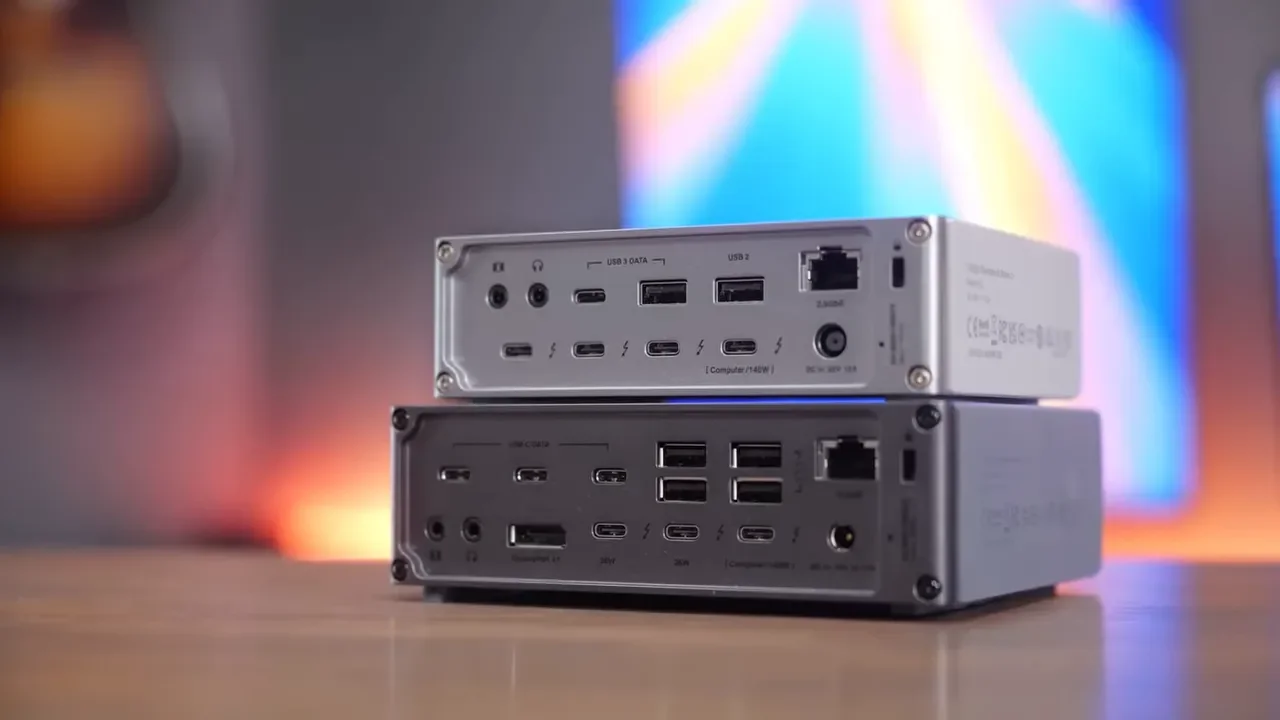
2.5 Gigabit Ethernet
SD card slots
Microphone and headset/audio connections
That combination makes the TS5 much more appealing if your dock needs to be the central connection point for a laptop. Built-in Ethernet means no extra adapter. Front-facing card slots are useful if you regularly import media. Audio ports can simplify your setup if you want to connect a headset or speakers without relying on a separate USB audio interface.
The tradeoff is size. The TS5 has a larger footprint than the Element 5, but the added functionality will be worth it for a lot of desks.
CalDigit TS5 Plus Ports
The TS5 Plus goes in a slightly different direction.
It adds:
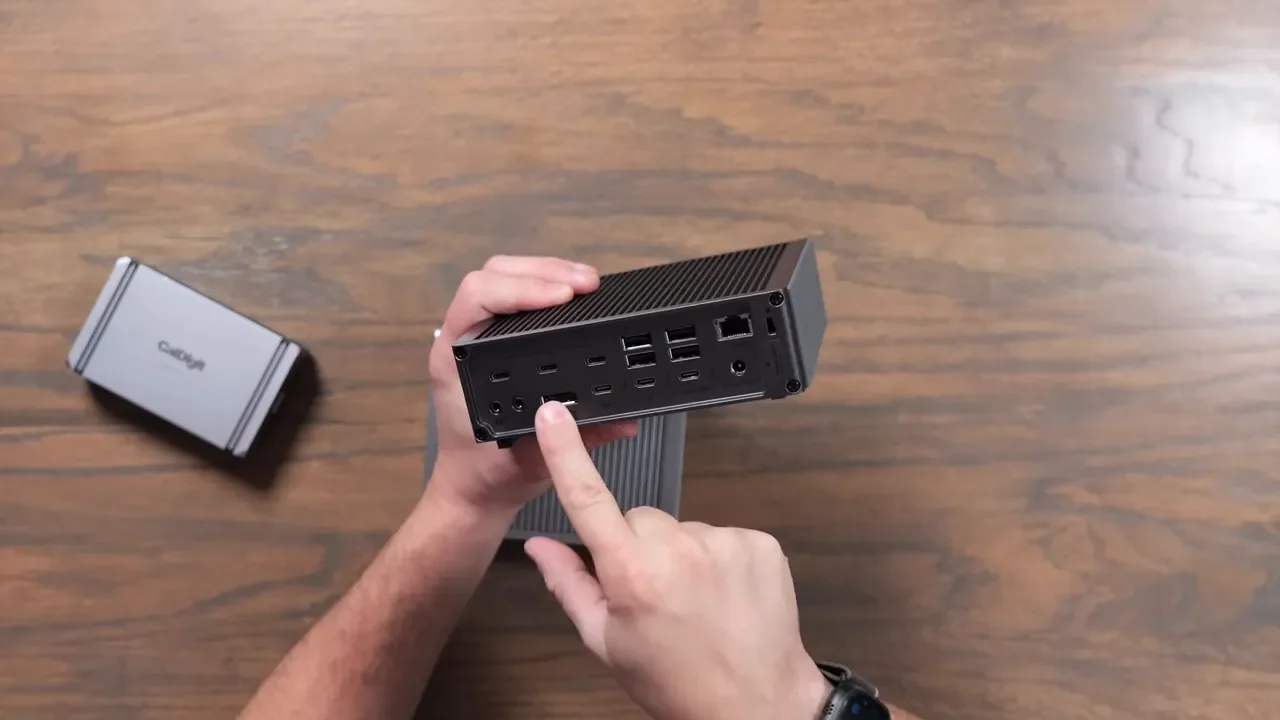
More USB-A ports
A couple more USB-C ports
DisplayPort
10 Gigabit Ethernet
A front USB-A port
A 36W front USB-C charging port
But there is one important compromise: the TS5 Plus has two downstream Thunderbolt ports, while the Element 5 and TS5 both give you three. That means the TS5 Plus is not automatically the best choice for everyone. If your setup depends heavily on Thunderbolt displays or multiple Thunderbolt accessories, losing one downstream Thunderbolt port might actually matter more than gaining extra USB.
That was one of the main things I noticed using it. If your displays already connect over USB-C or Thunderbolt, the added DisplayPort may not do much for you, and you may end up wishing you had that third Thunderbolt port instead.
Which Dock Is Best For Mac Users?
For Mac users, the decision often comes down to whether the dock is supporting a desktop Mac or a laptop.
Element 5 With A Mac Mini Or Mac Studio
This is one of the strongest use cases for the Element 5. If you already have Ethernet on your Mac mini or Mac Studio, and you can use the built-in headphone jack when needed, the Element 5 is a very clean way to add more high-speed ports without paying for features you may not need.
It is especially good if you want to connect Apple Studio Displays or other Thunderbolt displays, because you still get the same number of downstream Thunderbolt ports as the TS5.
TS5 With A MacBook
If your main machine is a laptop, the TS5 starts looking a lot more compelling. The 140W host charging, built-in Ethernet, front SD card slots, and audio I/O all make it more of a true docking station. You plug in one cable and get a much more complete desktop experience.
TS5 Plus With A Mac Setup Full Of USB Devices
If your desk has a lot of USB-based gear, the TS5 Plus can be the best fit. This is the one I would lean toward if you are keeping things like a keyboard, audio interface, older flash drives, music gear, or other USB accessories plugged in all the time. It is also the best fit if your storage or network setup includes a NAS and you want the advantage of 10GbE for faster file transfers.
The TS5 Plus Has A Major Advantage For USB-Heavy Desks
One of the more important technical differences on the TS5 Plus is that it uses dual USB controllers. In practical terms, that means it is less likely to run into bottlenecks when you have lots of USB devices connected at once. If your desk is full of older accessories, bus-powered peripherals, flash drives, interfaces, and USB gear that all need to coexist, that matters.
This is a big reason the TS5 Plus makes sense for someone with lots of legacy devices. It is less about being the “best” dock in a generic sense and more about being the right dock for a USB-dense setup.
Pricing
Here is how the lineup is priced:
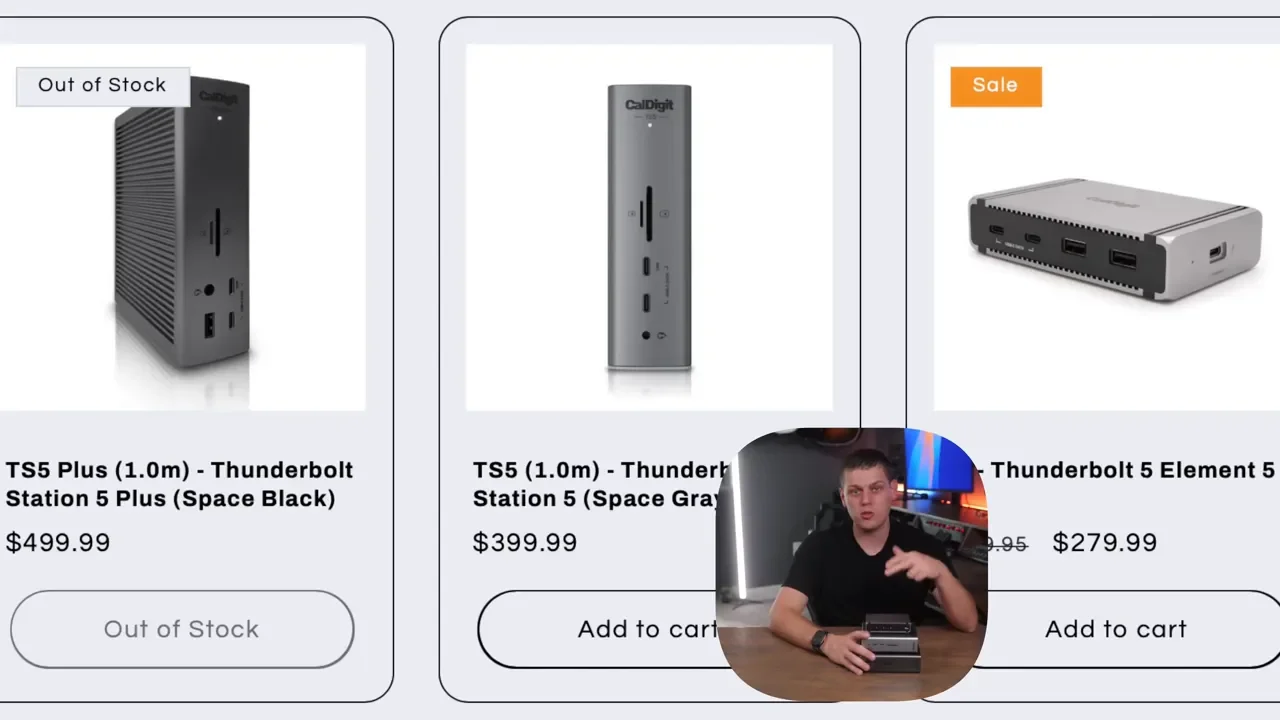
CalDigit Element 5: $280
CalDigit TS5: $400
CalDigit TS5 Plus: $500
The gap between them is significant enough that it is worth being honest about what you actually need. It is very easy to overbuy in this category.
How To Choose The Right CalDigit Thunderbolt 5 Dock
If you are stuck between these three, this is the framework I would use.
Choose The Element 5 If...
You want the smallest and most travel-friendly option
You mainly need a few more fast ports
You do not need built-in Ethernet
You are pairing it with a Mac mini or Mac Studio that already covers Ethernet and audio
You use Thunderbolt displays and want to keep three downstream Thunderbolt ports available
You want the most affordable option in the lineup
The Element 5 is the best simple expansion option. It does not try to be everything. It just adds fast ports in a compact package, and for a lot of setups, that is enough.
Choose The TS5 If...
You need 140W host charging for a laptop
You want built-in 2.5GbE Ethernet
You want SD card slots on the front
You want audio ports for a headset, mic, or speakers
You still want three downstream Thunderbolt ports
You do not need 10GbE
The TS5 is the sweet spot for a lot of people. It gives you the docking station features most desks actually need without giving up Thunderbolt flexibility.
Choose The TS5 Plus If...
You have more USB devices than Thunderbolt devices
You want 10 Gigabit Ethernet for a NAS or faster network storage
You want a built-in DisplayPort connection
You want the most charging headroom for accessories
You benefit from dual USB controllers to reduce USB bottlenecks
You like having front-facing charging options, including a 36W USB-C port
The TS5 Plus is really the specialist pick. It is the one to buy when your desk is packed with USB peripherals, your network matters, and you want the highest-capacity dock in the group.
The Simplest Way To Make The Right Decision
If you want to avoid buyer’s remorse, do this before picking one:
List every device you want connected full time.
Separate them into Thunderbolt, USB-C, USB-A, display, Ethernet, and audio.
Check whether your computer already provides some of those ports well enough on its own.
Figure out whether your laptop needs 90W or whether you really want 140W.
Decide whether 2.5GbE is enough or whether you will actually benefit from 10GbE.
Count how many of your critical devices are Thunderbolt versus USB.
That last point matters a lot. If your setup is centered around Thunderbolt storage and Thunderbolt displays, the Element 5 or TS5 may actually be a better fit than the more expensive TS5 Plus. If your desk is loaded with USB accessories and network storage, the TS5 Plus starts to justify its price very quickly.
My Take On Each Dock
If I had to summarize each one in a sentence:
Element 5: best for simple expansion, compact setups, desktops, and anyone who mainly needs more fast ports
TS5: best all-around docking station for most laptop users who want more power and more practical built-in connectivity
TS5 Plus: best for USB-heavy workflows, 10GbE networking, and setups that need maximum accessory support
The nice thing about this lineup is that each model has a pretty clear role. The hard part is not figuring out which one is “best” overall. It is figuring out which one matches your actual setup instead of your idealized one.
If your current desk only needs a few extra ports, the Element 5 may already be enough. If your laptop is your main machine and you want one cable to do everything, the TS5 is probably the smarter buy. If your workstation is full of USB gear and connected to a NAS, the TS5 Plus is the one that makes the most sense.