ASUS ProArt PA32QCV Review: The Best 32-Inch 6K Monitor for Mac
Some of the links in this post are affiliate links, which means I may earn a small commission if you choose to make a purchase at no extra cost to you. As an Amazon Associate, I earn from qualifying purchases. Read my full Ethics & Affiliate Relationship Disclaimer.
For a long time, if you wanted a 32-inch 6K monitor, there really was one headline option: Apple’s Pro Display XDR. It also started at $5,000, and that was before adding a stand. That left a huge gap in the market for anyone who wanted true Retina-class sharpness on a big desktop display without spending absurd money.
The ASUS ProArt PA32QCV changes that in a big way. This is a 32-inch 6K display with the same basic size and resolution class as the Pro Display XDR, but it lands at around $1,300. That makes it not only dramatically cheaper than Apple’s flagship panel, but even less expensive than the 27-inch Apple Studio Display. After spending time using it as a real work monitor, the short version is this: it’s not perfect, it does make a few compromises, but it absolutely feels like the value champion in high-resolution monitors right now.
Table of Contents
Why This Monitor Matters
The biggest thing ASUS got right here is simple: 32 inches and 6K resolution. That combination gives you a ton of workspace while still keeping text and UI incredibly sharp, especially on a Mac.
There are cheaper large monitors, and there are nice 5K and 6K options, but this particular combo has been weirdly rare. If your work revolves around video editing, photo work, design, or just having a lot of apps open at once without sacrificing clarity, this class of display hits a sweet spot.
Display Specs That Actually Matter
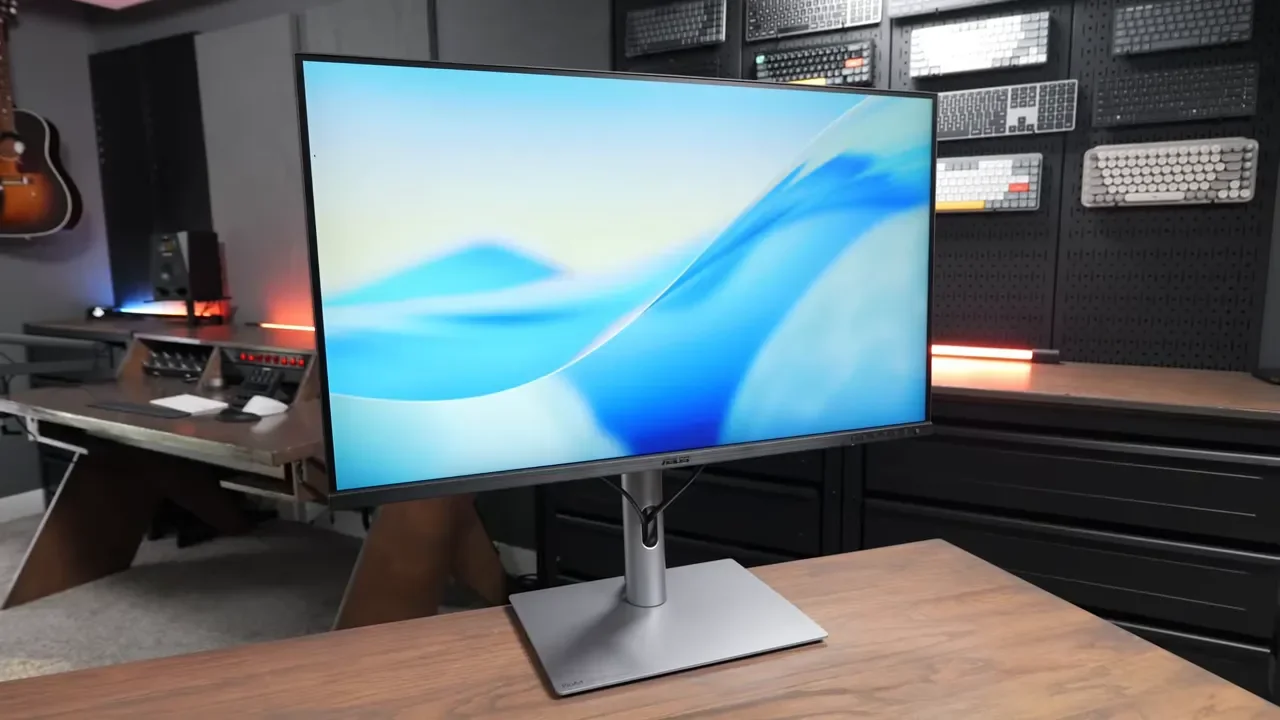
The ProArt PA32QCV runs at 6016 by 3384, which puts it right in the same resolution territory as Apple’s Pro Display XDR. On a 32-inch panel, that works out to about 218 pixels per inch. That number is especially important for Mac users because it delivers the kind of crisp, true Retina-style sharpness that makes text look excellent and UI scaling feel natural.
On paper, the display also checks the right boxes for creative work:
98% DCI-P3 color coverage
100% sRGB coverage
60Hz refresh rate
That 60Hz limit is going to bother some people, especially if they’re used to high refresh displays. For gaming or ultra-smooth motion, sure, it’s not exciting. For productivity, editing, writing, research, and general studio work at 6K, 60Hz feels completely reasonable.
How It Feels in Real Productivity Work
The practical advantage of this display is not just that it looks sharp. It’s that a 32-inch 6K panel gives you room to actually work. With a 27-inch display like the Studio Display, I often feel like I want a second monitor nearby. It’s still a great size, but once you’re editing video, managing media, keeping notes open, or comparing reference material, things start getting tight. On this ASUS, there’s enough room to spread out.
For video editing, that extra space helps in all the places that matter:
More room for the timeline
More room for effects and inspector panels
More room for a media browser
More flexibility for custom layouts
For general productivity, it’s even more obvious. You can keep multiple windows open and still feel like each one has enough breathing room to be useful.
Color Accuracy and Image Quality
Color quality was one of the biggest questions I had going in, because price cuts usually show up somewhere. In actual use, the monitor looked accurate and consistent with what I would expect from an Apple Studio Display or a good built-in Mac display. That’s a strong result.
After testing the available color profiles, the User profile ended up being the one I liked most. Turning energy saving off also helped ensure the monitor could maintain full brightness for more serious photo and video work. ASUS positions this as a professional display, and based on use, that feels fair. It looked dependable for editing work, and if your workflow demands it, you can always calibrate it yourself.
The Matte Finish: Better Than I Expected
One of the more divisive choices here is the screen finish. This is a matte display, which some people will immediately prefer and others will immediately dislike. The upside is glare control. It does a really good job rejecting reflections, and even with bright studio lights around, reflections were rarely an issue.
The trade-off with matte screens is that they can sometimes feel a little softer or a little less punchy in contrast compared to glossy panels. Personally, I never felt like contrast was a serious problem on this monitor, but I can understand why some people would notice a difference if they’re coming straight from Apple’s glossy displays. What surprised me most is that the matte finish faded into the background over time. At first it stood out because I’m so used to glossy displays. After editing on it for a while, I barely thought about it.
Design: Functional, But Definitely Not Luxury
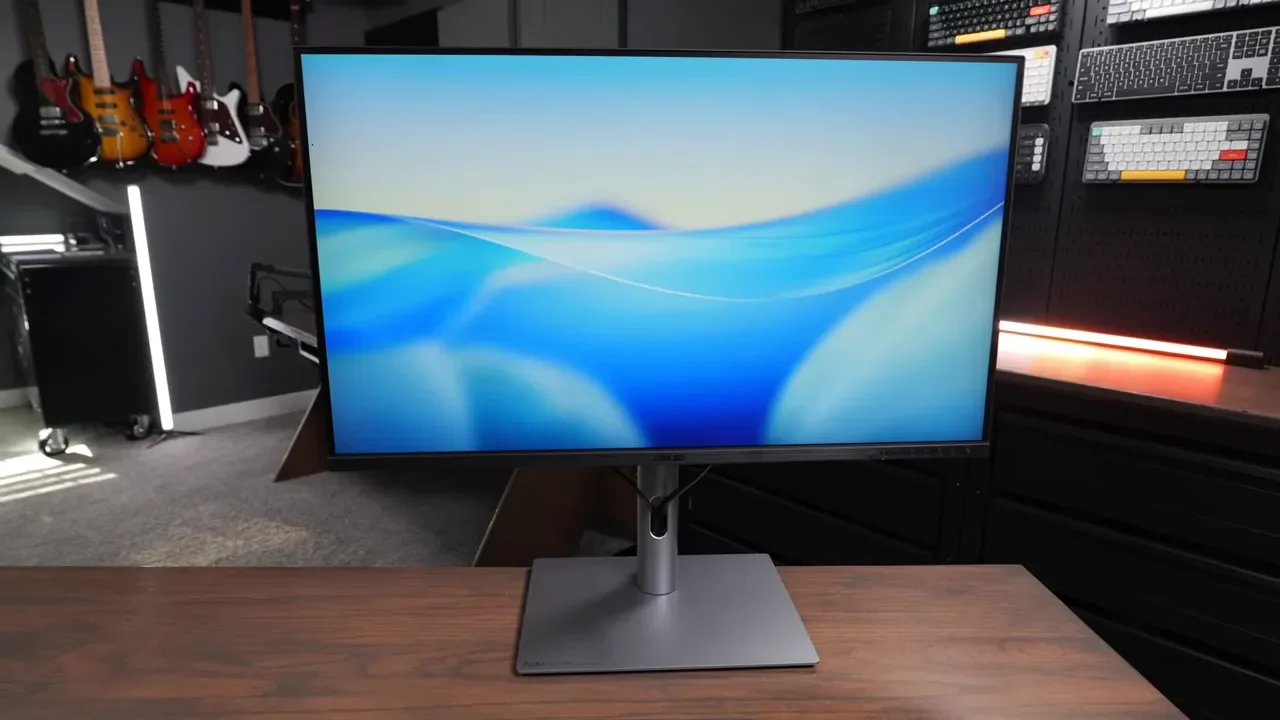
This is one of the easiest places to see where ASUS kept the price under control. The monitor is mostly plastic on the outside, with a faux brushed-metal look that does not come across as premium. Compared to Apple’s aluminum-and-glass approach, this thing feels much cheaper.
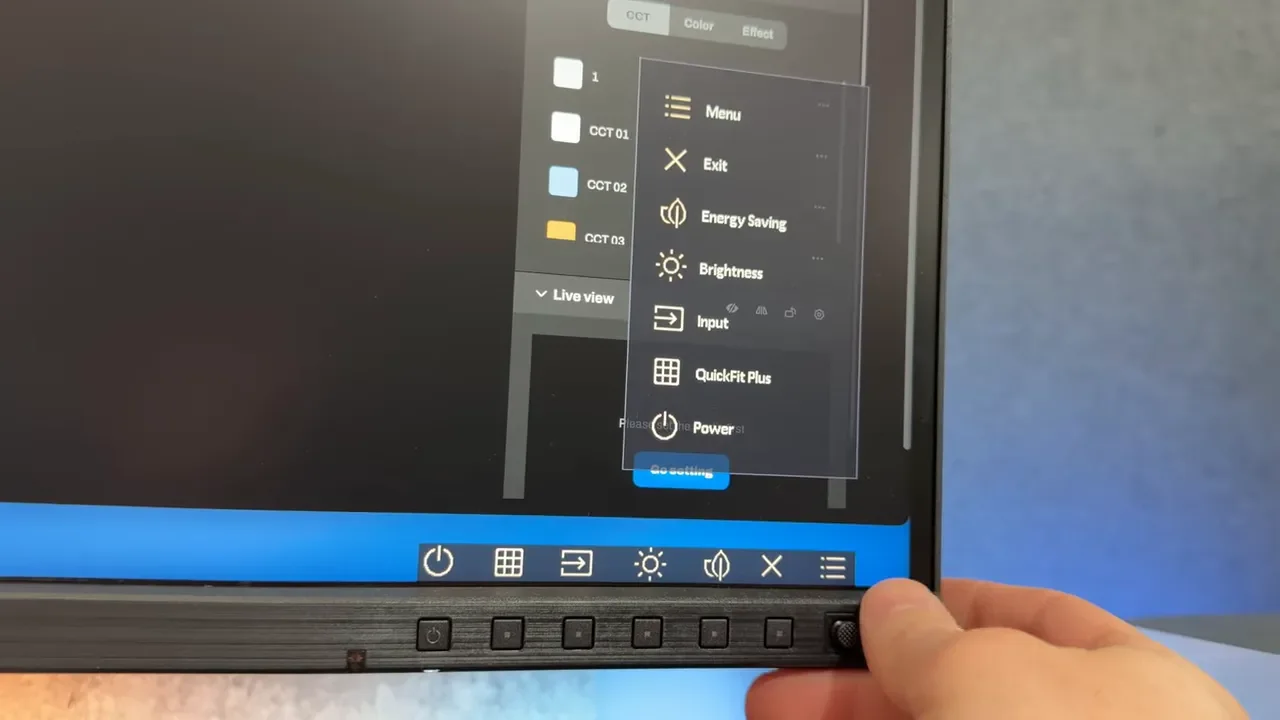
There’s also a noticeable chin at the bottom of the display. In normal landscape orientation it’s not the end of the world, but if you rotate the monitor vertically, it becomes a lot more visually awkward. And then there are the front-facing control buttons. On one hand, I actually like having them accessible. The joystick is nice, and the button layout makes the on-screen display easy to use. On the other hand, you are always looking at those controls. It’s not sleek or minimal. So if part of what you love about Apple displays is that they look like design objects, the ASUS does not compete there. It looks utilitarian.
The Stand Is One of the Best Parts
Where ASUS absolutely wins is ergonomics. The included stand gives you:
Height adjustment
Swivel
Tilt
90-degree pivot for portrait orientation
That’s a huge quality-of-life improvement over some premium displays that charge extra for basic flexibility. If you want to rotate this monitor vertical, you can. If you want to raise it up or fine-tune your desk position, you can do that too.
It also supports a standard 100mm by 100mm VESA mount, so if you already have a monitor arm or a desk mount, you’re set. No extra adapter kit required. The one weakness here is cable management. There’s only a small slot near the bottom of the stand, and it doesn’t hide wires very well. If that slot sat higher, it would do a much better job cleaning up the look from behind.
Connectivity Is Excellent
Connectivity is another place where the ProArt punches above its price. Instead of a stripped-down port selection, you get a genuinely useful set of options:
2 x Thunderbolt 4
HDMI
DisplayPort
USB ports
Headphone jack
Additional side USB-A and USB-C ports
One of the Thunderbolt 4 ports provides 96W of power delivery, which is enough to keep a 14-inch or even a 16-inch MacBook Pro charged. The second Thunderbolt port provides 15W, which is handy for accessories like an external SSD.
That setup means you can run the display and power your laptop with a single cable, and still have room to daisy-chain another display or connect storage. ASUS also built the power supply into the monitor itself, which is a small but very welcome detail. No giant external power brick taking up space under the desk.
Mac Compatibility Is Good, But Not Apple-Level
ASUS is clearly aiming this monitor at Mac users, and in a lot of ways it makes sense for that audience. The resolution is ideal, the color performance is strong, and the Thunderbolt setup is genuinely useful. But there are a few places where the Mac experience falls short of the seamless feel you get from Apple’s own displays.
The biggest issue is brightness control. You can’t reliably control brightness using your Mac keyboard the way you can with an Apple display. ASUS has software called DisplayWidget Center that is supposed to help with this, but in testing it was unreliable and did not work consistently across different Macs.
That leaves you using the monitor’s physical front buttons to adjust brightness, which is clunky and feels like a step backward on a Mac desk setup. There’s also no built-in webcam, which matters if you’re comparing this to something like the Studio Display, where the display itself handles that part of your setup.
The Built-In Speakers Are Basically a Throw-In
The monitor does include built-in speakers, but they are not good. Even worse, because of the limited Mac control integration, adjusting volume through the monitor is awkward. This is not a display I would buy for its audio. If you’re considering it, I would plan from the start to use external speakers or headphones. That immediately solves one of the weakest parts of the package.
Using It as a Primary Editing Display
One thing I really wanted to know was whether a single 32-inch 6K panel could replace a multi-monitor setup for real work. In my testing, I used the ProArt by itself for a few weeks instead of pairing it with a second display. That was a meaningful test, because I normally like having another screen nearby. What I found is that the 32-inch 6K workspace was enough to get the job done comfortably.
In Final Cut Pro, custom layouts worked especially well. I could place a multicam view in the middle, make the main viewer a little smaller, and still keep a large browser panel on the side. That gave me plenty of flexibility without feeling cramped. Normally, I like to keep the browser in a separate window entirely, and I often keep a script or notes open off to the side while editing. I did miss that a bit.
But using an iPad for notes solved most of that problem, and the main display still handled the core editing workspace very well. For Photoshop and general productivity, the size also felt excellent. You get enough canvas area to work without constantly resizing and rearranging windows.
Could Two of These Be the Ideal Setup?
Honestly, yes. If one 32-inch 6K display already feels spacious, two of them side by side would make for an incredible productivity setup. For editors, designers, researchers, and anyone who lives in multiple apps all day, that would be a monster workstation while still costing dramatically less than going all-in on Apple’s top-tier display ecosystem.
Where It Beats Apple, And Where It Doesn’t
This monitor is not trying to out-Apple Apple in every category. It wins by focusing on value and function.
Where the ASUS ProArt PA32QCV wins:
Much lower price
32-inch 6K Retina-class workspace
Strong color accuracy
Excellent stand adjustability
Standard VESA mount support
Better connectivity options
Built-in power supply
Where Apple still has the advantage:
Premium industrial design
Better desktop integration with macOS
Built-in webcam
More seamless brightness and volume control
Better overall polish
If you’re cross-shopping, it really comes down to what you value more. If you want Apple aesthetics and convenience, the Studio Display still has a lot going for it. If you want the aspirational flagship option, the Apple Pro Display XDR remains the reference point. And if you’re comparing new 6K alternatives, the LG UltraFine 6K is another option in the conversation. But in terms of raw value for a big, sharp, color-accurate Mac-friendly monitor, this ASUS makes a very strong case for itself.
The Final Verdict
The ASUS ProArt PA32QCV is not a perfect monitor. The plastic build feels cheaper than it should. The design is clunkier than Apple’s. The built-in speakers are weak. Mac brightness control is a genuine annoyance. And the matte finish, while effective, may not be everyone’s favorite. But even with all of that, it is still very hard to argue against what ASUS has done here.
For about $1,300, you’re getting:
A true 32-inch 6K panel
218 PPI Retina-class sharpness
Professional-level color performance
A fully adjustable stand
VESA flexibility
Strong Thunderbolt 4 connectivity
That combination simply did not exist at this price in any meaningful way before. If your priority is productivity, editing, photo work, and getting the most display for your money, the ASUS ProArt PA32QCV is one of the easiest recommendations in this category right now.