LG 40U990A Review: The First 5K2K 120Hz Thunderbolt 5 Ultrawide Monitor
Some of the links in this post are affiliate links, which means I may earn a small commission if you choose to make a purchase at no extra cost to you. As an Amazon Associate, I earn from qualifying purchases. Read my full Ethics & Affiliate Relationship Disclaimer.
The LG 40U990A is one of those monitors that immediately makes your desk feel more serious. It is a 40-inch 5K2K ultrawide with a 120Hz refresh rate, Nano IPS Black, and most importantly, Thunderbolt 5. That last part is what really sets it apart right now.
After spending time with it for productivity, editing, and general day-to-day work, I came away really impressed by how immersive and useful it is. At the same time, there are a few quirks here that are definitely worth knowing before dropping around $1,800 on a display. If your workflow involves massive timelines, lots of plug-in windows, or a desk setup where one cable does almost everything, this monitor makes a lot of sense. If you are picky about out-of-the-box color tuning, glossy screens, or warranty coverage, there are a couple catches.
Table of Contents
What Makes This Monitor Special
The big headline here is simple: this is the first 5K2K ultrawide monitor with Thunderbolt 5. For the right kind of setup, that matters a lot more than it sounds on paper. Thunderbolt 5 gives you up to 80Gbps of bandwidth, plus additional bandwidth reserved for video. In practical terms, that means this display can handle a lot more than just pushing pixels. It can act like a serious hub for your desk, with enough throughput for video, data, and daisy-chained accessories through a single connection.
That single-cable setup is one of my favorite things about this monitor. You plug in one Thunderbolt cable and get:
Video to the monitor
Power delivery back to your laptop
Access to the monitor’s built-in ports
The option to daisy chain other Thunderbolt devices
That makes the 40U990A feel less like just a display and more like the center of a workstation.
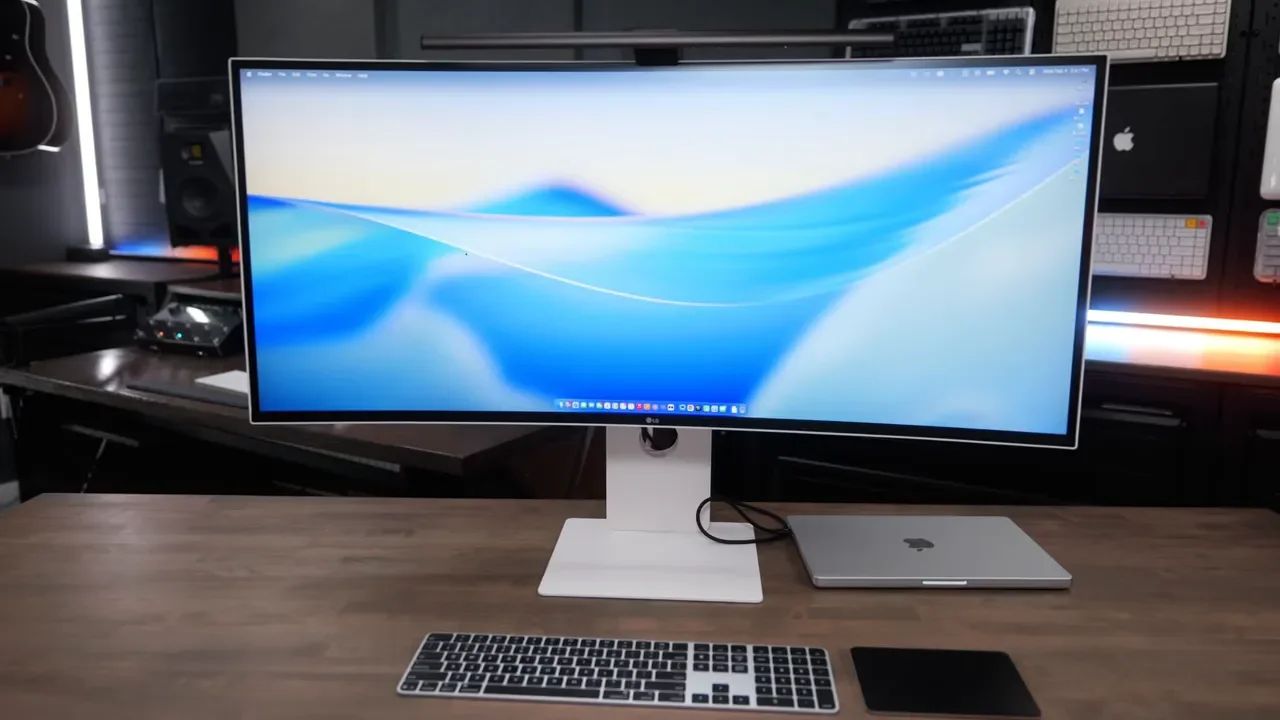
The 120Hz Refresh Rate Is Not Just For Gaming
One of the easiest specs to dismiss on a productivity monitor is refresh rate. A lot of people still say 60Hz is totally fine for office work, and honestly, it is. But after using this panel at 120Hz, it is hard to ignore how much smoother everything feels.
Scrolling through websites, moving the cursor around macOS, dragging windows, and just interacting with the desktop all feel more fluid. This is one of those upgrades that does not sound essential until you get used to it. The monitor also supports variable refresh rate from 48Hz to 120Hz, which is a nice touch. It can ramp up when it needs to and ease back when it does not. That is useful for gaming, but it also helps the panel feel more adaptable in general use.
Resolution And Screen Real Estate: Why 5K2K Works So Well
The LG 40U990A has a resolution of 5120 by 2160, which is what people mean when they say 5K2K. The easiest way to think about it is this: it is basically a 4K monitor with about 33% more horizontal room. That extra width is where the magic is.
For editing, it gives you much more room for timelines. For multitasking, it gives you enough space to comfortably tile multiple windows side by side without feeling cramped. For a lot of setups, it can replace a dual-monitor arrangement while avoiding the bezel gap in the middle. I especially liked using macOS tiling shortcuts to snap apps to the left and right halves of the display. It gives you a clean two-window setup, but without that physical split down the center.
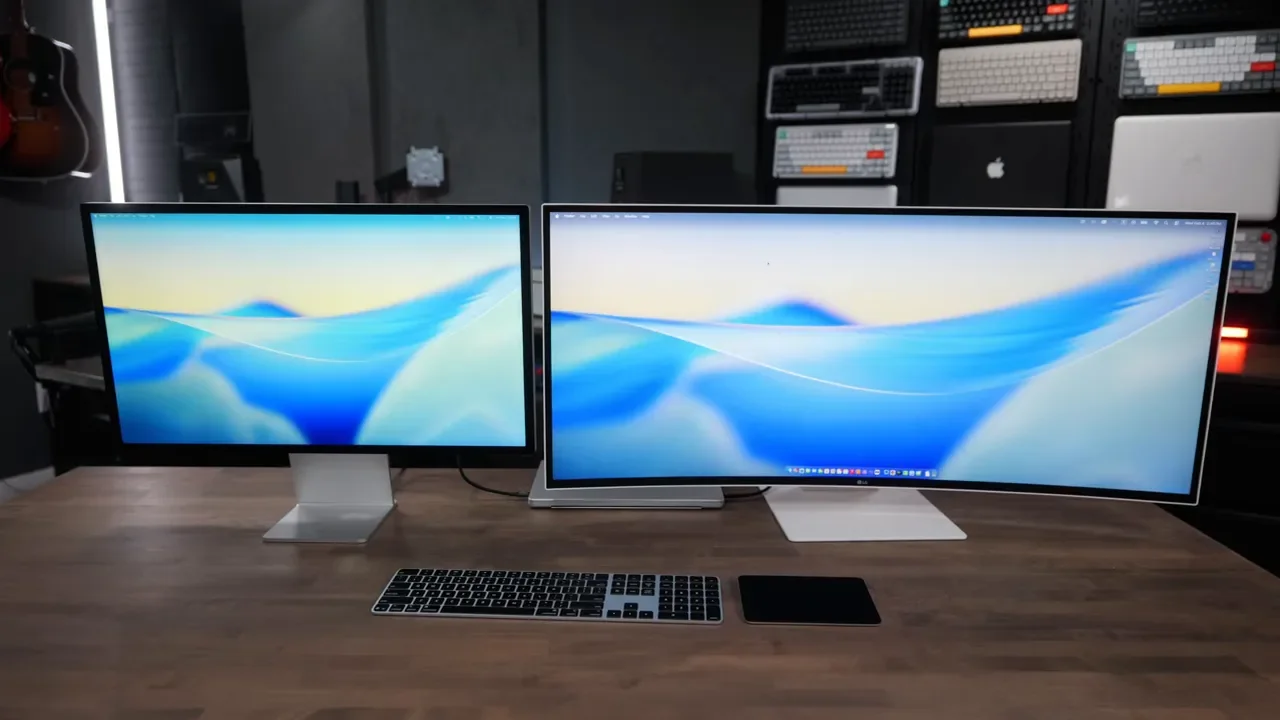
In terms of pixel density, this monitor lands around 140 PPI. That is similar to a 32-inch 4K display. So you get roughly the same perceived sharpness as a 32-inch 4K monitor, but stretched wider. The one thing to keep in mind is height. Even though this is a 40-inch display, the vertical space feels closer to a standard 27-inch monitor than a 32-inch display. So it looks huge on a desk, but it is not overwhelming in the same way a 49-inch super ultrawide can be. If you are coming from something like Apple’s Studio Display, which sits around 218 PPI, this is not going to look quite as pixel dense. Still, in actual use, I did not notice any sharpness issues on the LG.
macOS Scaling Actually Works Fine Here
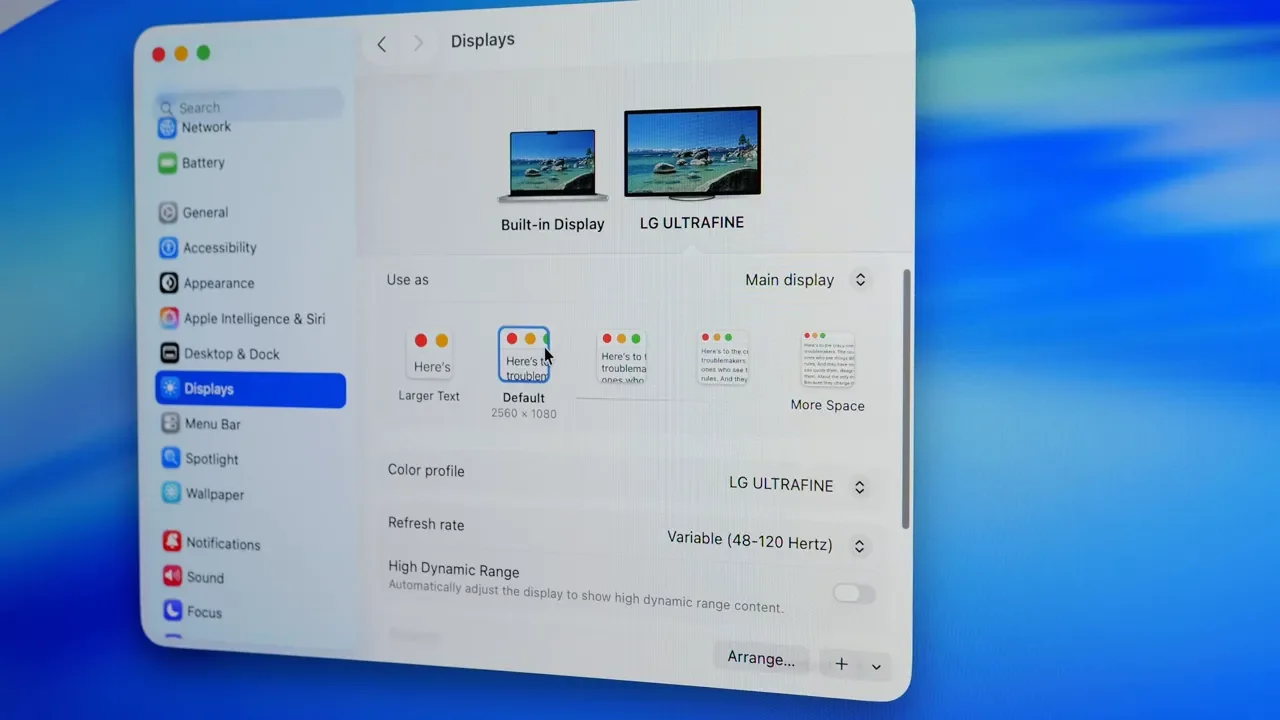
Historically, macOS scaling can be a little weird on some displays. That is always something I pay attention to when testing non-Apple monitors. On the LG 40U990A, I used it at 2560 by 1080 scaled and did not run into any performance issues or obvious rendering problems. Text still looked clean, the interface felt smooth, and I did not notice any weird bottlenecks. If you need larger text or a different UI scale, macOS gives you a range of resolution options. That flexibility matters on a monitor this wide because the “best” setting will depend a lot on how far you sit from the display and how small you want interface elements to be.
Why Ultrawide Is So Good For Editing And Creative Work
This is where the monitor really clicked for me. For video editing, the ultrawide format is fantastic because you can keep a long timeline visible while still leaving room for media browsers, effects, and inspector panels. You are not constantly shuffling windows around or feeling boxed in. For photo editing, the extra width helps with tool panels and image organization. For audio production, it makes a ton of sense because you can spread tracks across a very wide workspace and still keep other controls visible.
That said, ultrawide is not automatically perfect for every app. In Final Cut Pro, for example, I liked having everything on one display instead of split across two monitors, but I also noticed I could not quite get the clip browser as low as I wanted without it cutting into timeline space. So the benefit here depends a little on how your favorite software lays itself out. Some applications thrive on a 21:9 canvas. Others still feel like they were designed with a standard 16:9 screen in mind.
If you prefer a more structured layout, there is always the option of using window management software on your Mac to create custom zones. That can let you simulate something like a narrow vertical area on the left and a more standard 16:9 workspace on the right.
What It Is Like For Media And Gaming
The 21:9 aspect ratio is excellent for immersion, but there is a tradeoff. When you are working across a wide canvas, it feels great. When you are consuming standard 16:9 content, you are going to see black bars. That is just the nature of an ultrawide display. The same applies to games and apps. Some take great advantage of the wider format. Others do not. So before buying a monitor like this, it is worth thinking less about the spec sheet and more about the exact software and games you use every day.
Panel Quality, Contrast, And Color Performance
LG uses Nano IPS Black here, and one of the advertised benefits is improved contrast. This panel is rated at 2000:1 contrast, which is double the 1000:1 figure you typically see on many standard IPS displays. In use, the screen looked good. Contrast was solid for IPS, and overall color performance was pretty nice. LG also includes a bunch of preset color profiles, which is helpful if you like to fine-tune the image. My one issue was familiar: out of the box, LG monitors often look a little off to me in the greens. On this one, I ended up dialing the greens back a bit. I also tend to tweak the magentas on LG displays to get them feeling a little closer to what I expect from macOS.
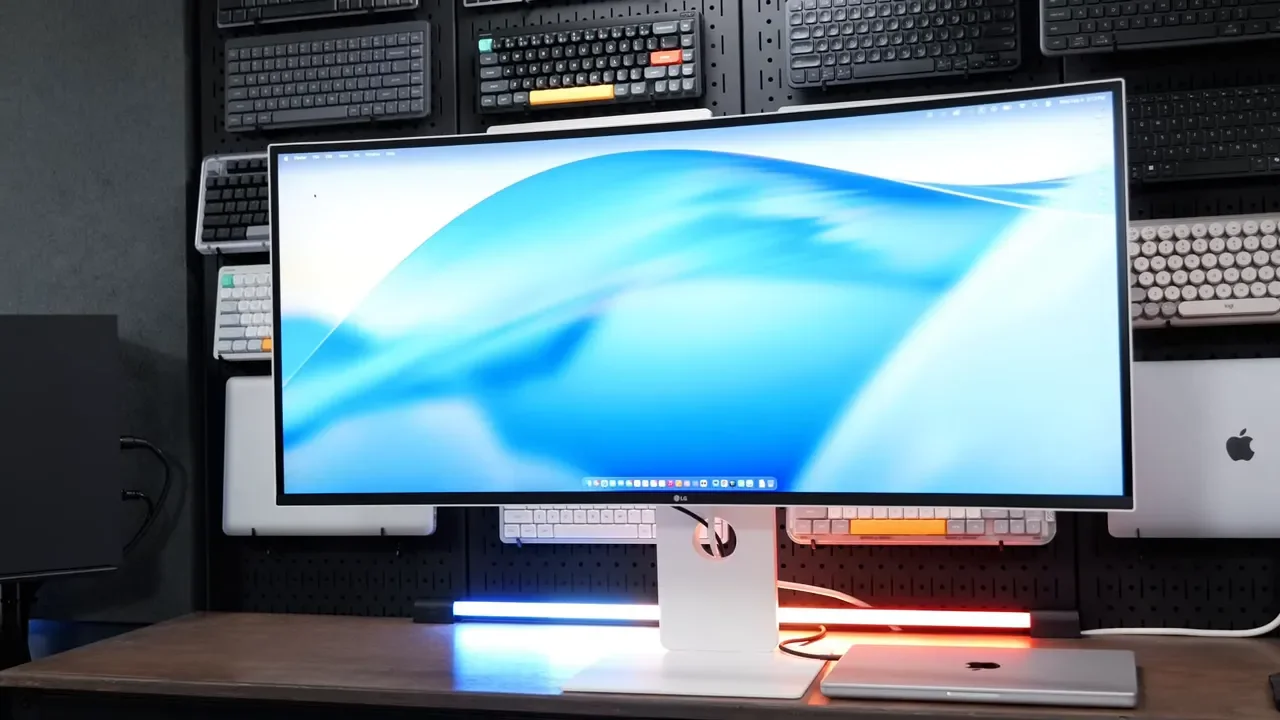
If you care about absolute color accuracy, calibrate it. Seriously. You can eyeball it and get reasonably close, but if your work depends on confidence in color, proper calibration is the way to go. The monitor supports 99% DCI-P3, which is great on paper, but remember that you also need to make sure your Mac is actually outputting the correct color profile to take advantage of that.
Build Quality, Stand, And Aesthetic Choices
Functionally, the build is quite good. The included stand is one of the better parts of the package. It goes surprisingly low to the desk, which I appreciate because a lot of monitor stands leave the panel sitting higher than I want. It is also easy to tilt, and if you prefer your own mount, there is VESA support on the back.
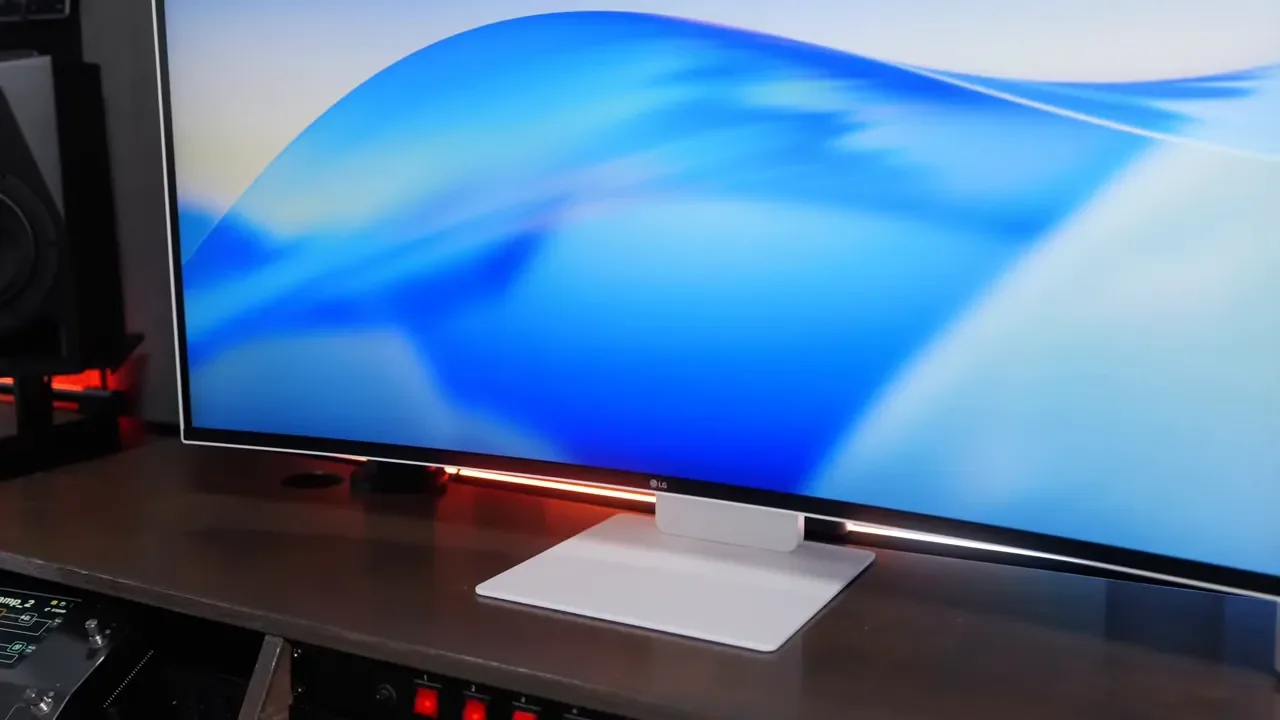
What I do not love is the styling. LG used a white plastic border around the display, and to me, that makes the monitor look less seamless than it could have. I really wish they had just gone with black all the way around the edges. LG keeps doing this on a lot of their displays, and I still think it would look cleaner without the white trim.
Curve And Matte Finish: Better Than I Expected
This is a curved display, and yes, there is a small adjustment period. But once you settle in, the curve helps the monitor feel more immersive rather than gimmicky. The other thing some people will care about is the matte finish. Matte screens can be divisive. Some people hate them immediately because they worry about text clarity or that slightly diffused look compared to glossy panels. I was not sure how I would feel about it at first, but after using this and also spending time with LG’s 6K UltraFine display, I thought the finish here was totally fine. It cuts down glare effectively, and I did not have issues with readability or eye strain, even during long work sessions.
Ports And Docking Features Are A Huge Selling Point
One of the best reasons to buy this monitor is how much connectivity LG packed into it. This thing is loaded with ports.
On the back, you get:
Thunderbolt 5
A Thunderbolt output for daisy chaining
HDMI 2.1
DisplayPort
Ethernet
Multiple USB ports
There are also extra front-facing or underside ports near the joystick, including additional USB-A and USB-Cconnections, which are handy for quick access.
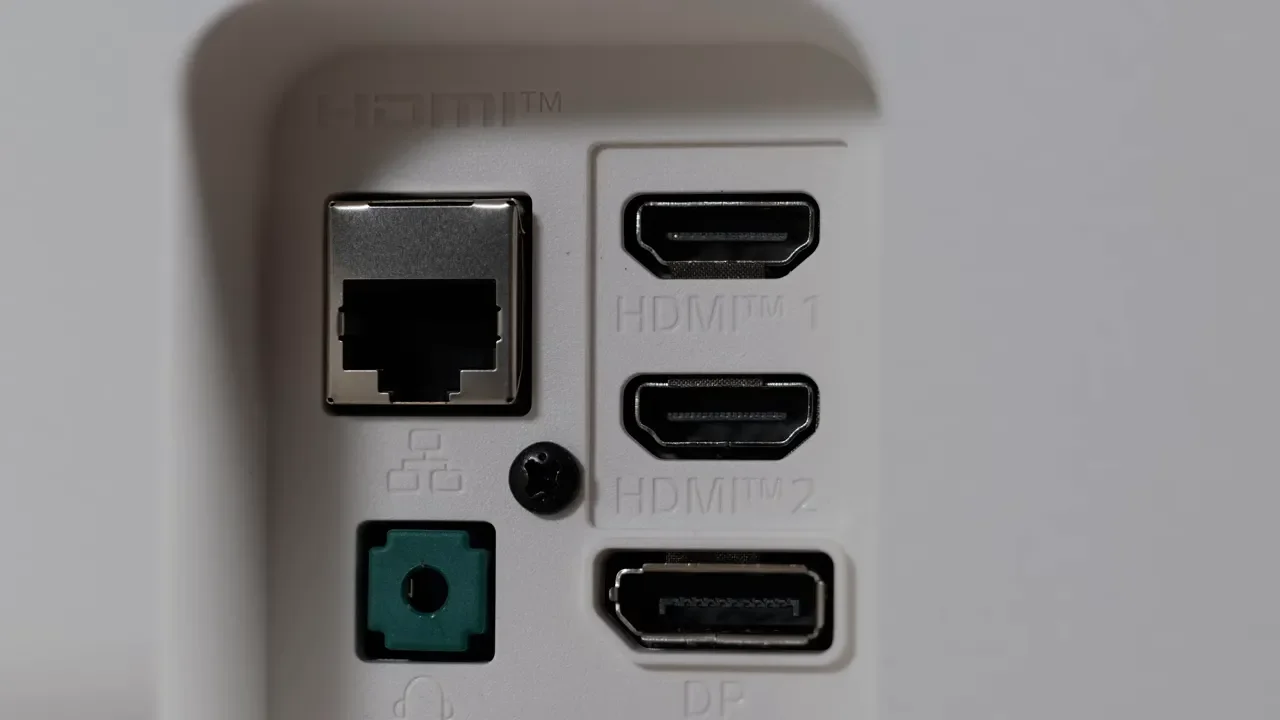
This is why I keep coming back to the idea that it feels like a docking station with a monitor attached to it. If you want a clean desk where your laptop connects with one cable and everything else hangs off the display, this does that really well. It also delivers up to 96W of power to a connected laptop. That is enough for a lot of machines, but I do think this is one area where LG could have gone further. Thunderbolt 5 can support more, and a lot of modern laptops really prefer something closer to 140W for full-speed charging under load. So 96W is useful, but it is not as generous as I would have liked on a premium Thunderbolt 5 monitor.
Built-In Power Supply And The Coil Whine Fix
This monitor has a built-in power supply, which is different from a lot of displays that rely on an external power brick. That can help clean up cable management, but some people have reported coil whine. The important part is that there is a software update you should install as soon as you get the monitor. After updating, I personally did not notice any coil whine. To do that, you will need LG’s Switch software, which brings me to one of the more annoying parts of the experience.
LG Switch Software Is Useful, But Still Clunky
The monitor supports software control through the LG Switch app, and in theory that is great. You should be able to manage things like brightness, color, and audio without reaching under the monitor for the joystick. In practice, the software felt inconsistent for me. Sometimes it worked fine. Other times, it just did not want to cooperate, and I had to fall back to the physical joystick under the display anyway. That lack of full, dependable macOS integration is one of the clear weak points here. It is not enough to ruin the monitor, but for a premium display, I would like the software experience to be tighter than this.
Price And Warranty
The LG 40U990A sells for around $1,800. That is a lot of money, even for a high-end ultrawide.
At that price, what you are really paying for is the combination of features:
5K2K resolution
120Hz refresh rate
Thunderbolt 5 bandwidth
Dock-like connectivity
An immersive 40-inch ultrawide format
For the right user, that bundle absolutely makes sense. This is not a budget productivity monitor pretending to be premium. It really does feel like a high-end workstation display. The part I do not like is the one-year warranty. For something this expensive, that feels pretty skimpy.
Is The LG 40U990A Worth It?
Overall, yes, I really like this monitor. The Thunderbolt 5 implementation is excellent. The 120Hz refresh rate makes everyday work feel smoother than you might expect. The 5K2K resolution is great for multitasking, editing, and keeping huge timelines visible. The stand is solid. The port selection is excellent. And once it is on your desk, it feels genuinely immersive.
My main complaints are pretty specific:
The white trim around the display does not look as clean as an all-black design would
Color tuning out of the box needs some work, especially if you are picky
The LG Switch software is inconsistent
96W power delivery feels lower than it should be for Thunderbolt 5
The one-year warranty is disappointing for the price
Even with those issues, this is a very enjoyable monitor to use. Just make sure you actually want the ultrawide experience. That is the big question. If you love the idea of one large, seamless workspace instead of dual displays, this is a strong option. If you prefer traditional 16:9 layouts or mostly consume standard-format content, it may take some getting used to.
Additional Resources
If you want to compare this display with a few other high-end options, here are some useful references: