Which Format To Use For An External SSD For Your Mac? APFS Vs macOS Extended And ExFAT
Some of the links in this post are affiliate links, which means I may earn a small commission if you choose to make a purchase at no extra cost to you. As an Amazon Associate, I earn from qualifying purchases. Read my full Ethics & Affiliate Relationship Disclaimer.
Whenever you buy a new external SSD for a Mac, it usually shows up pre-formatted as ExFAT. That sounds convenient, and sometimes it is, but it is not automatically the best choice.
The format you choose affects three big things:
Speed
Data integrity
Compatibility with other devices and computers
If you set the drive up correctly before you start loading files onto it, you can avoid a lot of frustration later. For most people, the right answer comes down to APFS, macOS Extended, or ExFAT.
Table of Contents
Why Drive Format Matters More Than Most People Think
It is easy to plug in a new SSD and just start using it as-is. The problem is that the default format is often chosen for broad compatibility, not for the best Mac experience. That means a drive that ships in ExFAT may work fine, but if you are using it mainly with a Mac, you could be leaving performance and reliability on the table. On the flip side, if you format a drive for maximum Mac performance and then expect it to work with Windows or a camera, you might create a different problem. So the best format depends on how you actually plan to use the drive.
APFS: The Best Choice For Modern Mac-Only Use
APFS stands for Apple File System. If you are using a modern Mac running macOS High Sierra or newer, this is generally the format I recommend for an external SSD that will stay in the Apple ecosystem. APFS was built specifically with flash storage and SSDs in mind. Because of that, it is usually the most efficient option for a Mac, and in day-to-day use it tends to feel faster than ExFAT, especially for things like copying files. If you reformat a brand new SSD from ExFAT to APFS and use it only with a Mac, there is a good chance you will notice the difference right away.
Why APFS Is Faster And Safer
One of the biggest advantages of APFS is the way it handles writes. Instead of overwriting existing data directly, it uses a copy-on-write approach.
Here is what that means in plain English:
When new data is written, the system creates the updated data separately first.
The original data stays untouched until the new write is fully completed.
Only after the new write is confirmed does the system replace the old version.
That is a big deal for data integrity. If something goes wrong in the middle of a save, like a crash or power interruption, the original data is still there. That makes APFS a very modern and robust file system for SSDs.
Useful APFS Features
APFS also includes a few really smart features that make it more flexible than older formats.
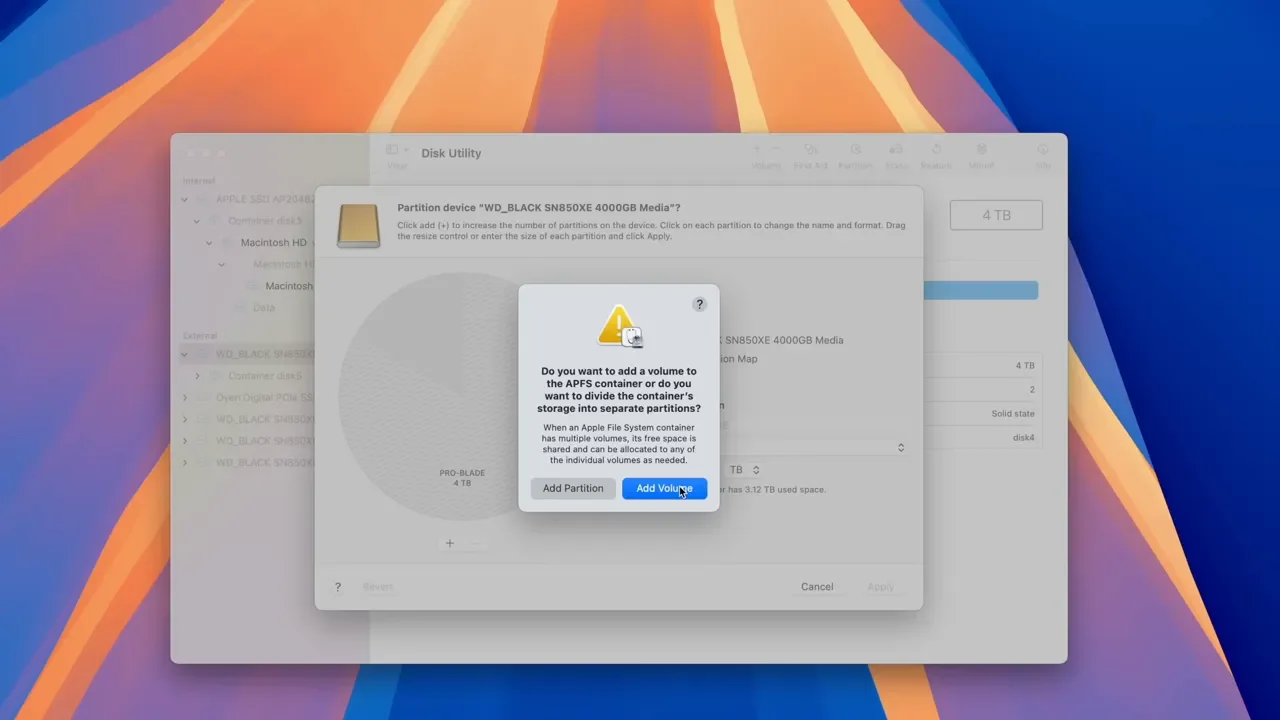
Space Sharing
If you create multiple volumes on the same drive, APFS lets them all share the same free space pool. You do not have to pre-allocate fixed amounts of storage and then worry that one volume is full while another is mostly empty.
Snapshots
APFS supports snapshots, which are read-only copies of a volume at a specific point in time. macOS uses this concept with Time Machine to help restore files to a previous state. The nice part is that snapshots are efficient. They only track changes rather than storing a full duplicate of everything.
APFS Options You Will See In Disk Utility
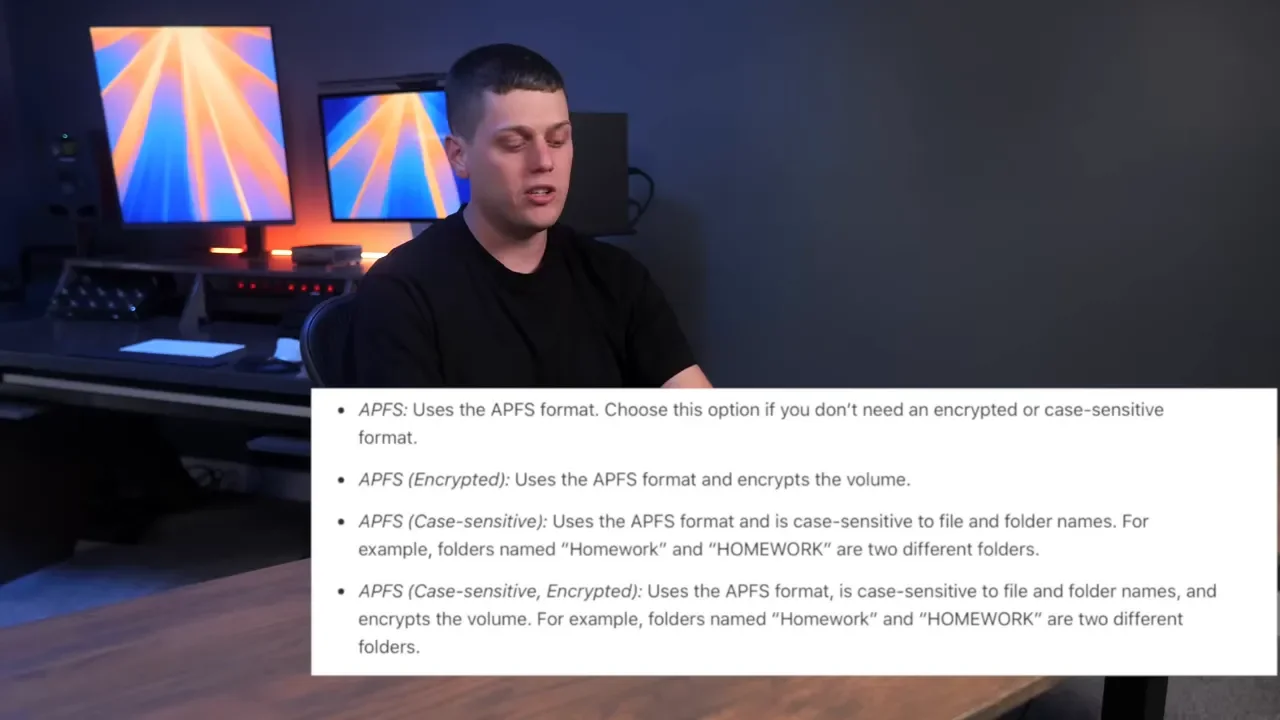
When you erase and reformat a drive in Disk Utility, APFS may show several variations.
APFS for standard Mac-only use
APFS Case-Sensitive if you need capital and lowercase letters treated as different file names
APFS Encrypted if you want password-protected storage
APFS Case-Sensitive Encrypted if you need both
Case-sensitive formatting matters mostly for certain programming, development, and server workflows. For example, a file named MyFile.txt and another named myfile.txt would be treated as two different files. Encrypted formatting adds a password requirement to unlock the drive, which makes the data unreadable without the key. That is great for privacy, but there is one very important catch: if you lose the password, you can lose access to the data. If encryption is part of your plan, be absolutely sure you are comfortable managing that password.
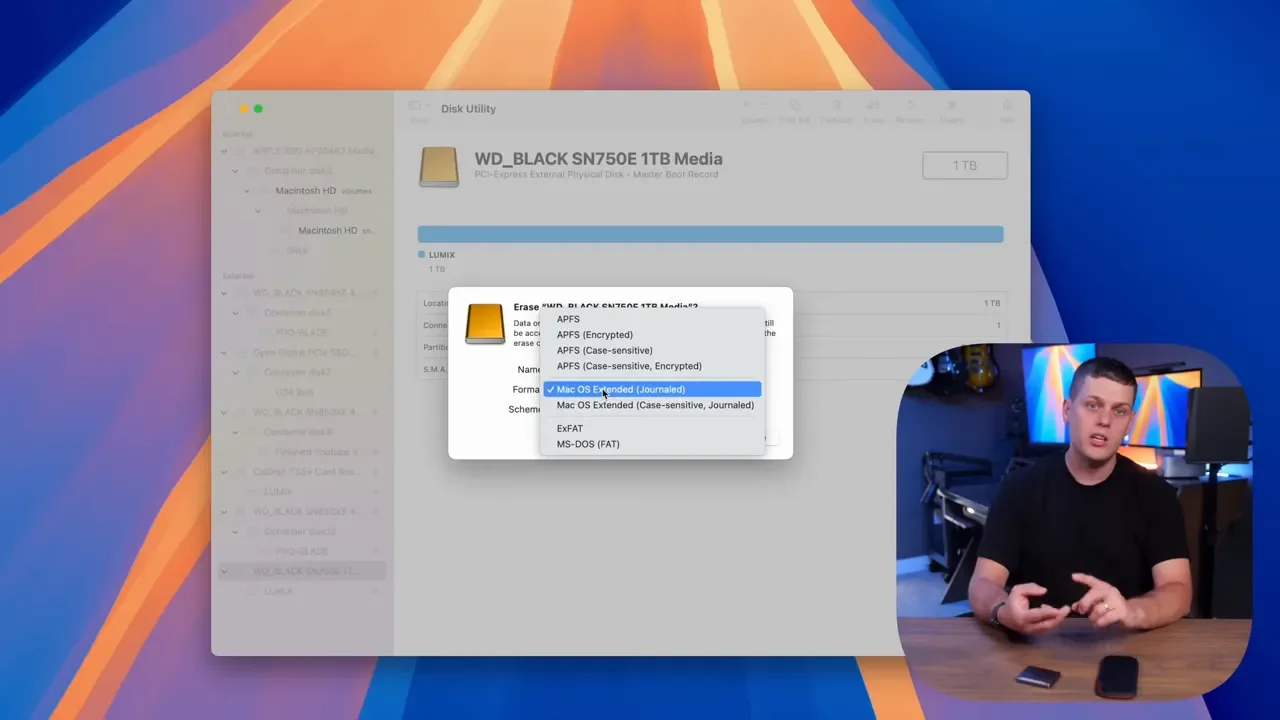
macOS Extended: The Right Pick For Older Macs
macOS Extended, also known as HFS+, was Apple’s default file system before APFS took over. It is still useful, still reliable, and still the better option if you need to use an external SSD with an older Mac that does not support APFS. So if your setup includes older Apple hardware, this is where macOS Extended still earns its place.
How macOS Extended Protects Data
macOS Extended typically uses journaling. That means before the system performs a file operation, it records what it is about to do in a journal. If something fails halfway through, the system can look at that journal and either complete the process or roll it back. That helps reduce corruption. It is a solid method and has been dependable for years. It is just not as modern or as efficient as APFS’s copy-on-write model.
macOS Extended Variants
Like APFS, macOS Extended can also be formatted with:
Journaled
Case-Sensitive
Encrypted
For older Macs, the standard safe recommendation is usually macOS Extended Journaled.
ExFAT: Best For Mac And Windows Compatibility
If your SSD needs to move between a Mac and a Windows PC, ExFAT is the practical choice. ExFAT is widely recognized by both operating systems, and it allows you to both read and write files without installing extra software. It also supports large files, which is a major improvement over older FAT32 limitations. That is why so many portable SSDs ship in ExFAT from the factory. It is the broadest, easiest starting point for cross-platform use.
Where ExFAT Makes Sense
ExFAT is not only useful for Mac and Windows. It is often the better option if the drive needs to work with:
Gaming consoles
Cameras
Other non-Mac devices
If the drive needs to be flexible and move around between different kinds of hardware, ExFAT is usually the format that causes the fewest headaches.
The Downside Of ExFAT
ExFAT gives up some reliability to gain that compatibility. Unlike APFS and macOS Extended Journaled, ExFAT is not a journaled file system. That means if the drive is disconnected unexpectedly, the risk of corruption is higher. It is also generally a little slower on macOS than APFS. So ExFAT is fine for a general-purpose shared drive, but I would not call it the ideal format for a mission-critical Mac-only SSD where maximum performance and data integrity matter most.
What If Your Mac Does Not Recognize The Drive?
If you plug in a drive and your Mac does not properly recognize it, there is a good chance it is formatted as NTFS. NTFS is a Windows-focused file system. A Mac can often read it in limited ways, but for practical Mac use, you will typically need to reformat the drive into something more appropriate like APFS, macOS Extended, or ExFAT depending on your needs. Just remember that reformatting erases the drive, so copy off anything important first.
How To Reformat An External SSD On Mac
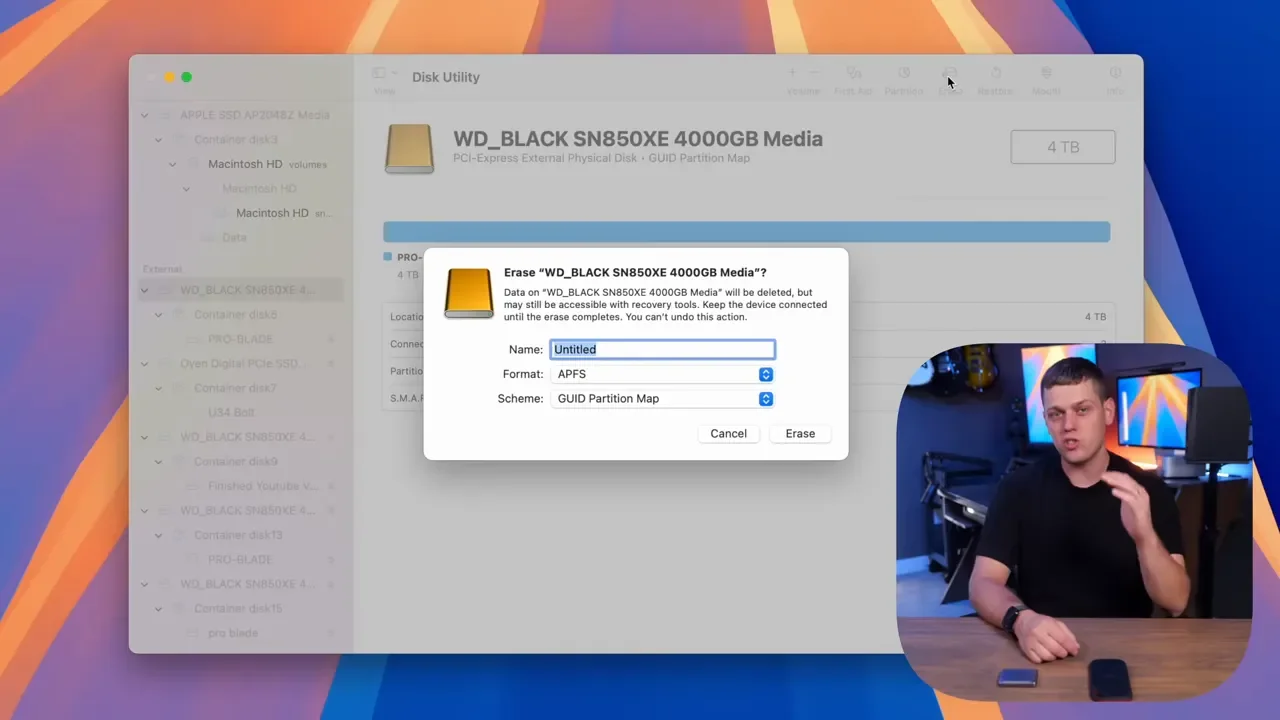
If you want to change formats, use Disk Utility in macOS.
The basic idea is simple:
Open Disk Utility.
Select the external drive.
Choose Erase.
Pick the format you want.
Confirm the erase.
One important warning here: reformatting deletes everything on the drive. Back up any files you still need before doing it.
Which Format Should You Actually Choose?
If you just want the quick recommendation, here it is:
Use APFS for modern Mac-only external SSDs
Use macOS Extended Journaled for older Macs that do not support APFS
Use ExFAT if the drive needs to work with both Mac and Windows, or with other devices like cameras and consoles
That is really the whole decision tree.
Best Choice For Most Mac Users
For most people using a recent Mac, APFS is the best format for an external SSD. It is designed for SSDs, it is usually faster on macOS, and it offers better data protection through copy-on-write behavior.
When To Stick With macOS Extended
If compatibility with older Mac hardware is part of the equation, macOS Extended Journaled is still a very safe and reliable choice.
When ExFAT Is The Better Tradeoff
If the drive has to bounce between different operating systems or devices, ExFAT is worth it for the flexibility alone. Just understand that you are trading some reliability and Mac performance for that compatibility.
Recommended SSDs And Mac Gear
If you are still shopping for a drive, here are some solid options worth checking out: the Crucial X9 Pro, Oyen U34 Bolt, Extreme USB 4 SSD, and Pro G40 SSD. If you want to build your own external SSD, take a look at the Satechi USB 4 enclosure along with drives like the WD Black NVMe or Samsung 990 Pro. For Mac buying help, I also put together personalized Mac recommendations and a list of my favorite Mac accessories.
Mac Recommendations By Model
If you are pairing an external SSD with a new Mac, these are the models I would start with: the 13 inch MacBook Air M4 base model, the best 13 inch MacBook Air M4 for most users, and the top of the line 13 inch Air. For desktops, check out the best value Mac Studio, the best overall Mac Studio, and the Mac Studio I bought for pro editing. If a Mac mini is more your speed, here is the best value Mac mini and the recommended Mac mini. On the MacBook Pro side, you can look at the M4 MacBook Pro, the M4 Pro MacBook Pro, the best all around MacBook Pro, and the top of the line MacBook Pro.
Additional Resources
For a favorite external SSD pick, here is my go-to external Mac SSD. If you work mobile, I also have picks for a favorite laptop charger and a favorite laptop power bank. The setup used to produce this content includes the Lumix S5II X, 35mm F1.8 lens, 24-105 F4 lens, audio interface, microphone, Kondor Blue Pro Blade top handle, and half cage. If you want the complete list, here is my full video making kit.
Final Recommendation
If your external SSD is for a modern Mac and only a modern Mac, format it as APFS. If you need support for an older Mac, go with macOS Extended Journaled. If the drive needs to work across Mac, Windows, cameras, or consoles, choose ExFAT. Make that decision before you start filling the drive up, and you will save yourself a lot of trouble later.