Razer Thunderbolt 5 Dock Mercury Review: A Dock With Built-In SSD Storage
Some of the links in this post are affiliate links, which means I may earn a small commission if you choose to make a purchase at no extra cost to you. As an Amazon Associate, I earn from qualifying purchases. Read my full Ethics & Affiliate Relationship Disclaimer.
If you want a true one-cable setup that keeps your laptop charged, connects displays, and handles your accessories without a pile of adapters, a Thunderbolt dock is the easiest way to clean everything up. The Razer Thunderbolt 5 Dock Mercury Edition is built exactly for that kind of setup, but it adds one feature that makes it stand out right away: a built-in slot for your own NVMe SSD. That means this is not just a dock. It can also become high speed storage built right into your desk setup, which is honestly the whole reason this product gets interesting.
Table of Contents
Real-World SSD Performance & Transfer Speeds (Up To 5,800 MB/s)
Detailed Look At All Rear & Side Ports (140W Charging, UHS-II)
Multi-Display Support: Mac Vs. PC (Up To 3 External Displays)
CON #2: Shared Bandwidth & Hitting A Bottleneck (5K Display Impact)
Final Thoughts And Conclusion On The Razer Thunderbolt 5 Dock
Why You Need A Thunderbolt Dock For Your Setup
A good Thunderbolt dock solves a simple problem. Modern laptops keep getting thinner, but that usually means fewer ports and more compromises.
With one cable, a dock like this can handle:
Charging your computer
Connecting one or more external displays
Adding USB accessories
Wired networking
SD card access
High speed external storage
That is the appeal here. You sit down, plug in a single Thunderbolt cable, and your entire desk comes alive.
Introducing The Razer Thunderbolt 5 Dock Mercury Edition
The Razer Thunderbolt 5 Dock Mercury Edition is the cleaner, more minimal version of Razer's dock lineup. Instead of the darker gaming look, this one leans into a silver aluminum style that fits especially well alongside modern Mac setups. Using one Thunderbolt connection to your computer, the dock expands into a much more capable hub with multiple Thunderbolt ports, USB ports, networking, audio, and card reader support. If you want to check current pricing for the Razer Mercury Dock, that is the version covered here.

Complete Port Breakdown & Thunderbolt 5 Features
The dock is designed around one host connection to your computer, and from there it fans out into a much more flexible workstation.
You are getting:
Three additional Thunderbolt ports
Two USB-A ports
USB-C data support
A headset jack
UHS-II SD card support
Ethernet
The host port can provide up to 140W of charging to your computer, which is a big deal for power hungry laptops. It is also Thunderbolt 5, while remaining backwards compatible with Thunderbolt 4 and Thunderbolt 3 systems. That backwards compatibility is great, but it does come with the usual caveat: if your computer is older, you are not getting the full benefit of what this dock can do. That affects the speed available to the downstream Thunderbolt ports and also the storage slot built into the dock.
The Game-Changing Feature: Built-In NVMe SSD Slot
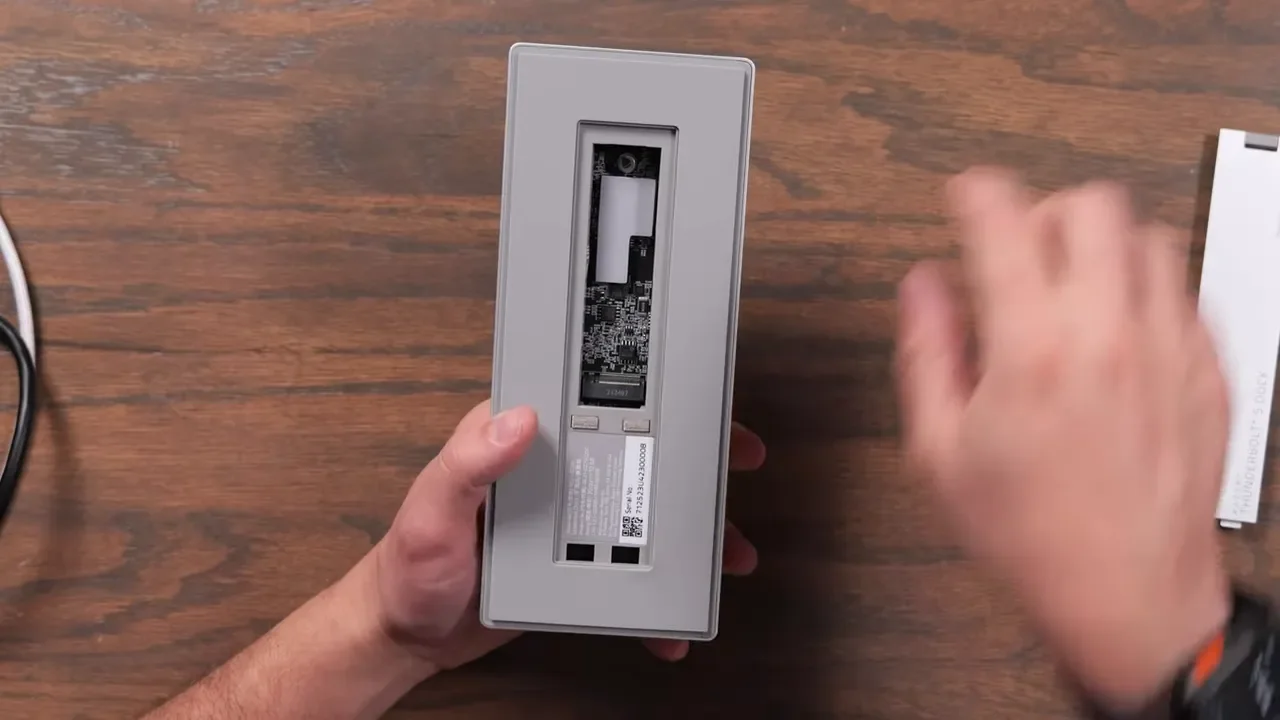
This is the part that really separates the Razer dock from a lot of the field. On the bottom, there is a dedicated slot for an NVMe SSD. Instead of buying a separate Thunderbolt SSD enclosure and then running yet another cable on your desk, you can keep fast storage built into the dock itself. That is not just convenient. It also makes the whole setup feel much more intentional. One device handles expansion and storage at the same time. If you want to load it up with a high capacity drive, the WD Black SN850X 8TB SSD used here is a great fit for this kind of setup.
Tool-Free Installation: Adding An SSD To The Dock
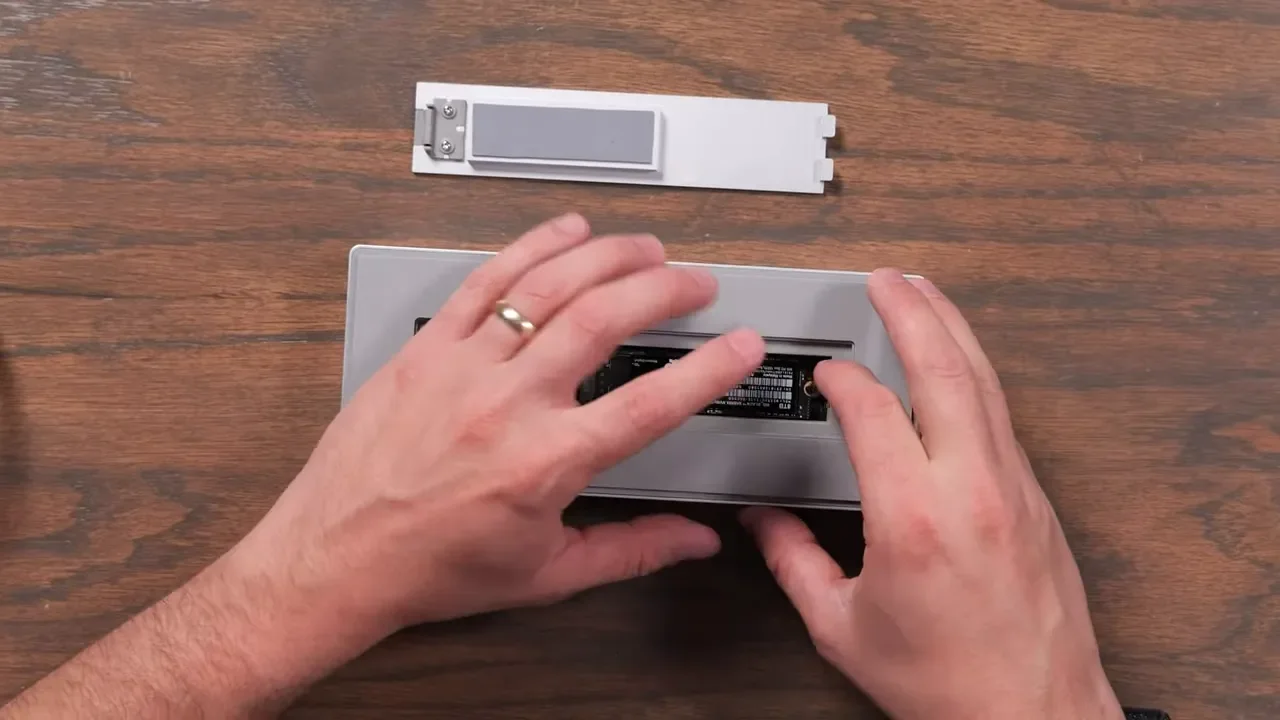
Razer made the SSD install process refreshingly simple. You remove the rear cover, slide the NVMe drive in at an angle, and then use the built-in tool-free locking mechanism to secure it. No tiny screw, no hunting for a screwdriver, no fiddly install process. Once the drive is locked in, you put the cover back on and you are done. It takes almost no time at all, which makes this much more approachable than some storage add-ons that feel like a project.
Active Cooling System For Peak Performance
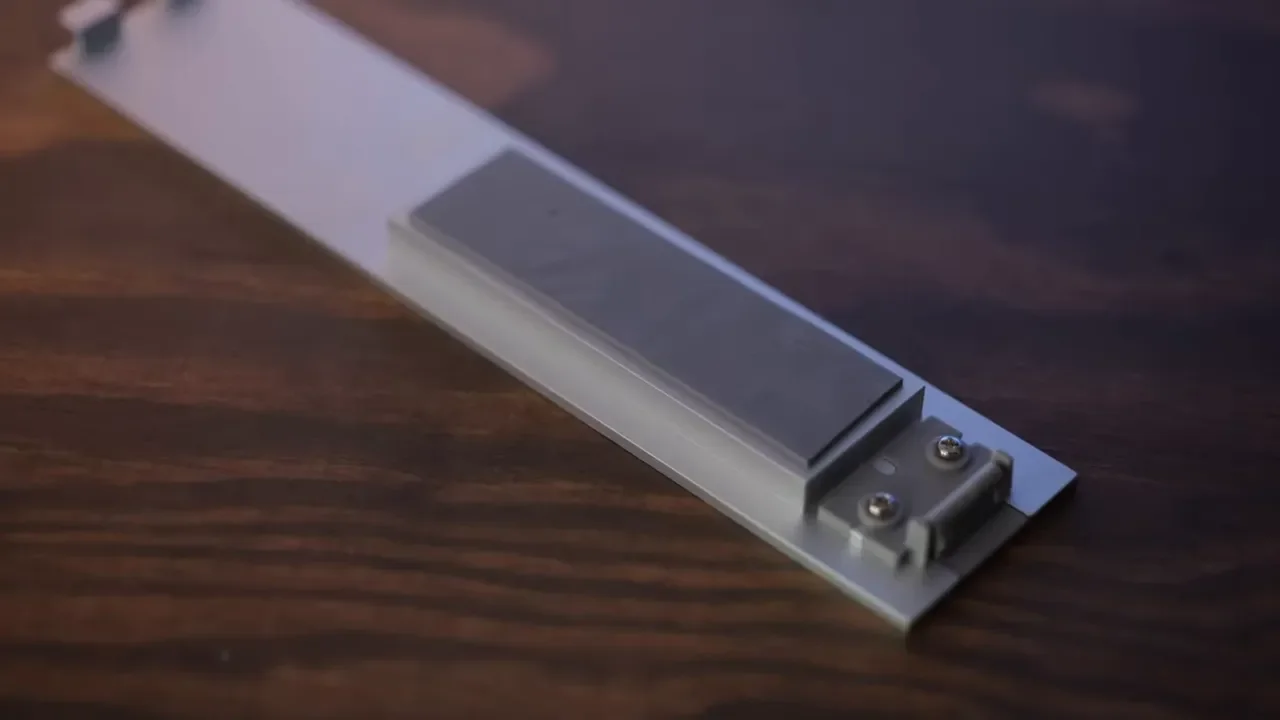
Fast storage is great until it gets hot and starts throttling. Razer clearly knew that, because this dock includes active cooling. That matters a lot when you are pushing high transfer speeds through the internal SSD. The cover also includes a thermal pad, which helps pull heat away from the drive. So the dock is not just giving you a place to install an NVMe drive. It is actually designed to support sustained performance without turning into a thermal mess.
Mercury Vs. Chroma: Design & Aesthetic Differences
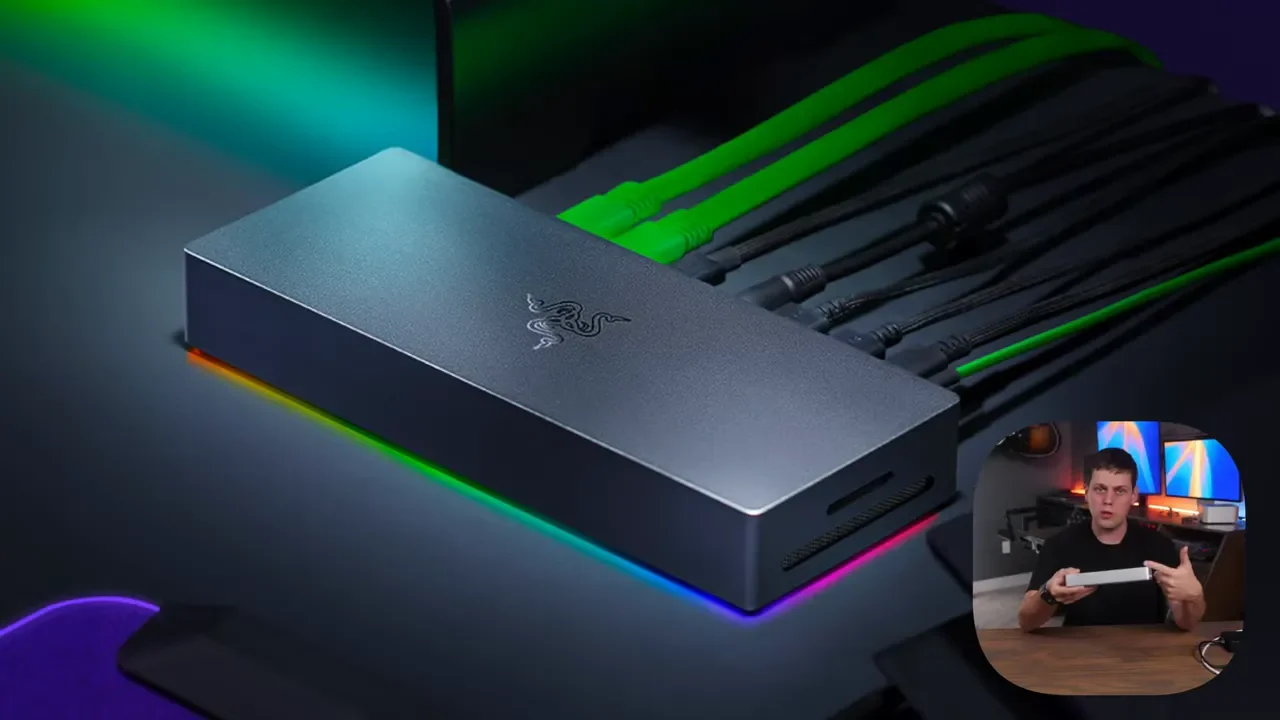
Razer offers this dock in two different personalities. The Mercury Edition is silver, understated, and much more minimal. It has a clean top panel with the Razer logo and no front ports, which gives it a sleek appearance on a desk. The Chroma version is black and includes Razer's signature LED lighting underneath. If you want that version, here is the Razer Chroma Dock. The Mercury model is definitely the one that makes the most sense if your setup leans Mac or you simply prefer a cleaner aluminum look.
Real-World SSD Performance & Transfer Speeds (Up To 5,800 MB/s)
The built-in SSD slot is not just a nice feature on paper. It is fast. Using the WD Black SN850X 8TB SSD, transfer speeds reached about 5,800 MB/s write and 5,200 MB/s read. Those are seriously impressive numbers for storage integrated into a dock. That kind of speed makes a real difference if you are editing high resolution video, moving massive project files, or keeping active media libraries on the dock itself.
Detailed Look At All Rear & Side Ports (140W Charging, UHS-II)
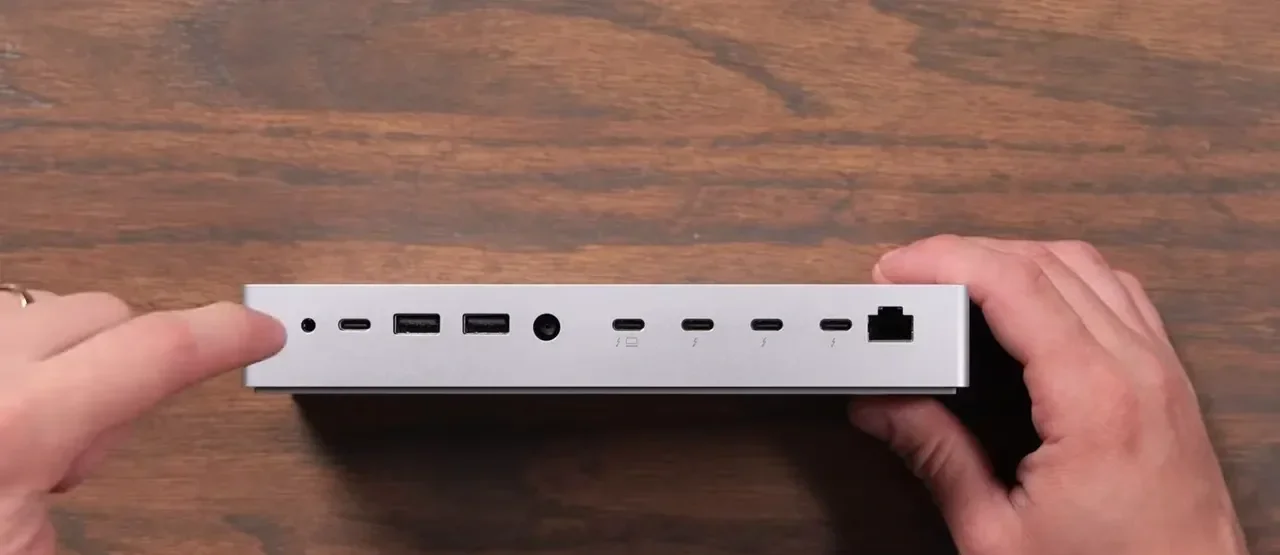
On the rear, the dock includes:
3.5mm headset jack
One USB-C 10Gbps port
Two USB-A 10Gbps ports
Power input
Thunderbolt host port with up to 140W charging
Three downstream Thunderbolt ports
Ethernet
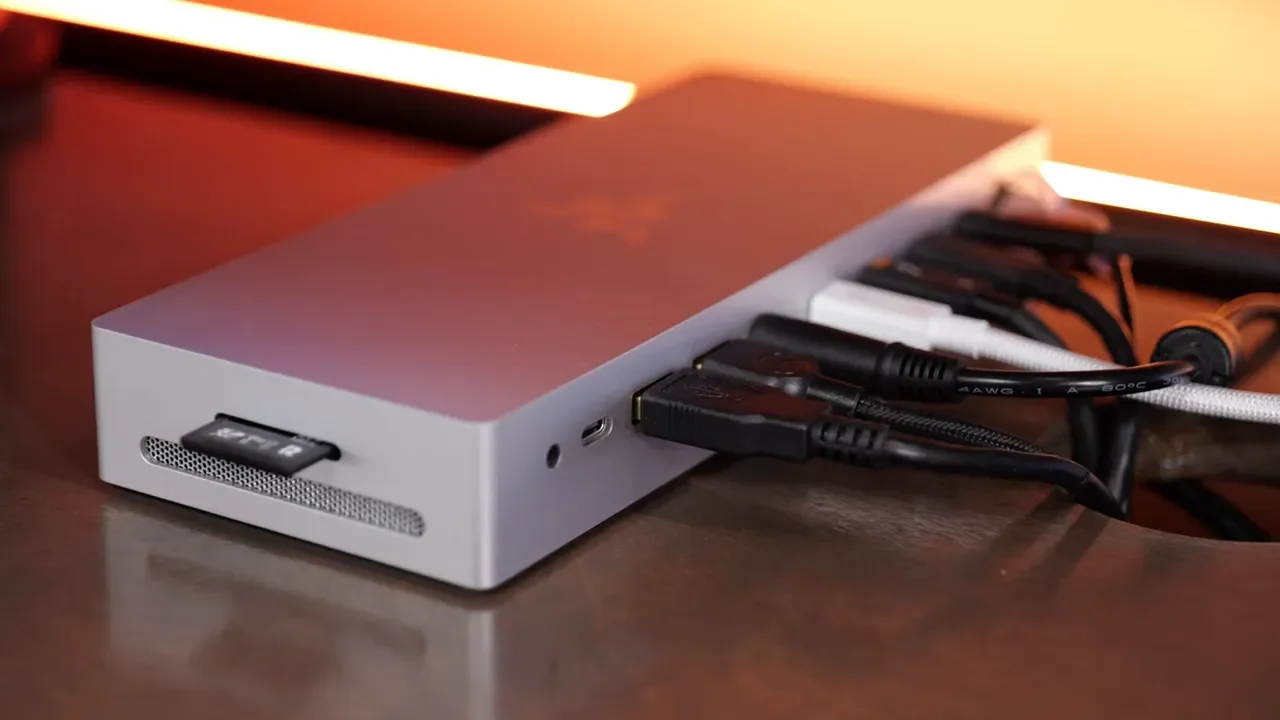
That total of three extra Thunderbolt ports is especially nice. Some competing docks only give you two, and that extra flexibility goes a long way when you want to keep displays or fast accessories permanently attached. On the side, there is a UHS-II SD card slot, which is genuinely useful if you work with cameras and media cards regularly. The side also houses venting for the active cooling system.
One Disappointing Port: The 1 Gigabit Ethernet Limitation
This is one of the easiest criticisms to make, because it feels like a missed opportunity. The Ethernet port is only 1 gigabit. On a premium Thunderbolt 5 dock, that feels underwhelming. The whole point of a dock is reducing the need for extra adapters, and a lot of people shopping in this category would have appreciated at least 2.5GbE. At this price, even 10GbE would have been a nice statement feature. Instead, networking is the one port that really does not feel especially future-proof.
Unboxing: Included Thunderbolt 5 Cable And Power Brick
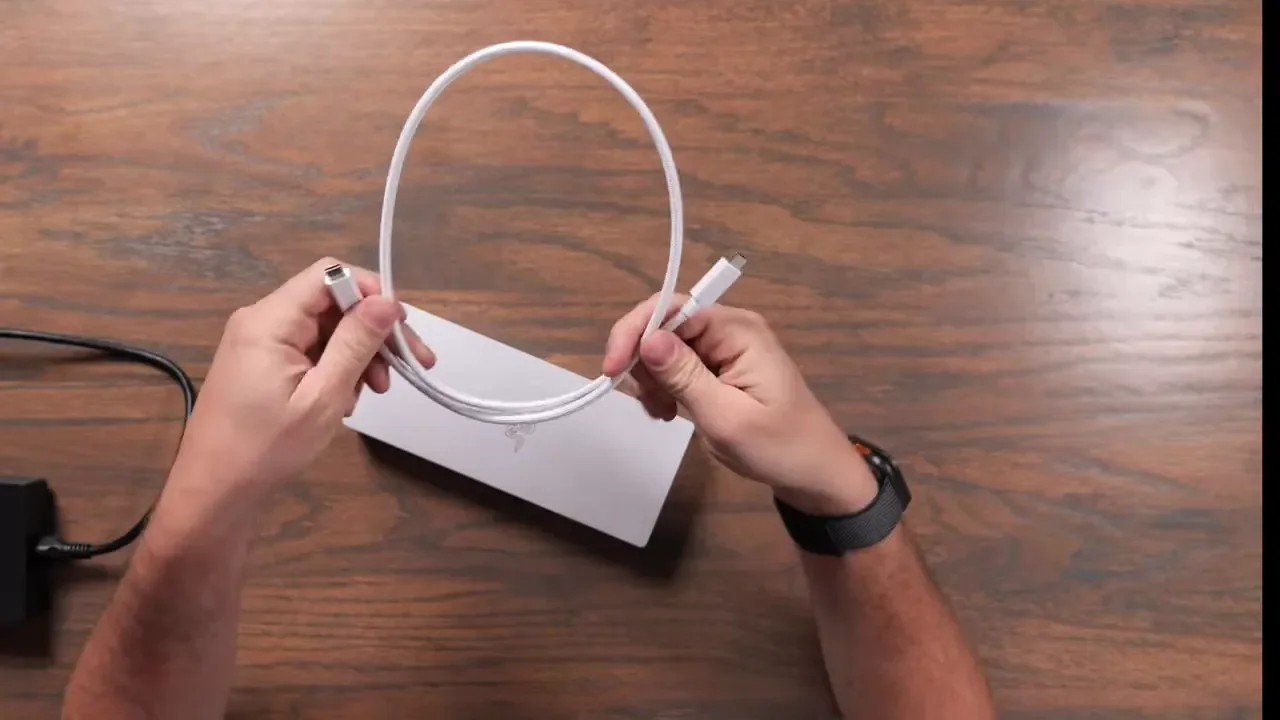
In the box, Razer includes a braided Thunderbolt 5 cable in a white and silver finish that matches the dock nicely. It looks good and fits the Mercury aesthetic well. The one complaint is length. It would have been even better with a little more reach for flexible desk layouts. You also get a large 250W power brick. It is definitely bulky, but that is the tradeoff for delivering enough power to run the dock and supply substantial charging back to your computer.
Multi-Display Support: Mac Vs. PC (Up To 3 External Displays)
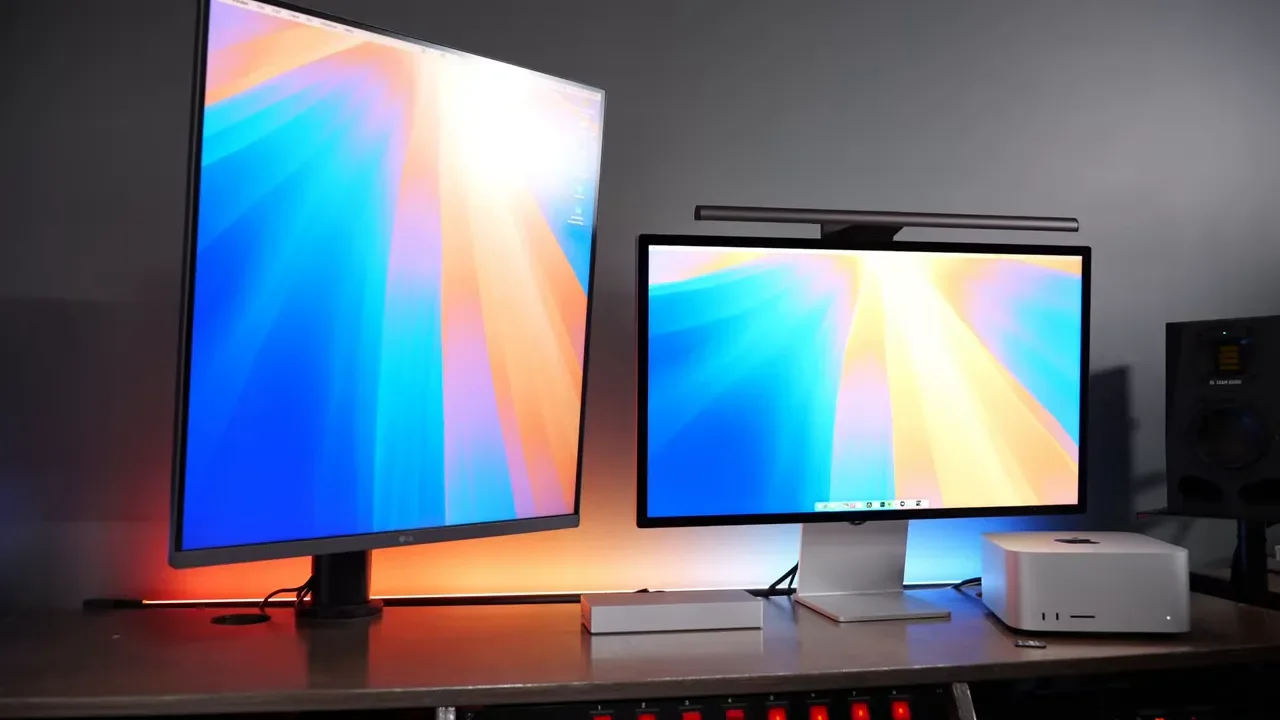
Display support depends on the computer you connect. On Mac, support varies by model, but this setup can be limited to up to two external displays. On PC, the dock can support up to three external displays. That difference is not really about the dock falling short. It is more about platform limitations and how each system handles external display support. In actual use, the dock handled multiple displays and simultaneous SSD activity without any obvious performance problems in normal work.
The Cool PC Feature: Thunderbolt Bridge For File Transfer
There is also a neat PC-only feature worth calling out: Thunderbolt Bridge. That lets you move files from one computer to another at Thunderbolt speeds. It is not something Mac supports in the same way here, but for PC users it adds another layer of usefulness beyond standard docking duties.
CON #1: The Price ($390) And Value Proposition
The biggest con is obvious. This dock costs $390. That is expensive, no question. Still, I do not think the pricing conversation is quite as simple as calling it overpriced. If you price out a high speed 80Gbps SSD enclosure by itself, you can already be in the neighborhood of $200. When you consider that this dock effectively combines a premium dock and a premium storage enclosure into one product, the value starts to make more sense. It is still a premium buy. It is just not a random premium.
CON #2: Shared Bandwidth & Hitting A Bottleneck (5K Display Impact)
This is the tradeoff that comes with doing so much over one connection. Even though Thunderbolt 5 can technically reach up to 120Gbps, you are still dealing with shared bandwidth across the dock. If you connect a lot of high speed devices at once, or run something demanding like an Apple Studio Display at 5K, performance on the built-in SSD can dip. That showed up in testing. With a 5K display connected, SSD speeds were slower than when the dock had more bandwidth available. So yes, this dock is fast, but it is not magic. If you stack enough bandwidth-hungry devices on one Thunderbolt link, you can absolutely hit a bottleneck.
CON #3: Missing Chroma LED On The Mercury Version
This is a smaller complaint, but I still get it. The Mercury version looks great, and I really like that Razer made a silver version that feels more at home in minimalist and Mac-friendly setups. But it would have been cool if this model kept the underglow Chroma lighting as an option instead of dropping it completely. At $390, it is fair to want a little more feature parity with the black version.
CON #4: No Dedicated HDMI Out Port
There is no dedicated HDMI port on the dock. For some setups, that will not matter at all. If you are already using Thunderbolt or USB-C displays, you are fine. But if one of your monitors depends on HDMI, you will need an adapter or dongle. Razer expects one of the Thunderbolt ports to handle display output, which is reasonable, but a built-in HDMI port would have made this dock a little more convenient for mixed setups.
Who Is This Dock For? Comparing To The Competition
This dock makes the most sense for someone who wants three things at once:
A clean and minimal desk aesthetic
Strong Thunderbolt expansion
The flexibility to choose their own NVMe SSD
That last point matters a lot. Some competing docks with built-in storage do not give you the same flexibility. For example, there are alternatives that include internal SSD storage, but if you want to move all the way up to 8TB, customizing your own drive can be the better path. Here, you get to pick the NVMe you want, install it quickly, and benefit from active cooling plus a full metal enclosure. That makes the Razer solution appealing if you care about storage performance and capacity as much as docking.
It also has the same overall kind of port versatility you would expect from premium competition, though there is no microSD slot here. In exchange, the Mercury design looks cleaner than a lot of the busier alternatives. If you are trying to dial in a broader Mac setup, my personalized Mac recommendations may help. And if you want the rest of the gear that pairs well with a desk like this, my full video making kit has everything listed.
Final Thoughts And Conclusion On The Razer Thunderbolt 5 Dock
Overall, the Razer Thunderbolt 5 Dock Mercury Edition works really well. Performance was solid, the internal SSD feature is genuinely useful, and the dock handled demanding tasks like editing high resolution video off the built-in storage without issue.
The biggest reasons to buy it are clear:
Excellent Thunderbolt expansion
Up to 140W host charging
Very fast built-in NVMe storage support
Tool-free SSD installation
Clean aluminum Mercury design
Active cooling for sustained performance
The biggest drawbacks are just as clear:
$390 is still expensive
Only 1GbE networking
Shared bandwidth can reduce SSD performance in heavier display setups
No dedicated HDMI output
No Chroma lighting on the Mercury version
If your priority is the cleanest possible setup with fast integrated storage and strong Thunderbolt flexibility, this is a very compelling dock. If you need faster Ethernet, more display convenience, or absolute maximum bandwidth across multiple demanding devices, you may want to compare a few alternatives first. But if the idea of a premium dock with a built-in NVMe slot sounds exactly like what your setup has been missing, this one absolutely delivers.