Ivanky FusionDock Ultra Review: A 26-Port Beast for Apple Silicon
Some of the links in this post are affiliate links, which means I may earn a small commission if you choose to make a purchase at no extra cost to you. As an Amazon Associate, I earn from qualifying purchases. Read my full Ethics & Affiliate Relationship Disclaimer.
If you need a serious desktop dock for an Apple Silicon Mac, the Ivanky FusionDock Ultra is built for exactly that kind of setup. This is not a compact travel accessory and it is not trying to be. It is a full-on desktop hub designed to keep a huge number of devices connected at once, power your laptop, push multiple external displays, and still stay cool under load.
What makes it stand out is the dual-cable design. Instead of relying on a single Thunderbolt connection, it uses two connections to your Mac so it can move more bandwidth than a typical dock. That opens the door to more displays, more high speed accessories, and fewer compromises for demanding workstations.
Table of Contents
Why This Dock Is Different
The big idea behind the FusionDock Ultra is simple. Most docks become a balancing act once you start plugging in high resolution displays, fast storage, networking, capture gear, and other peripherals all at the same time. Ivanky’s answer is to split the workload across two Thunderbolt connections.
Inside, the dock uses dual Thunderbolt controllers. On the outside, that means two host connections go into your computer instead of one. For the right user, that tradeoff makes a lot of sense. You give up two ports on the Mac, but you get a lot more flexibility and bandwidth in return. It is also backward compatible with older Thunderbolt generations, including Thunderbolt 3 and Thunderbolt 4 Macs, but the total performance drops when you do that. This dock really makes the most sense when paired with a newer Apple Silicon machine.
Built For Heavy Workloads, Not Minimal Setups
One of the more interesting parts of the FusionDock Ultra is its thermal design. Ivanky uses a copper core and a floating internal chassis, along with active cooling from built-in fans. The result is a dock that stays surprisingly cool even when it is handling multiple displays and a pile of high bandwidth devices. That matters more than people think. Once a dock becomes the center of a serious desk setup, heat management stops being a nice bonus and starts being part of reliability. This one feels designed for long sessions and full-time use.
Compatibility Matters A Lot Here
Before anything else, this is a dock for Apple Silicon Macs only. It is not designed for Windows machines, and it is also not a good fit for older Intel Macs. So if you are shopping for one dock to use across a mix of platforms, this is probably not it. The FusionDock Ultra is far more specialized. It is clearly aimed at Mac users who want a permanent desk solution and who need more bandwidth than a normal dock can deliver.
The Dual-Cable Setup
The included cable setup is one of the coolest parts of the whole product. Ivanky includes a dual connector cable meant to line up neatly with a MacBook, and the two ends are magnetically joined so they stay tidy when plugged in side by side.

If you are using something like a MacBook Pro, it gives a much cleaner look than two completely separate cables. If you are using a desktop Mac like a Mac Studio, the cable can split apart and still work just fine. It is a thoughtful design that makes the two-port requirement feel less awkward than it sounds on paper. Ivanky also includes a single cable, but there is not much reason to use it. If you connect the dock with only one host connection, a large portion of the dock is effectively unavailable. That defeats the whole point of buying this model.
All 26 Ports, And Where They Are
This dock has 26 total ports, which is the main reason it earns the word "ultra" in the name. If you have a setup with displays, storage, networking, audio gear, capture devices, card readers, and charging needs all at once, this kind of port count starts making sense very quickly.
Rear Ports
The back panel handles most of the high performance connections. That includes:
Two host Thunderbolt connections for your Mac
Up to 140W laptop charging
Four Thunderbolt 5 downstream ports
One HDMI port
One DisplayPort
One 10Gbps USB-C port
Two USB-A ports
10 Gigabit Ethernet
Optical audio out
Mic in and headphone out
DC power input
Kensington lock slot
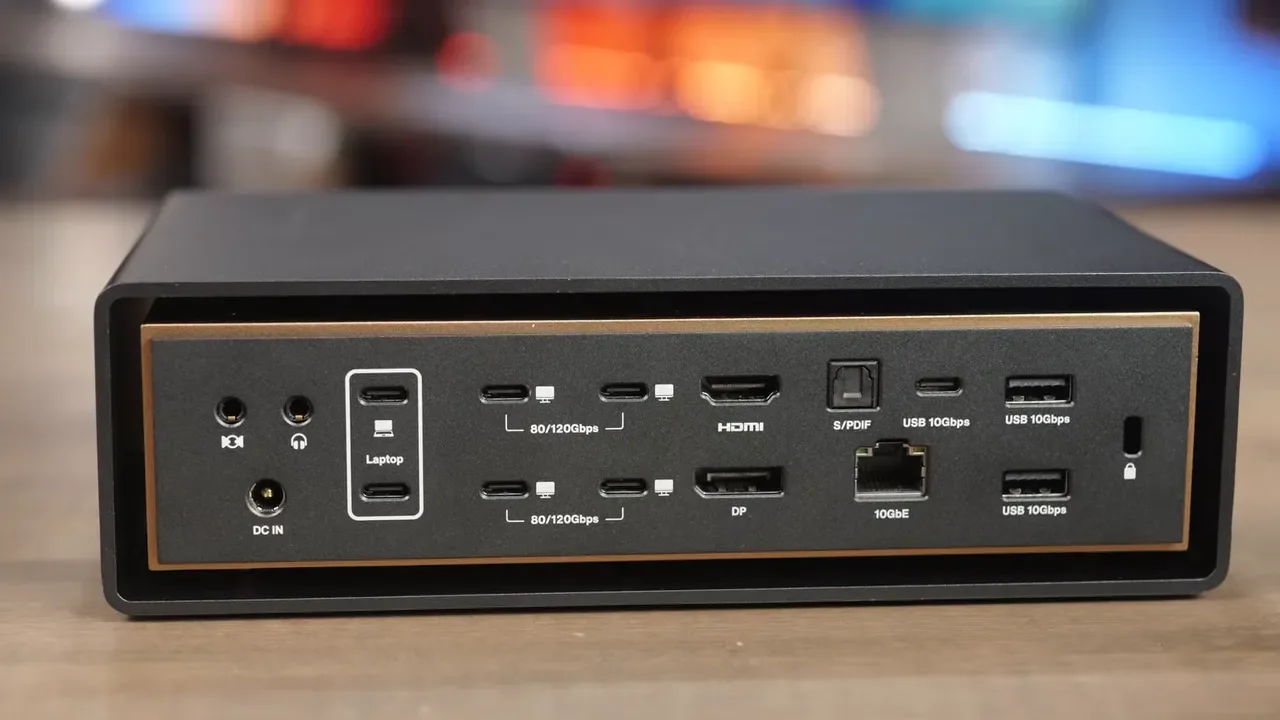
The rear layout is where the dock feels the most workstation-focused. The four Thunderbolt 5 ports are especially useful for high speed storage and premium display connections, and the 10 gig Ethernet port is a huge win for anyone using fast network storage. That 10GbE connection is a big deal because a lot of docks still top out at slower networking. If your workflow depends on a NAS or other high speed wired network setup, this is one of the features that makes the dock feel appropriately premium.
Front Ports
The front is packed too. You get:
Two USB-A ports
Six USB-C 10Gbps ports
One additional USB-C 10Gbps port with 45W power output
Headset jack
UHS-II microSD card slot
UHS-II SD card slot
That 45W front USB-C port is a nice touch if you want to keep an iPad charged or power another accessory without reaching around the back.
The Biggest Design Complaint
There is one issue with the port layout, and it is pretty easy to understand the moment you look at the front. Too many of the permanent-use ports are on the front panel. If your goal is a super clean desk with cables hidden behind the dock, having seven USB-C ports and two USB-A ports on the front becomes less helpful than it sounds. A few front ports are great for temporary devices like card readers and SSDs. But when too many important ports live there, cable management starts getting messy.
Honestly, this dock could stand to be a bit wider if that meant shifting more of those front USB-C ports to the back. That would make it much easier to build a cleaner looking desktop setup. The other small hardware complaint is that all of the Thunderbolt 5 ports are on the back. It would have been great to have one fast Thunderbolt 5 port on the front for quick access to an external SSD.
Display Support Up To Four External Displays
The FusionDock Ultra is not a DisplayLink dock. That is important because it means display support is tied directly to what your Mac itself can handle. In other words, the dock does not magically add monitor support beyond your system’s native capabilities. Your chip determines how many displays you can run. What the dock does do is make it easier to use that capability fully, especially because of the dual connection design.
Depending on your Mac, the dock can support up to four external displays. At the time this was tested, that level of support was broader than what many single-cable docks could manage, especially on systems other than the top-end Max chip configurations. If you are planning a multi-monitor setup, check Ivanky’s compatibility chart first so you can confirm both display count and resolution support for your exact Mac model. That matters a lot here.
There is another detail worth knowing:
The HDMI port and DisplayPort top out at 4K at 60Hz
If you want the highest resolution and fastest display support, use the Thunderbolt ports on the back
Each Thunderbolt downstream port also reserves 15W of power, so they are useful for more than just display output.
Power Delivery And Charging
The dock can deliver up to 140W of power to a laptop, which is exactly what you want from a premium desktop dock. One connection point for power, data, displays, storage, and networking is the whole appeal of a setup like this. On top of that, you also get the 45W front USB-C charging port for a secondary device. So if your desk includes something like an iPad, portable monitor, or other USB-C powered gear, the dock has enough charging flexibility to cover it.
Who This Dock Actually Makes Sense For
This is not the dock for someone who just wants to connect one monitor, a keyboard, and an SSD. It is overkill for that. The FusionDock Ultra makes sense for people who want to sit down, connect their Mac, and instantly light up an entire workstation with 20 or more peripherals already plugged in.
That includes setups like:
Music production rigs with audio interfaces, MIDI controllers, keyboards, and guitar gear
Video editing desks with fast external storage and 10GbE NAS access
Multi-display Mac workstations using Studio Displays or similar high resolution monitors
Hybrid creator setups with capture devices, networked storage, and lots of USB accessories
That is where a dock like this stops sounding excessive and starts sounding practical.
How It Compares To Other High-End Docks
The most obvious competitor here is the CalDigit TS5 Plus. That dock is easier in one specific way because it only needs a single cable to connect to your computer. If convenience is the top priority, that matters. But the FusionDock Ultra has a different advantage. Because of the dual-cable approach, it can support more demanding multi-display configurations on a wider range of Macs. It also has a design that feels more focused on cooling and sustained performance.
It is bigger too, which in this category is not really a downside. This is not the kind of dock you buy for portability. You buy it because your desk is permanently loaded with gear. Ivanky also has the FusionDock Max 2, which is another strong option if you like the company’s dual-connection approach but do not need the full capability of the Ultra.
The Main Drawbacks
The FusionDock Ultra is impressive, but it has three clear downsides.
You have to use two ports on your Mac. For some people that is fine. For others it will be a dealbreaker.
Too many ports are on the front. That hurts cable management if your setup is mostly permanent.
It is expensive. At around $650, this is premium territory.

That price is a lot, no question. But it also helps to think of this as something closer to two docks working together in one enclosure. Once you look at it that way, the pricing makes more sense, especially if you actually need the extra bandwidth and port count.
Final Verdict
The Ivanky FusionDock Ultra is one of those products that is easy to understand once you know who it is for. If you need maximum flexibility, lots of high speed ports, 10 gig networking, laptop charging, and support for a serious multi-display Apple Silicon setup, this is an excellent dock. It is powerful, thoughtfully cooled, and loaded with connectivity.
The dual-cable setup is unusual, but it is also the reason the dock can do more than typical single-cable options. If your Mac desk is packed with gear and you are tired of making compromises, this is the kind of dock that can simplify everything. If your setup is simpler, there are definitely cheaper and cleaner options. But for a high-end creative workstation, the FusionDock Ultra is absolutely worth a look.
Where To Find It
If you want to check pricing or buy the dock, you can find the FusionDock Ultra here or buy it directly from Ivanky. For a broader look at the gear used in this kind of workstation, here is the full video production kit, along with a closer look at the desk setup.