Magic Trackpad vs Magic Mouse: Which Should You Buy for Your Mac?
Some of the links in this post are affiliate links, which means I may earn a small commission if you choose to make a purchase at no extra cost to you. As an Amazon Associate, I earn from qualifying purchases. Read my full Ethics & Affiliate Relationship Disclaimer.
If you are trying to pick a Bluetooth pointing device for your Mac, Apple gives you two really solid options that feel completely different in day to day use. The Magic Trackpad and Magic Mouse are both clean, simple, and easy to pair, but they are not interchangeable.
The real question is not which one is objectively better. It is which one fits the way you actually work. One leans into gestures, comfort, and flexibility. The other sticks closer to a traditional mouse experience with precise wrist-driven movement.
Table of Contents
Charging And Pairing Differences
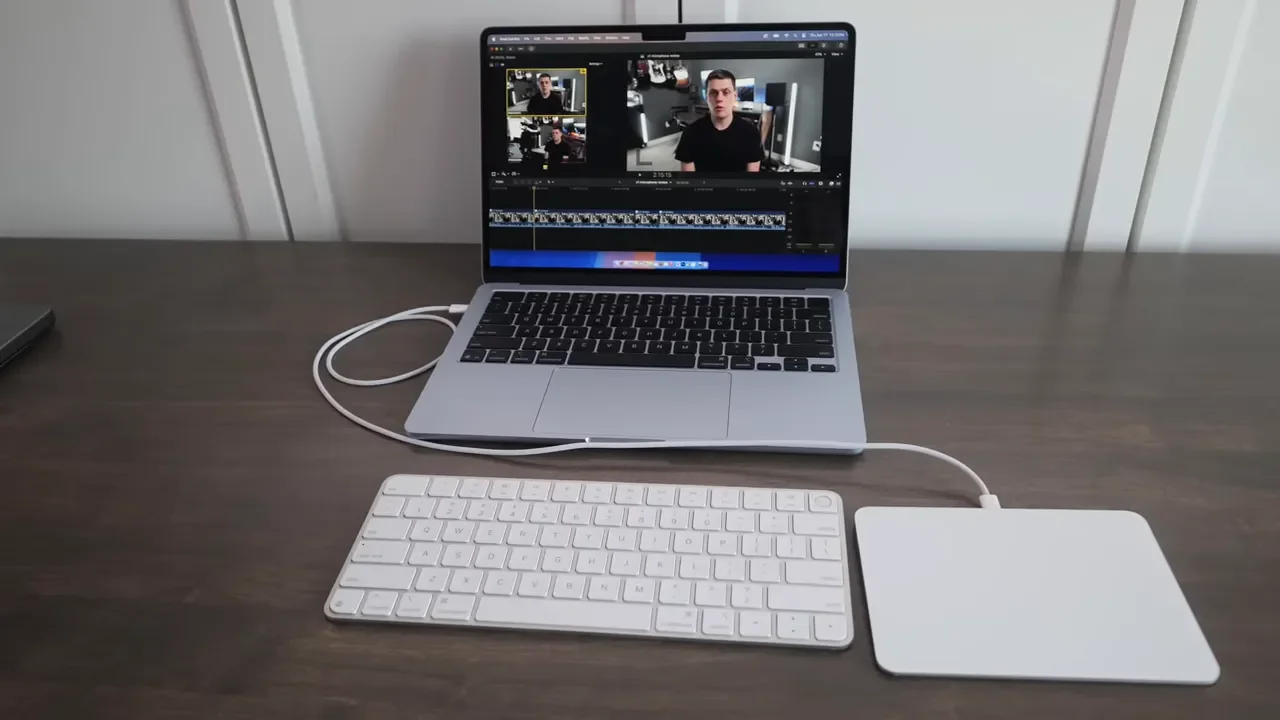
Apple now uses USB-C on both devices, which is a welcome change. Pairing is also very straightforward. Plug either one into your Mac with a USB-C cable, switch it on, and macOS recognizes it almost immediately.
That said, the charging experience is definitely not the same.
Magic Trackpad: The USB-C port sits on the back edge, so you can keep using it while it charges.
Magic Mouse: The USB-C port is on the bottom, which means charging takes the mouse out of service until you unplug it.
This is one of the biggest practical differences between the two. Even if the mouse battery lasts a long time, the port placement is still annoying. The trackpad simply handles this better.
Clicking, Scrolling, And Basic Input
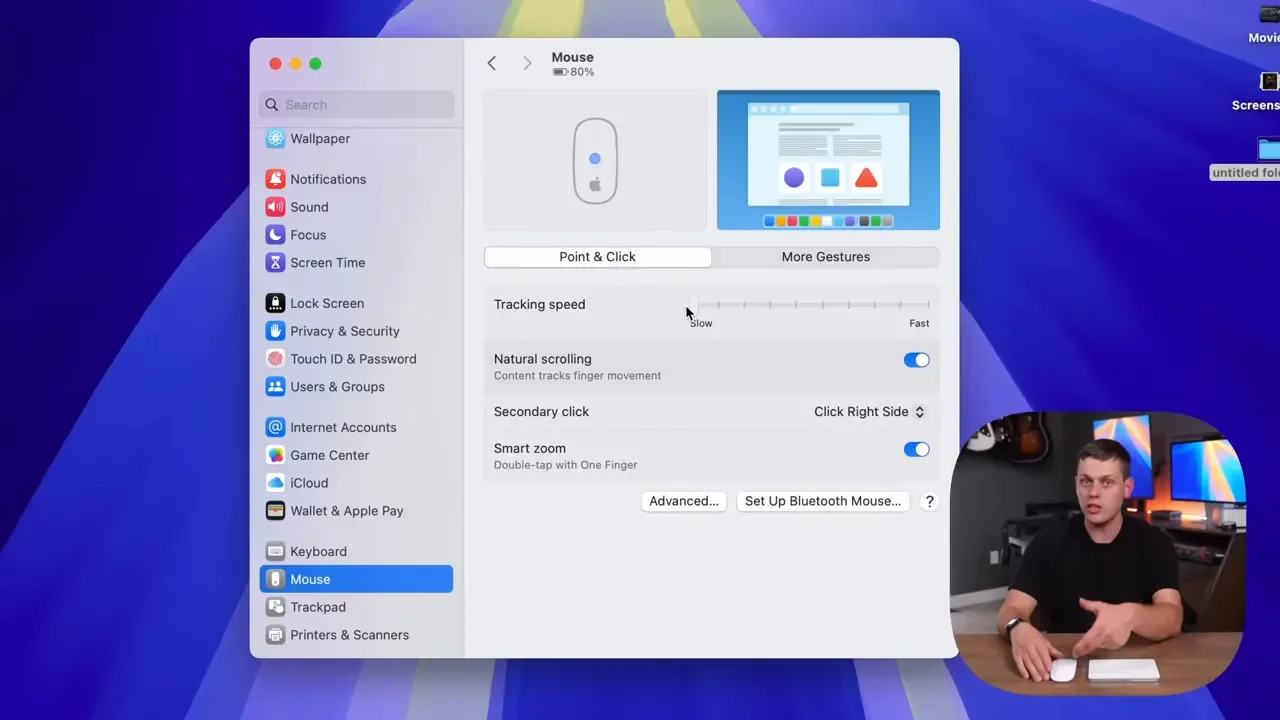
Neither device works like a traditional mouse with a visible scroll wheel and distinct buttons on top. On the Magic Mouse, the top surface handles both clicking and scrolling. You get left click and right click support, but on a Mac, the right click behavior is called secondary click, and you may need to enable it in settings. On the Magic Trackpad, there is no conventional button at all. Instead, it uses haptic feedback to simulate the click. The result feels surprisingly convincing, and you can adjust the click feel to be lighter or more pronounced depending on your preference.
The trackpad also gives you more ways to trigger a secondary click. You can assign it to:
the bottom right corner
the bottom left corner
a two-finger tap
Scrolling is different too:
On the Magic Mouse, you slide a finger across the mouse surface.
On the Magic Trackpad, you scroll with two fingers.
How They Actually Feel To Use
This is where the decision gets a lot easier, because the two devices encourage very different hand movement. With the Magic Mouse, you move the cursor by moving your wrist and hand around the desk. That is familiar if you have used a mouse for years and do not want to rethink anything.
With the Magic Trackpad, you leave the device in one place and move the pointer mostly with your fingers. There can be a little wrist motion, but nowhere near as much as with a mouse. At first glance, the trackpad looks much bigger, and it is. But because it stays planted while your fingers do the work, it does not necessarily demand more usable desk space in practice. The mouse may be smaller physically, yet it usually needs more room around it to move freely.
Ergonomics And Comfort
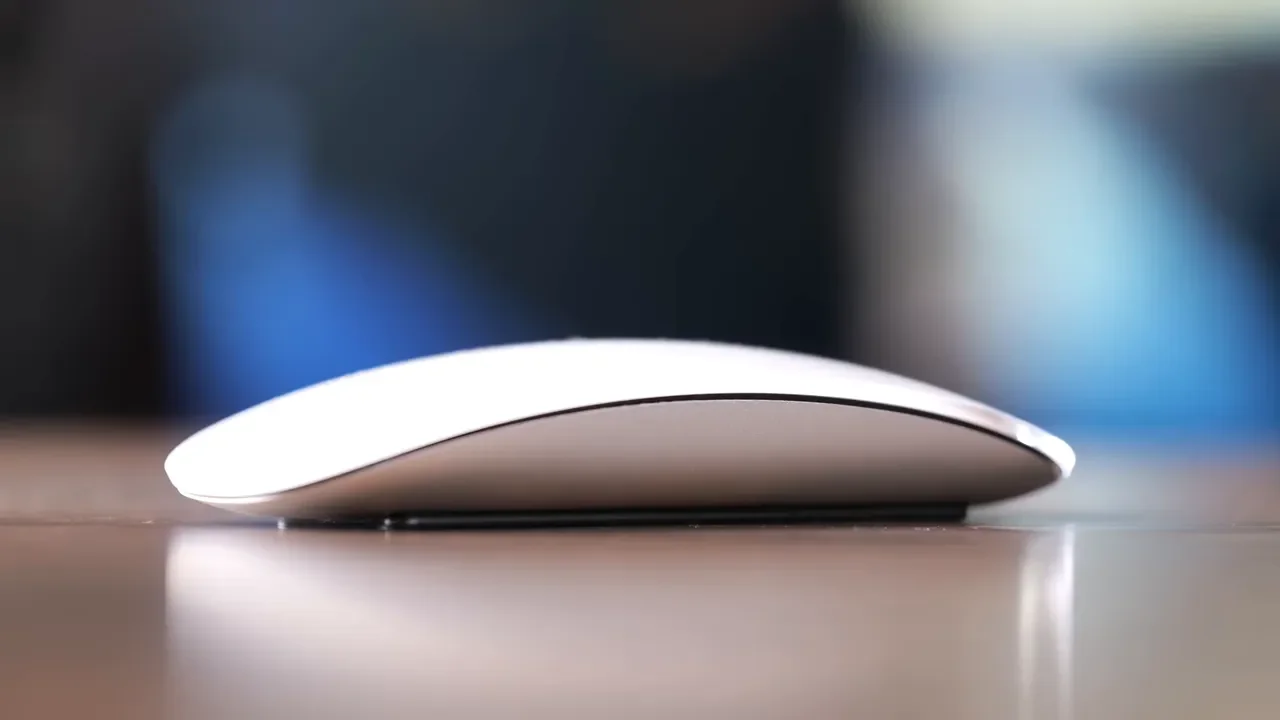
Comfort is one of the strongest arguments for the Magic Trackpad. Both devices are thin, but the Magic Mouse sits very low. For some people, that low profile can make the hand feel cramped over longer sessions. If you spend hours editing, browsing, or doing general office work, that matters.
The Magic Trackpad feels easier on the hand because your wrist can sit a little more naturally. Instead of gripping a low shell and pushing it around, you rest your hand and use your fingers more lightly. If hand fatigue is already something you notice, the trackpad may be the more comfortable pick.
Why The Magic Trackpad Does More
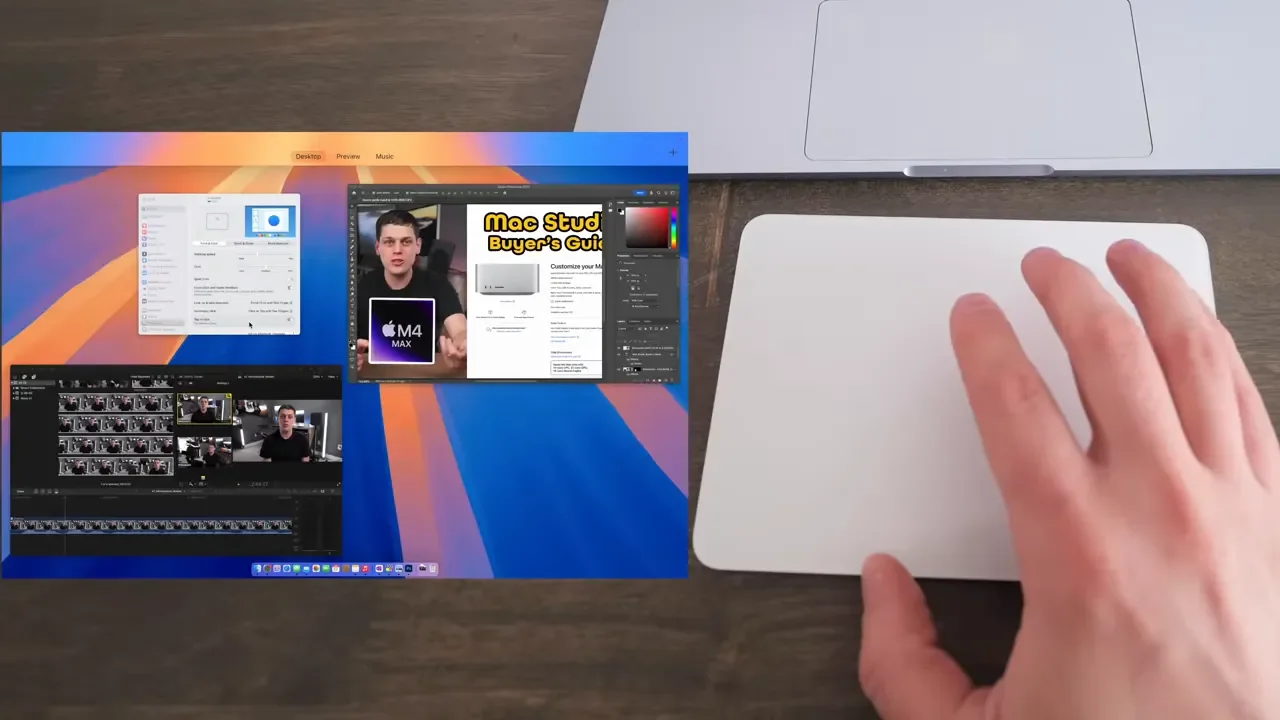
The Magic Trackpad is basically a large gesture surface, and that opens up a lot more functionality than the mouse gives you. Beyond basic cursor movement and clicking, you can use gestures for things like:
switching between full screen apps
pinching to zoom
three-finger dragging
opening Launchpad
opening Notification Center
These are the kinds of things that can make macOS feel faster and more fluid once they become part of your muscle memory. If you like trackpad gestures on a MacBook, the Magic Trackpad brings that same style of interaction to a desktop setup.
Accuracy For Editing And Precision Work
A lot of people criticize the Magic Mouse for accuracy, but in real use it is more capable than it sometimes gets credit for. For photo editing and video editing, the Magic Mouse is plenty accurate. It works well for precise pointer placement, and that wrist-based movement can actually feel better for tiny cursor adjustments.
The Magic Trackpad is still very usable for creative work, but its strength is different. It feels smoother when scrolling, and the overall experience is more enjoyable for browsing, swiping around macOS, and general productivity. If your work often involves moving the cursor just a tiny amount before clicking, the Magic Mouse may still have the edge. On a trackpad, you are coordinating finger movement and clicking on the same flat surface, which can feel a little less exact for that specific kind of task.
Price Comparison
Price is another clear separator.
Magic Mouse: about $80 in white and $100 in black
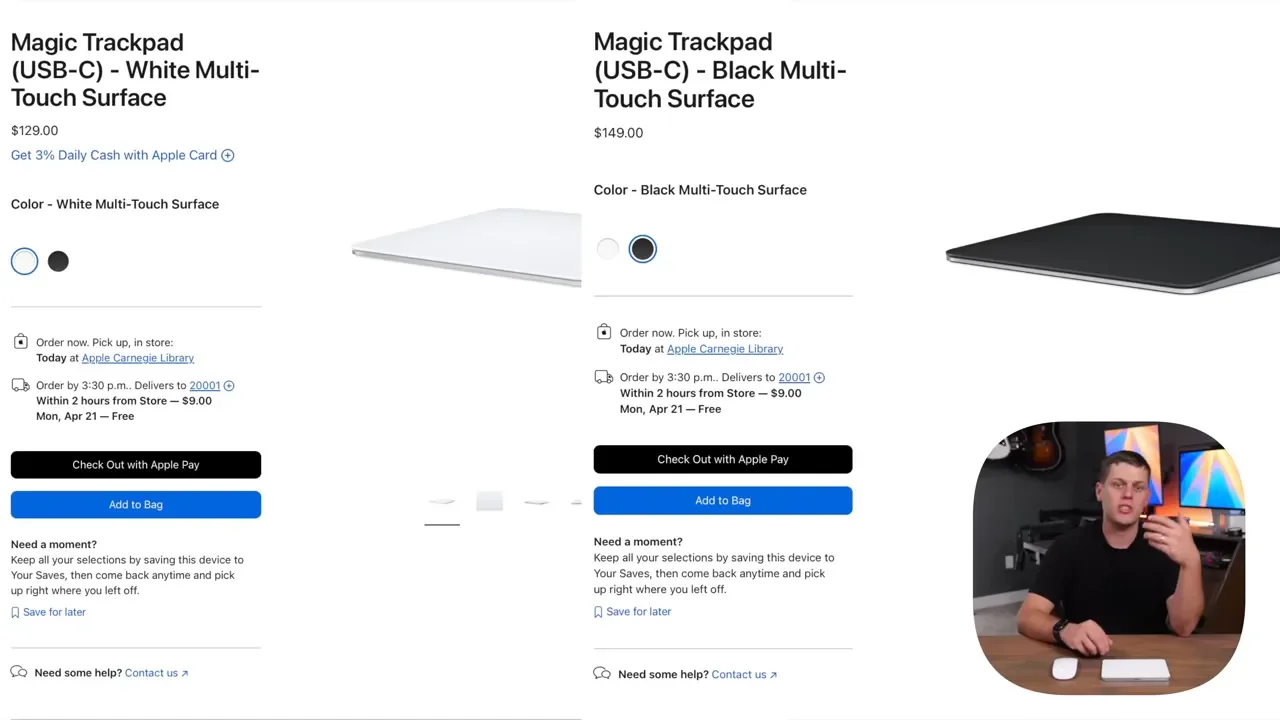
Magic Trackpad: about $130 in white and $150 in black
So yes, the trackpad costs more. If budget is a major factor and you simply want a clean Apple input device that matches your Mac, the Magic Mouse is the cheaper option.
Which One Makes More Sense For You?
If I had to boil it down, the decision really comes down to one thing: do you prefer wrist movement or finger gestures?
The Magic Trackpad is probably the better choice if you want:
more gestures
smoother scrolling
better comfort over long sessions
the ability to use it while charging
a more enjoyable experience for browsing and general productivity
The Magic Mouse makes more sense if you want:
a more traditional mouse feel
wrist-based pointer movement
slightly more confidence for tiny precision movements
a lower price
Personally, the trackpad wins in more categories. It is more flexible, more comfortable, and more pleasant to use for everyday Mac tasks. The mouse mainly wins if you already know you prefer a classic mouse experience and do not care much about gestures.
Why Using Both Can Actually Be The Best Setup
If you are setting up a desktop Mac and do not need to limit yourself to one device, using both can be a surprisingly great combination. A lot of people place the trackpad on the left side of the keyboard and the mouse on the right. Others keep both on the right and switch depending on the task.
That setup makes a lot of sense:
Use the Magic Trackpad for web browsing, navigation, app switching, and everyday productivity.
Use the Magic Mouse when you want more precise cursor control.
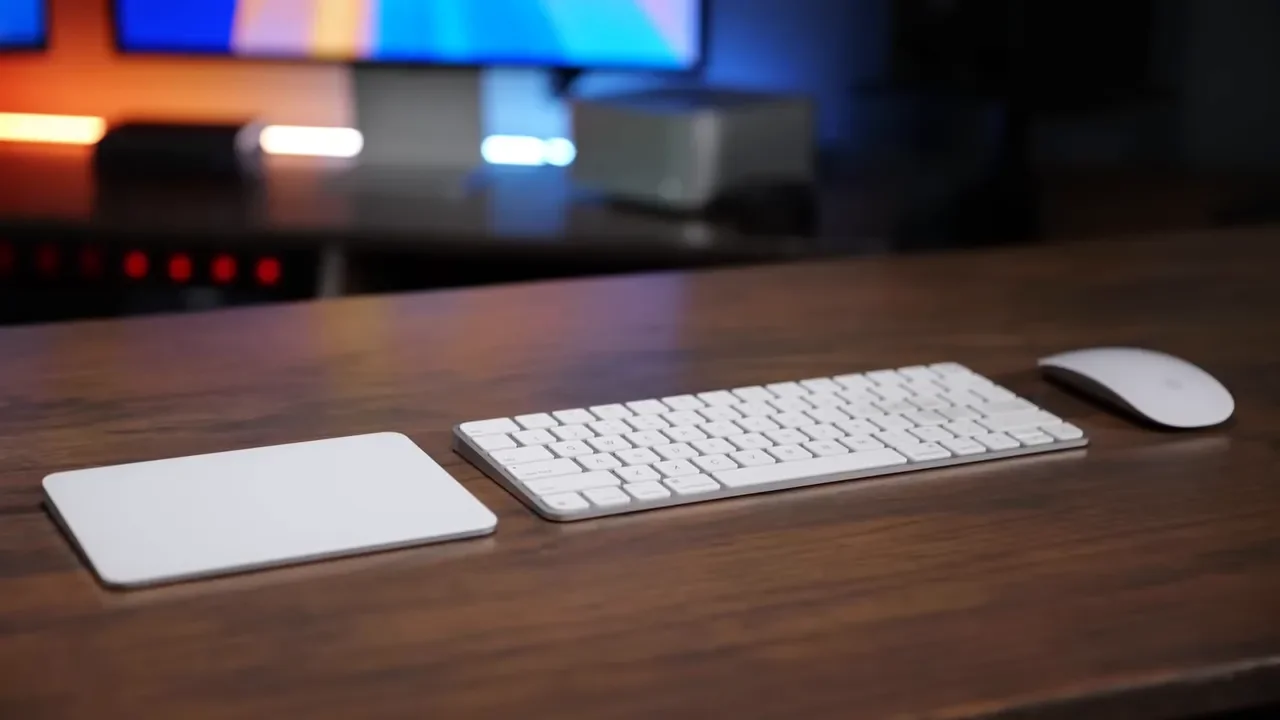
If you are building out a full Apple desk setup, pairing either device with the Magic Keyboard with Touch ID or the Magic Keyboard with Touch ID and Numpad can make the whole setup feel really cohesive.
Final Recommendation
If you want my straightforward answer, I would lean toward the Magic Trackpad for most people. It gives you more features, feels better over longer stretches, and fits the Mac experience really well. But if you know you like a standard mouse, or you do a lot of fine pointer work and do not want to change your habits, the Magic Mouse is still a totally valid choice. And if you can swing both, that may honestly be the sweet spot.
Additional Resources
If you are also trying to choose the right Mac to go with your setup, you can get a personalized Mac recommendation based on what you actually need.
For a broader look at the full workspace behind this kind of setup, check out the full desk setup tour. If you want a complete breakdown of the recording gear used for tech content, there is also a full gear list that includes the Lumix S5II X, 35mm F1.8 lens, audio interface, microphone, Kondor Blue Pro Blade top handle, and half cage. If you are growing a YouTube channel, you can also take a look at vidIQ. For more tech recommendations and updates, visit the website or connect on Instagram.