Which MacBook Should You Buy in Apple’s 2026 Lineup?
Some of the links in this post are affiliate links, which means I may earn a small commission if you choose to make a purchase at no extra cost to you. As an Amazon Associate, I earn from qualifying purchases. Read my full Ethics & Affiliate Relationship Disclaimer.
I spent the last few months testing Apple’s full 2026 MacBook lineup, from the $600 MacBook Neo all the way up to the M5 Max MacBook Pro. After using all of them side by side, one thing is very clear: we’re not in a world anymore where a MacBook is just a MacBook.
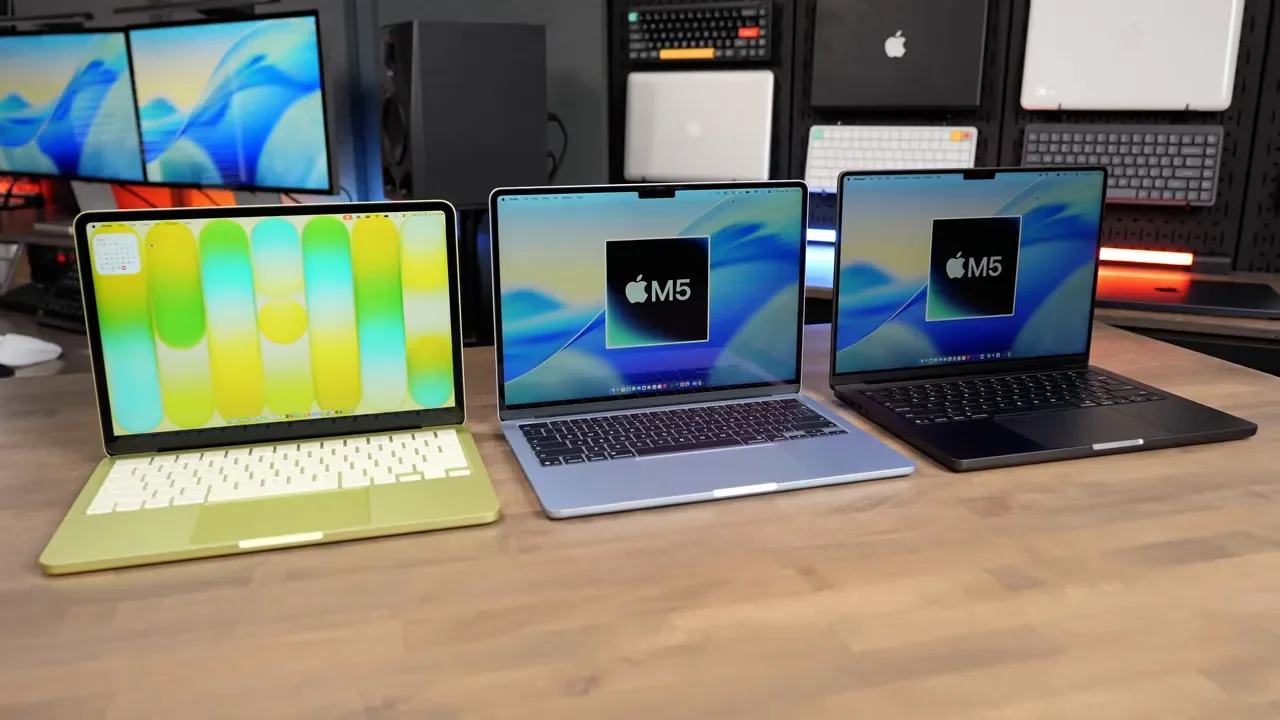
Apple has split the lineup into three very different tiers. There’s the entry-level MacBook Neo, the all-around MacBook Air, and the workstation-class MacBook Pro. They may all run macOS, but they are absolutely not built for the same kind of person.
If you’re trying to figure out where your money is actually well spent and where you’re just paying for more power than you’ll ever use, here’s how the lineup breaks down after real testing.
The Three MacBook Tiers Apple Has Created
Apple’s laptop lineup now makes the most sense when you think about it in three buckets:
MacBook Neo: the cheapest way into macOS
MacBook Air: the efficiency-focused sweet spot for most people
MacBook Pro: the mobile workstation for heavier professional work
That distinction matters, because a lot of people can save serious money by buying the right tier, while others will waste time and frustration if they go too cheap.
MacBook Neo: Cheap, Surprisingly Good, But Clearly Limited
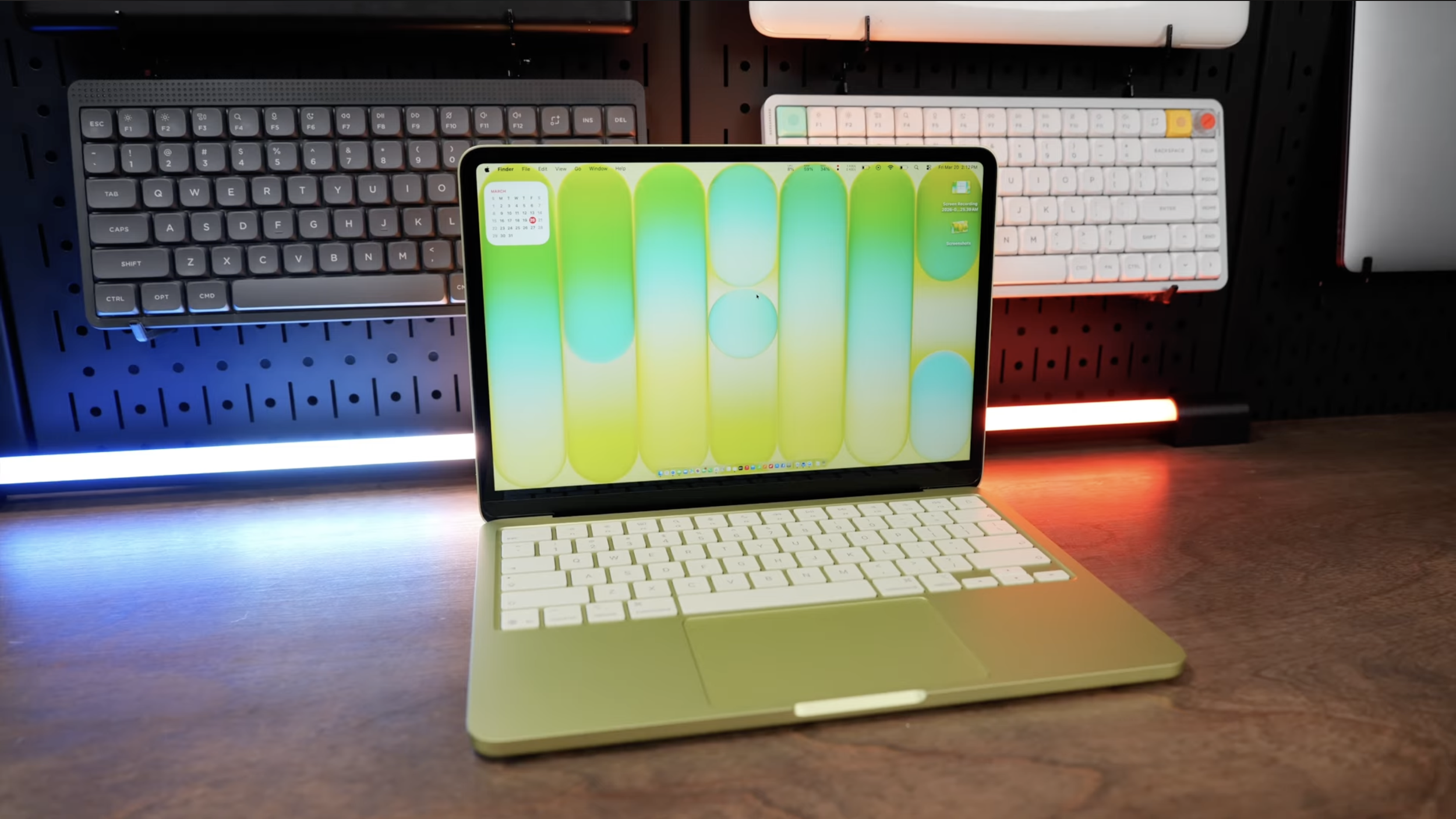
The MacBook Neo is kind of like the iPhone of laptops. That’s not an insult. In some ways, it’s actually impressive.
Apple still gave it that premium feel. The build quality is solid, it looks good, it feels sturdy, and it’s still very thin. If you picked it up in isolation, you’d probably think it was a really nice machine. But once you start using it next to the rest of the lineup, the compromises become obvious.
Why The Neo Feels Different
The biggest reason is the chip. Instead of an M-series processor, the MacBook Neo uses the A18 Pro, which was originally designed for iPhone. That gives it some benefits, especially battery life, and to Apple’s credit, it actually runs macOS surprisingly well.
But the A18 Pro is still a mobile-first chip. As soon as you start pushing beyond basic tasks, you feel it.
Multitasking is where the Neo begins to fall apart. Switching between apps, keeping multiple programs open, bouncing between browser tabs, or just generally trying to work fast can introduce little hiccups and micro stutters. It’s not unusable. It just doesn’t feel effortless.
The Real Bottlenecks
The Neo’s limitations aren’t just about processor speed. The whole system is constrained:
60GB/s memory bandwidth, which is less than half of the MacBook Air
Much slower SSD performance, around a quarter of the Air’s speed and far behind the Pro
Only 8GB of RAM, with no option to upgrade to 16GB
That 8GB RAM limit is the biggest issue. Apple itself basically admitted in 2025 that modern macOS, especially with Apple Intelligence and more background processes, really wants 16GB to be the starting point. On the Neo, 8GB means once memory fills up, the system has to lean on swap memory, using the SSD like temporary RAM. Since the SSD is also slower, that compounds the problem.
The result is a machine that feels fine for one thing at a time, but not great for a lot of things at once.
Other Cost-Cutting Trade-Offs
Apple cut corners in a few other places too:
It starts with 256GB of storage
You only get Touch ID if you buy the more expensive 512GB model
The keyboard has no backlighting
The USB ports are slower
The display is not as nice as the one on the MacBook Air
You can only use one external display
Again, none of this makes it bad. It just makes it very clearly the budget option.
Who The MacBook Neo Is Actually For
If your laptop use looks like this, the Neo can still make sense:
Web browsing
Watching videos
Email
Basic office work
School tasks
Recipes, printing, documents, and everyday home use
In that role, it’s perfectly fine. It runs macOS, it feels premium, and it gets the job done. But if this is going to be your main machine all day, every day, or you expect to multitask heavily, the Neo becomes a hard sell unless you are really trying to spend as little as possible.
MacBook Air: The Sweet Spot for Almost Everyone
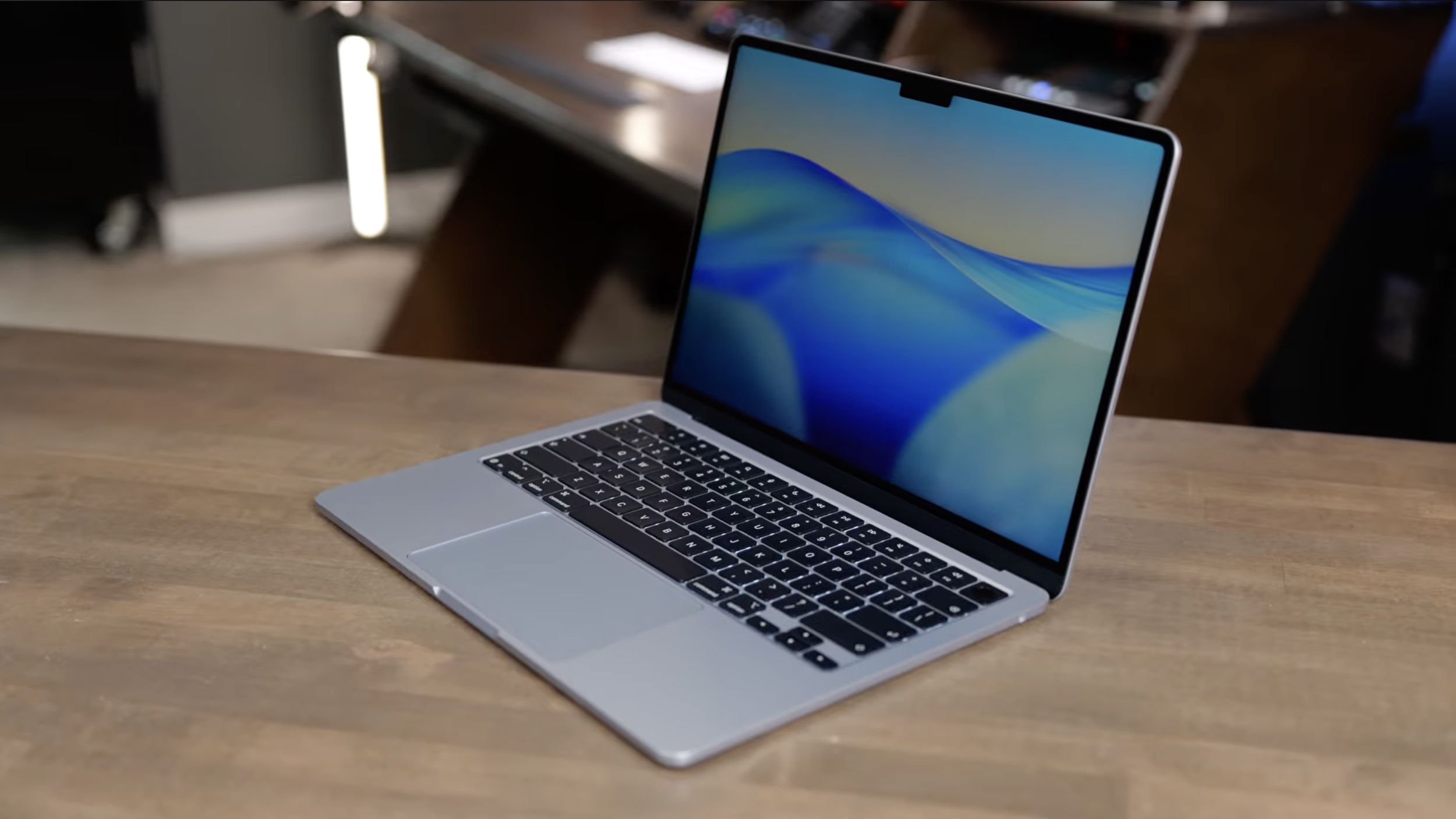
This is where the lineup gets easy for me. The M5 MacBook Air is the sweet spot for most people. The jump from the Neo to the Air is not just about raw speed. It’s about responsiveness. The Air feels snappier, more immediate, and much more comfortable under normal real-world workloads.
Why The Air Feels So Much Better
The M5 chip is built for macOS multitasking, and the Air now starts with the spec that modern Macs should have started with all along:
16GB of RAM
512GB SSD
That matters a lot. Opening apps, switching between tabs, moving between tasks, and keeping multiple apps active all feels more instantaneous here than on the Neo.
What really impressed me about the M4 Air and now the M5 Air is how much real work it can handle without feeling strained. If you’re editing video, working with large spreadsheets, keeping Slack open while you’re in a browser, or just juggling a more demanding day, the Air does great. It has real overhead. It doesn’t just survive basic tasks. It comfortably handles actual work.
What Makes The MacBook Air So Good
The Air also gets a bunch of practical upgrades that make it feel like a properly complete laptop:
MagSafe charging
Backlit keyboard
Thunderbolt 4 ports
Support for the built-in display plus two external displays
153GB/s memory bandwidth
Choice of 13-inch or 15-inch sizes
That external display support is especially wild for an Air. The Neo can only do one external monitor, but the Air can run its own screen plus two more. For a lot of people with a desk setup, that alone is a huge quality-of-life difference.
The Big Limitation: No Fan
One of the Air’s best features is also one of its biggest limitations. It has a fanless design, which means it’s completely silent. No distracting fan noise at all. That’s great if you’re a writer, a student, or anyone who just appreciates a quiet computer. But no fan also means no active cooling. So if you give it sustained heavy work, it will throttle.
Short bursts are fine. Longer tasks are where you start to see the gap between the Air and the Pro. If you’re doing exports or renders that last more than 10 to 15 minutes, or batch tasks like exporting a large number of photos from Lightroom, the Air slows down significantly compared to even the base M5 MacBook Pro.
My Recommendation for The MacBook Air
If you’re buying the Air, I think the smarter upgrade is going from 16GB to 24GB of RAM. That configuration also gets you a better GPU, and the extra RAM will help the machine feel even snappier over the years you own it.
And if you like having more screen real estate, the 15-inch M5 MacBook Air is fantastic. For multitasking, side-by-side windows, or apps with a lot of panels and toolbars, that larger display is worth it.
Base M5 MacBook Pro: Better Hardware, But a Bit of a Strange Middle Ground
The MacBook Pro lineup is where things start to get more confusing, because there are multiple versions and they don’t all make equal sense. Starting with the base M5 MacBook Pro, this model sits a few hundred dollars above the Air and gives you a handful of notable upgrades.
A slightly improved chip with 10 GPU cores
16GB of RAM
A 1TB SSD to start
The MacBook Pro chassis
A 120Hz ProMotion XDR display
A display that is twice as bright as the Air’s
HDMI
An extra Thunderbolt port
An SD card slot
Better speakers
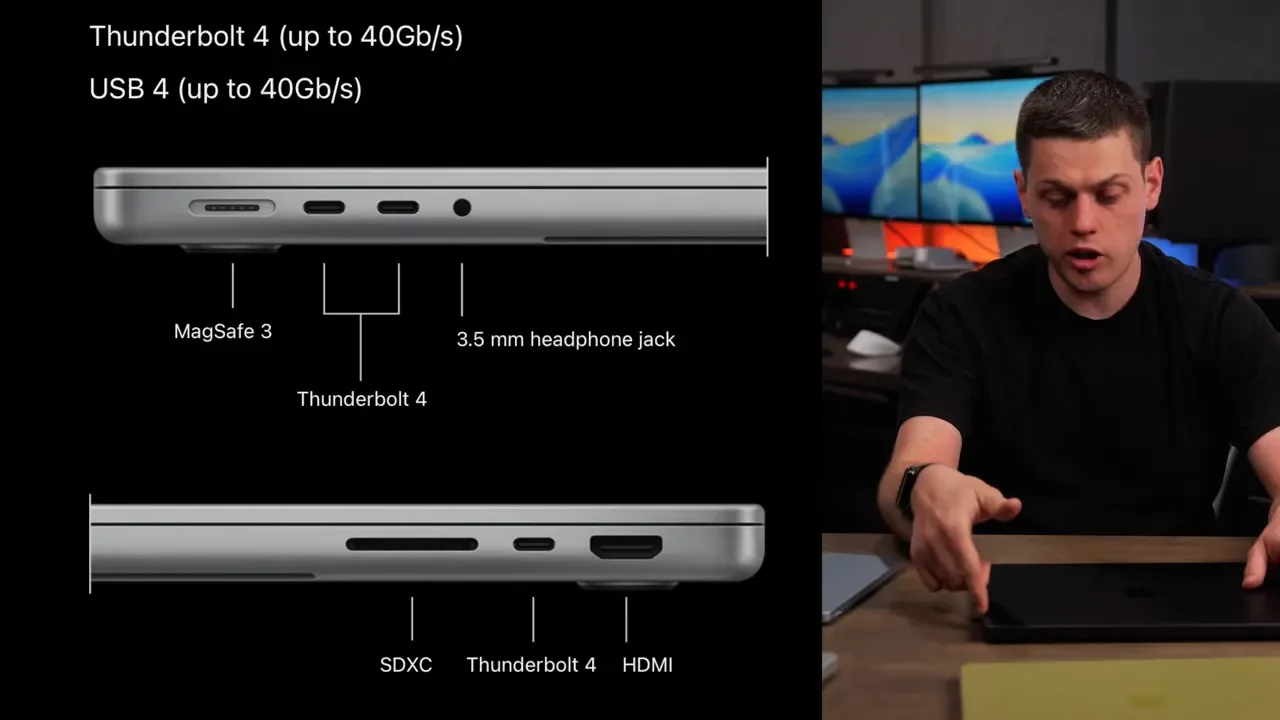
If what you really want is the nicer screen, the better speakers, and the extra ports, then the base M5 Pro can make sense. But if you’re buying a Pro because you expect meaningfully stronger performance for heavy work, I think this is where the decision gets tricky. For most people doing serious creative tasks, the base M5 Pro model is not the one I’d point to first.
M5 Pro MacBook Pro: The Real Performance Sweet Spot
If you need a MacBook Pro for actual demanding work, the M5 Pro MacBook Pro is the one that really hits the price-to-performance sweet spot. This is the model that starts to separate itself in a meaningful way from both the Air and the base M5 Pro chassis upgrade.
Why The M5 Pro Matters
According to my testing, the M5 Pro gives about 30% faster performance than the M4 Pro, and it also pulls clearly ahead of the standard M5 in heavier tasks.
This is where jobs that merely feel okay on the Air start to become genuinely fast:
8K video exports
Large code compilations
Long renders
Heavier creative production workflows
It also starts with 24GB of RAM, which is a much more comfortable baseline for professional work, and it has 307GB/s of memory bandwidth. In practical terms, that means the chip can get data faster and spend more time actually processing instead of waiting around. That’s one of those specs that sounds abstract until you feel it in a real workflow. For creative work, it becomes very tangible.
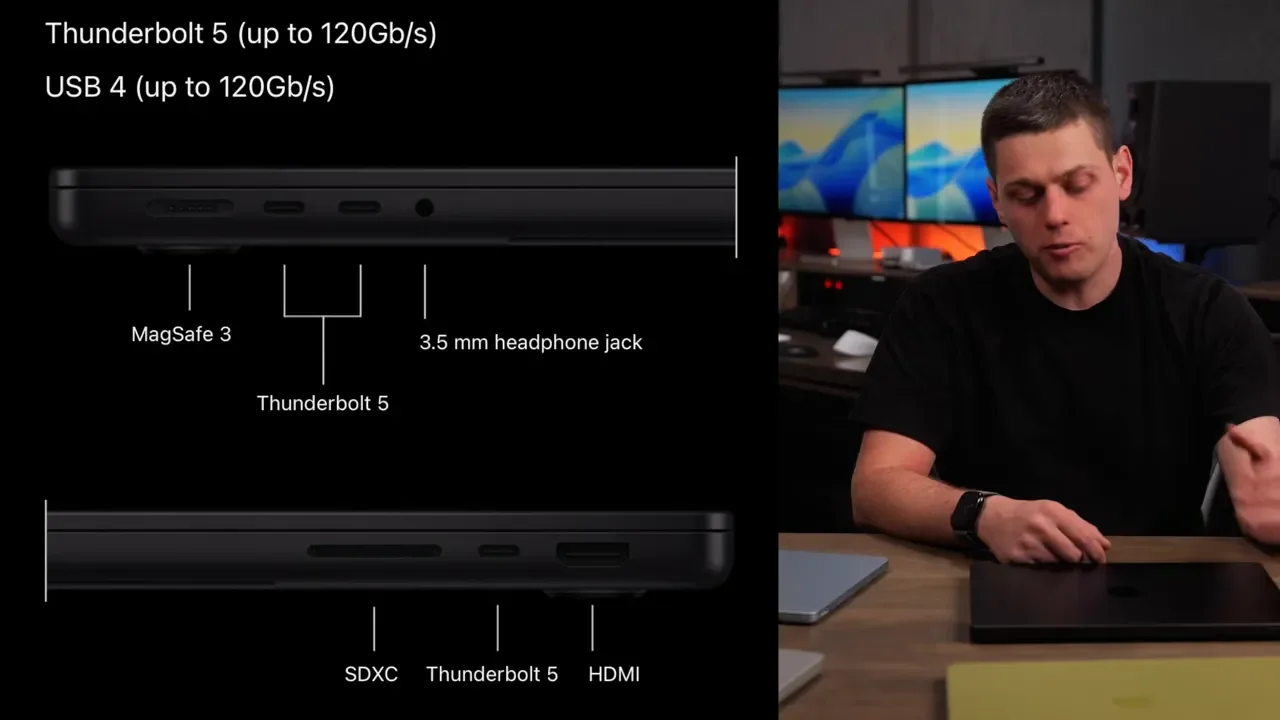
Thunderbolt 5 Is a Bigger Upgrade Than It Sounds
The M5 Pro also upgrades the ports from Thunderbolt 4 to Thunderbolt 5. That means moving from 40Gbps to 80Gbps of bandwidth, with boosted support up to 120Gbps for certain display-heavy configurations. If you work with fast external storage, docks, or multiple monitors, that matters.
This is the machine I’d recommend to most people doing heavy creative work who actually need a Pro. Faster exports, faster renders, more headroom, better sustained performance, and more capable I/O. That’s the package that makes the MacBook Pro feel justified.
M5 Max MacBook Pro: Incredible, But Usually Not Worth It
Now for the one a lot of people want to want: the M5 Max MacBook Pro. After using it, my take is pretty simple. For most people, it is not worth the extra money.
Yes, the specs are huge. It has 614GB/s of memory bandwidth, which is double the M5 Pro. That is an insane amount of throughput. But the important question is not whether it’s powerful. It absolutely is. The question is whether your work actually takes advantage of that power.
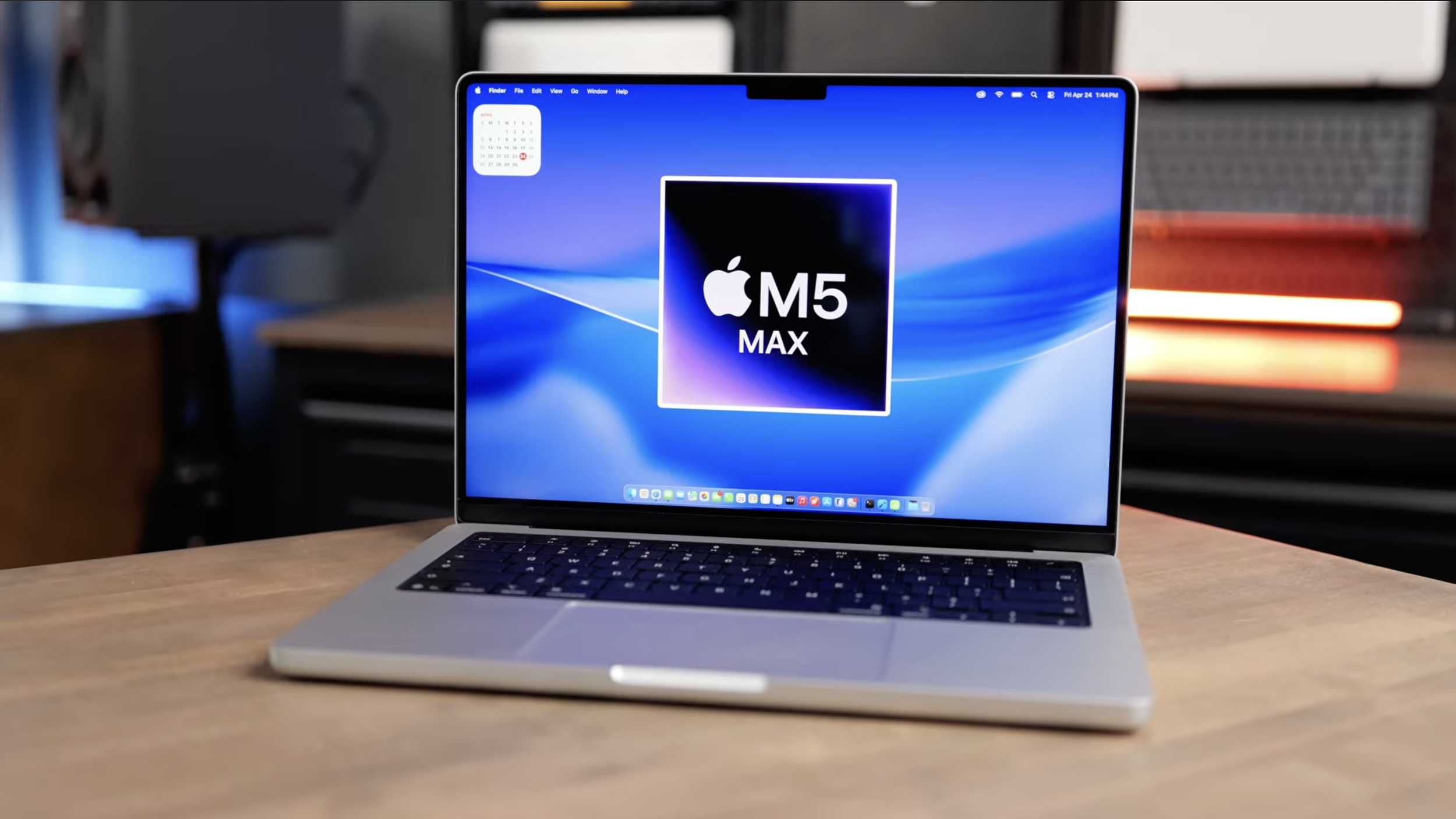
For most video editing and design tasks, the difference between the M5 Pro and the M5 Max is not going to be dramatic enough to justify the extra cost. The M5 Max really makes sense only if you are doing things where memory bandwidth becomes an actual bottleneck, such as:
Heavy local AI training
Running large LLMs locally
3D simulations
If you’re not doing that kind of work, buying the M5 Max is like buying a Ferrari to go to the grocery store. It’s cool. It’s fast. It’s also probably unnecessary.
Which MacBook Should You Buy?
Here’s the simplest way I’d break it down.
Buy The MacBook Neo If:
You need the cheapest MacBook possible
You mostly use a browser
You do schoolwork, documents, printing, recipes, and basic everyday tasks
You just want an affordable entry into the Apple ecosystem
Skip it if this is going to be your all-day machine, if you multitask heavily, or if you plan to do any paid creative work.
Buy The MacBook Air If:
You want the best overall value
You need a laptop that feels fast and responsive
You multitask regularly
You do light to moderate creative work
You want a silent laptop with no fan noise
You want support for multiple external displays
For most people, this is the one. It’s the MacBook that has enough overhead to stay comfortable for years without jumping into workstation pricing.
Buy The Base M5 MacBook Pro If:
You mainly want the better screen
You want better speakers
You need the extra ports like HDMI and SD card
Those are valid reasons. Just be honest that those are the reasons, because if you’re chasing performance, the next step up is usually the more logical move.
Buy The M5 Pro MacBook Pro If:
You do heavy creative work
You need faster exports and renders
You compile code regularly
You need stronger sustained performance
You want the best balance of price and serious professional power
This is the real sweet spot in the Pro lineup.
Buy The M5 Max MacBook Pro If:
You are an AI researcher
You run large local models
You do 3D simulation work
You have a workflow that genuinely hits memory bandwidth limits
Otherwise, save your money.
My Final Take on Apple’s 2026 MacBook Lineup
After using everything in Apple’s current lineup, my advice is pretty straightforward. Only buy the MacBook Neo if you truly need to save money. It’s a decent entry point, but it’s also the easiest one to outgrow.
Buy the MacBook Air if you want the best MacBook for most people. It feels much faster than the Neo, it has the right baseline specs, and it should hold up really well over time. Buy the M5 Pro MacBook Pro if you want the best balance of performance and price. For demanding workflows, that’s the laptop in the lineup that makes the most sense.
And unless you’re deep into AI, 8K-heavy workflows, or specialized 3D work, skip the M5 Max. For most people, that money is better saved or spent elsewhere.