What External SSD To Buy For Your Mac In 2026
Some of the links in this post are affiliate links, which means I may earn a small commission if you choose to make a purchase at no extra cost to you. As an Amazon Associate, I earn from qualifying purchases. Read my full Ethics & Affiliate Relationship Disclaimer.
If you need more storage space for your Mac, there are a lot of external SSDs out there. Some are good, some are great, and some really are not worth your money.
The tricky part is that the “best” external SSD for Mac depends heavily on what you actually plan to do with it. Backing up photos, running Time Machine, editing 6K footage, storing project libraries, loading LLMs, or even booting macOS from an external drive all put very different demands on storage.
This guide breaks down the speed classes that matter on modern Macs, what capacities make sense, whether you should buy a prebuilt SSD or your own enclosure, and which actual models are worth buying right now.
What An External SSD for Mac Can Actually Do
External SSDs are no longer just a place to dump old files. On a Mac, they can be part of your active workflow every single day.
Run applications
Store photo and video libraries
Edit photos and videos directly from the drive
Handle manual backups
Run Time Machine
Load and switch between large language models
Boot and run your operating system externally
That’s why picking based on price alone usually backfires. The right SSD for basic office work is not necessarily the right SSD for all-day video editing or AI workflows.
Mac SSD Speed Classes: What Actually Matters
For Macs right now, there are really three meaningful external SSD speed classes:
USB 3.2
USB4 / Thunderbolt 3 / Thunderbolt 4 at 40Gbps
Thunderbolt 5 at 80Gbps
USB 3.2 SSDs
This is the sweet spot for a lot of people. Drives in this category are great for:
Offloading files
Time Machine backups
Photo storage
Running applications
Light to moderate photo or video editing
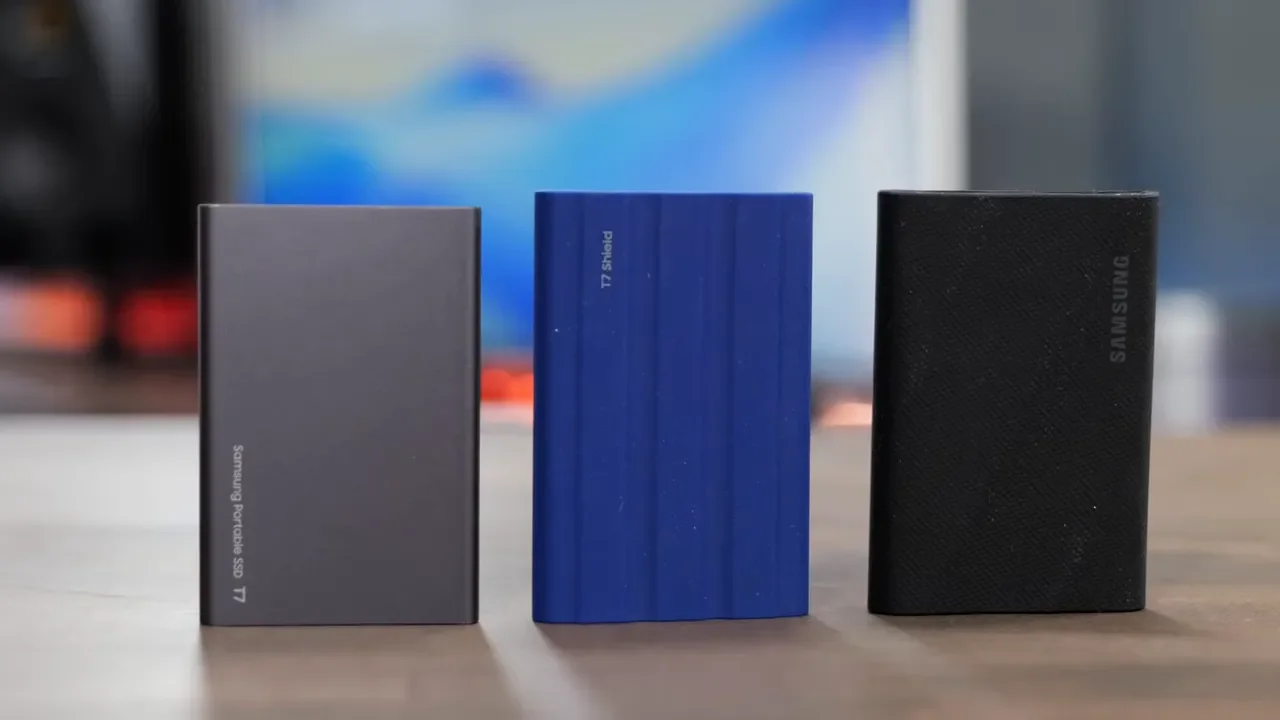
Typical examples include the Crucial X9 Pro, Crucial X10 Pro, Samsung T7 Shield, and Samsung T9. Where USB 3.2 starts to fall apart is sustained heavy work. If you regularly move more than 100GB at a time, edit high-bitrate 4K or 6K footage all day, do 3D rendering, or run more demanding LLM tasks, this class becomes a bottleneck pretty quickly.
40Gbps USB4 and Thunderbolt Drives
If your workflow is more serious, this is where things get much more interesting. USB4, Thunderbolt 3, and Thunderbolt 4 drives all land in the 40Gbps class, and this is a fantastic tier for:
Heavy video editing
Running macOS from an external SSD
Large project libraries
Frequent large file transfers
Data-intensive creative workflows
These are the kinds of drives that can handle massive 500GB transfers much more comfortably and keep up far better under sustained load. Some use USB4 branding, others use Thunderbolt branding, but the practical point is that they support those faster 40Gbps-class speeds. Standout options here include the SanDisk Pro-G40, LaCie SSD Pro/SSD4, and OWC Express 1M2 USB4 40Gb.
Thunderbolt 5 SSDs
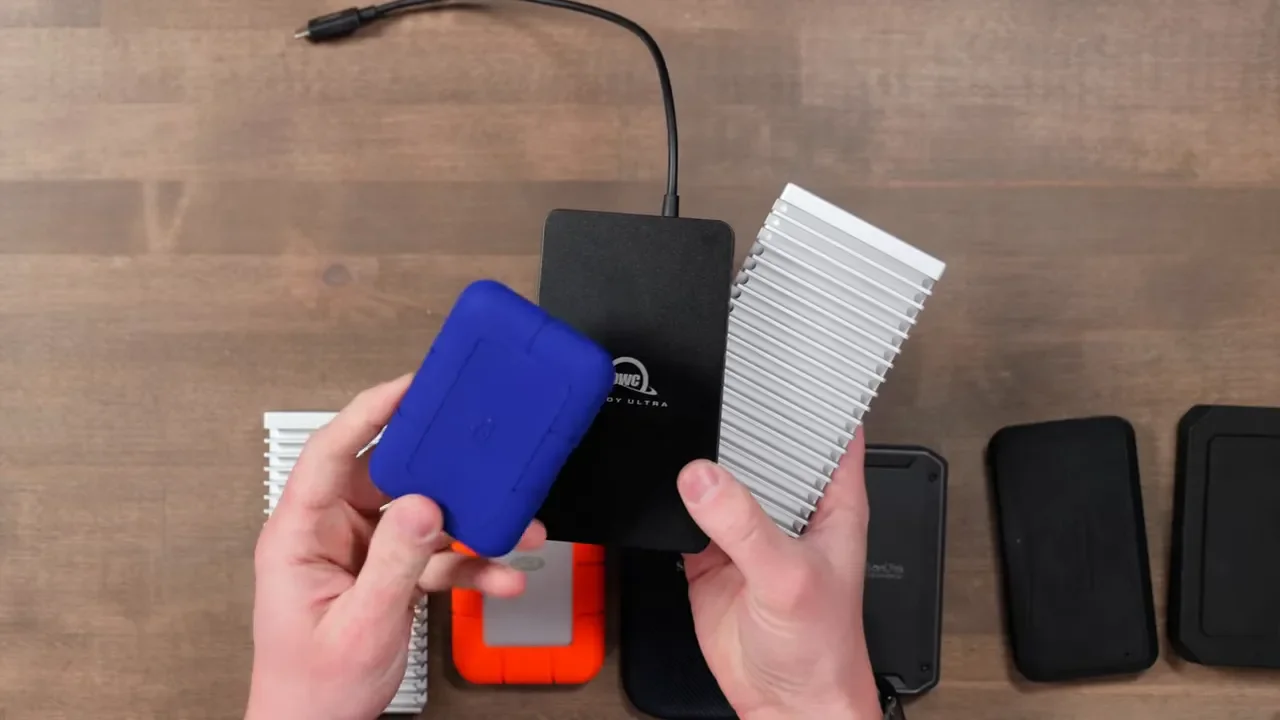
Thunderbolt 5 is the newest and fastest tier, but it is also the most misunderstood. There still are not many drives in this category. The main options are the OWC Express 1M2 80G, OWC Envoy Ultra, and LaCie Rugged SSD Pro5.
These drives are incredibly fast, but there is one important caveat: many of them use the same internal NVMe drives found in slower products, and those NVMe drives often have limited cache. That means headline speeds are real, but they are not always sustained indefinitely. Once the cache fills, transfer speed drops.
So if your main workload is one giant file transfer, Thunderbolt 5 may not save as much time as you expect. All SSDs slow down after moving several hundred gigabytes. Where Thunderbolt 5 really earns its keep is in high-pressure workflows where data is constantly streaming, not just being copied. Think:
Fast random read and write activity
Multiple streams of 6K or 8K footage
Multicam editing
High track count audio projects
LLM workflows that benefit from faster storage access
Also, to get those Thunderbolt 5 speeds, you need a compatible machine such as a Mac with an M4 Pro or M4 Max, or another Thunderbolt 5-capable computer.
How Much SSD Capacity Do You Need?
Most external SSDs are available in 1TB, 2TB, 4TB, and sometimes 8TB. Capacity is really about workflow, not just storage. Here’s a practical way to think about it.
1TB: Enough For Lighter Use
A 1TB external SSD is usually enough for:
Documents and general files
Light photo backups
Applications
Basic external workspace duties
Some light LLM use
2TB: The Best Fit For Many People
2TB is a really solid size if you have:
Larger photo libraries
A home folder or active workspace on the drive
Video projects in progress
Multiple LLMs you want loaded and ready
Music production work
4TB: When Projects Start Piling Up
Step up to 4TB if you work with:
Large sample libraries
Lots of video projects
Large 3D assets and project files
Any workflow where active data grows quickly
8TB: One Drive For Everything
If you need a huge number of projects available in a single enclosure at the same time, 8TB makes sense. This is especially useful if you do not want to constantly shuffle files between drives.
Prebuilt SSD vs Enclosure: Which Should You Buy?
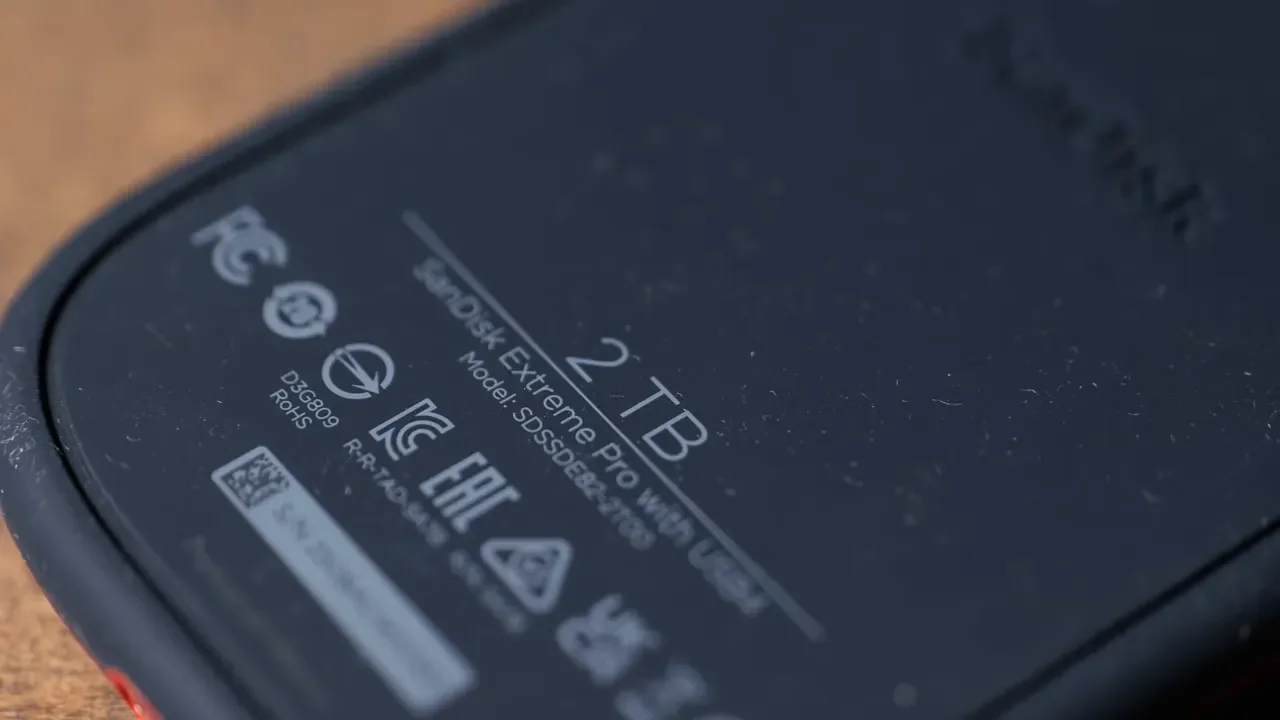
Every external SSD has an NVMe drive inside. The enclosure is what connects that NVMe to your Mac. That gives you two basic ways to buy:
Prebuilt SSD: the NVMe and enclosure come together as one product
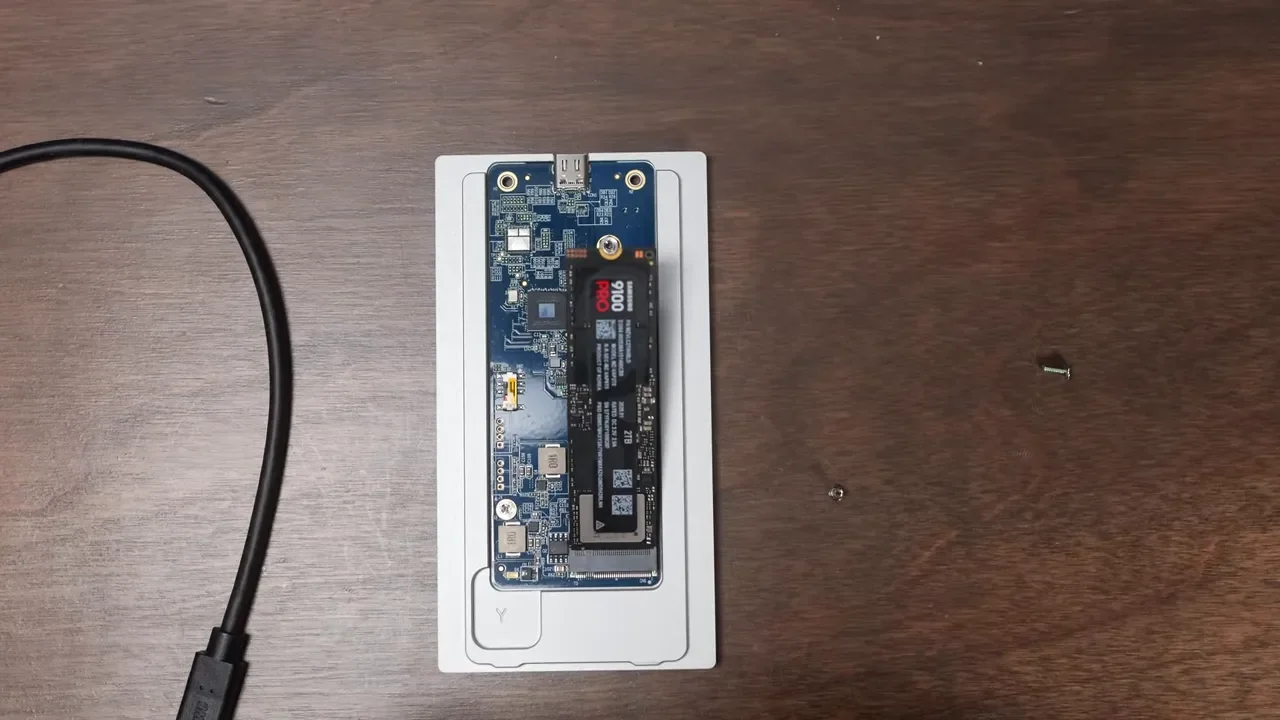
Enclosure: you buy the enclosure separately and install your own NVMe
Why Buy A Prebuilt SSD?
Prebuilt drives are usually the better choice if you travel a lot or want something simple and durable.
They’re often:
More rugged
Better sealed
More drop-resistant
Sometimes water-resistant
Backed by stronger warranties
Another advantage is that the manufacturer has validated that exact NVMe and enclosure combination, so the rated speeds are usually more predictable.
Why Buy An Enclosure?
An enclosure gives you flexibility.
You can choose your own NVMe
You can pick exactly the capacity you want
You can upgrade or swap drives later
You can often save money
If you are comfortable installing an NVMe, it is generally very easy. And in some cases, buying the enclosure and drive separately can save you $100 to $200 compared to a factory-configured version.
Best External SSDs For Mac By Use Case
The SSD market changes fast, especially on pricing. So it makes more sense to think in categories and top picks rather than obsessing over one “perfect” drive.
Best SSDs For Time Machine, Photos, Apps, And Office Work
If you want a drive for Time Machine backups, photo storage, applications, basic office work, or a bit of light editing, Samsung has some of the best mainstream options.
The key picks are:
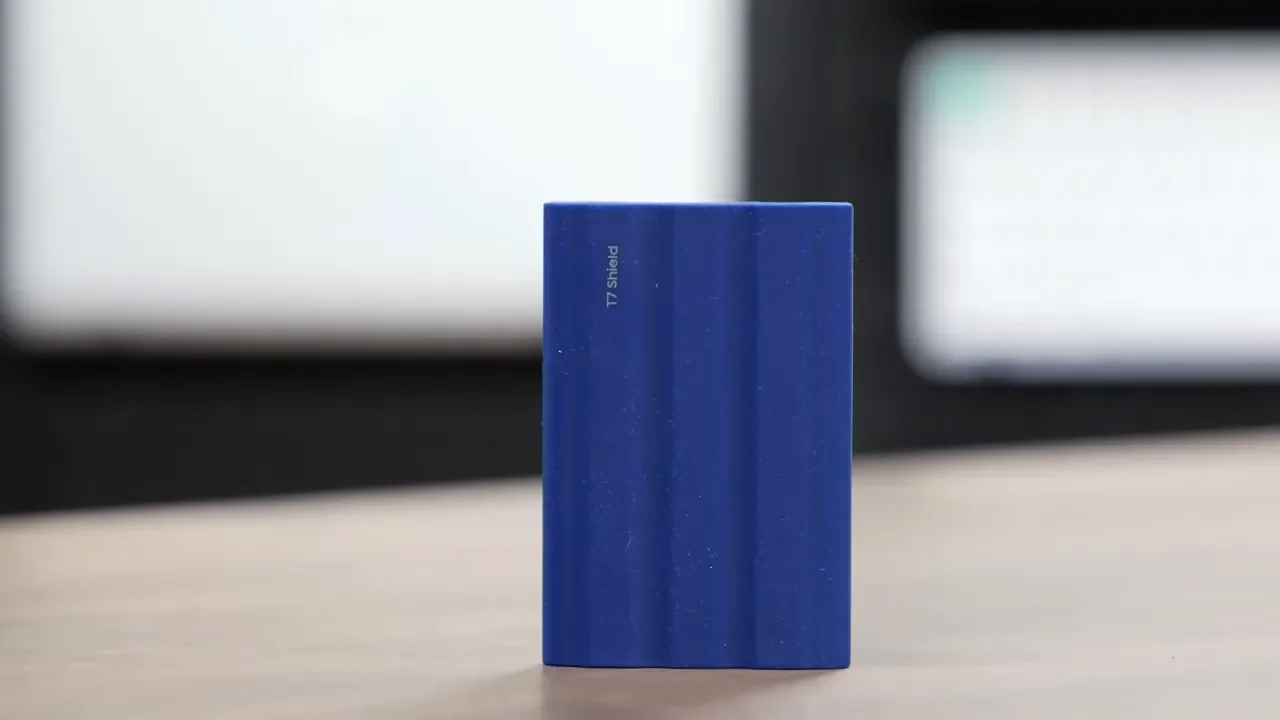
The standard Samsung T7 is the one to avoid here. It slows down much faster than the T7 Shield or T9 during large transfers.
In 500GB transfer testing, the T7 Shield and T9 held up much better. Since the pricing is often pretty close, the smartest move is usually to compare deals and buy whichever of those two costs less.
For Mac use, they are fairly close in speed, though the T9 is slightly faster. The T9 also comes with a 5-year warranty, which makes it especially appealing against alternatives from Crucial and even against the T7 Shield in some cases.
Best SSDs For Audio And Video Production
If your external drive is part of your active production workflow, sustained performance matters more than peak benchmark numbers. The top pick here is the SanDisk Pro-G40.
Why it stands out:
Excellent heat dissipation
Aluminum cooling core
Very durable construction
Strong drop resistance
Solid real-world file transfer performance
Good value relative to competing drives
It may not top every synthetic speed test, but in actual file transfer work it is consistently strong, and that matters more for most editing workflows.
Another great option is the LaCie SSD4. It can be a little harder to find, but it has one practical advantage: it uses USB4 instead of Thunderbolt 3, which makes it a better fit if you want to use it with a phone. It worked properly with an iPhone 17 Pro.
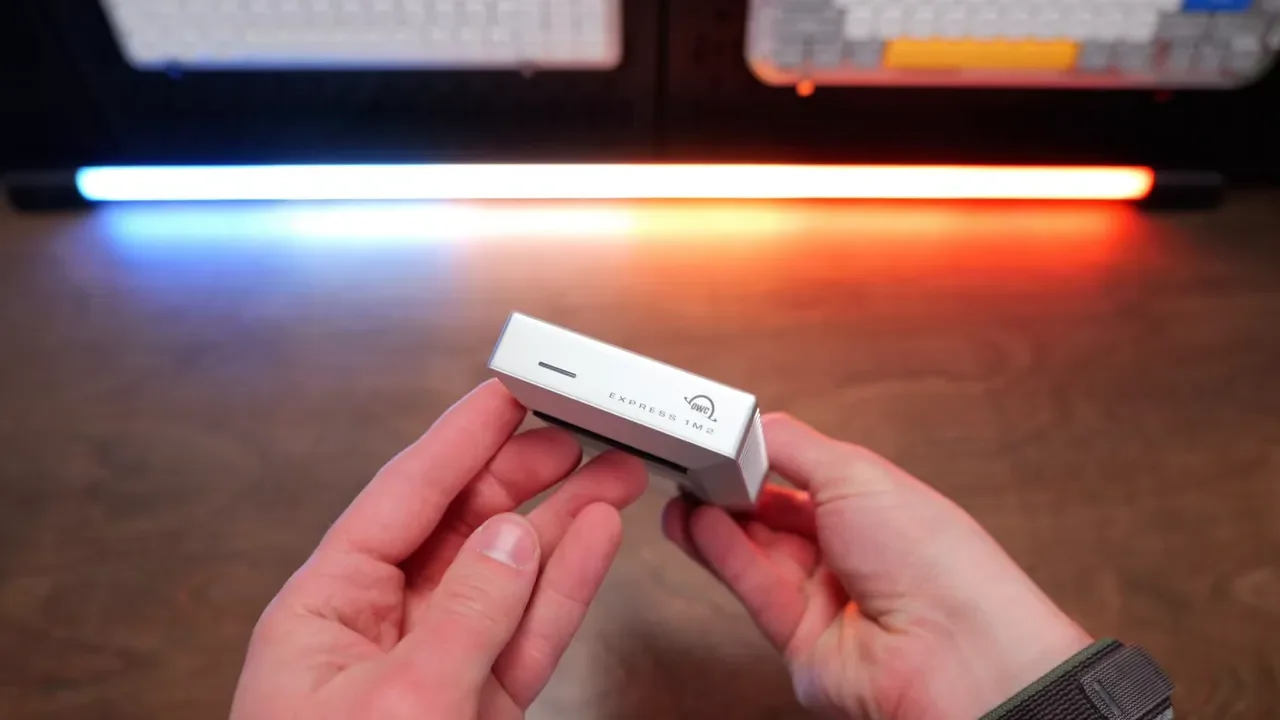
The OWC Express 1M2 USB4 is also excellent, especially for sustained performance. The main tradeoff is size. It is physically much larger than the SanDisk drive, but that huge aluminum body and heatsink design do a great job pulling heat away from the enclosure.
If portability matters, the OWC is less convenient. If cooling and long, heavy workloads matter most, it is a very strong option.
A smart way to buy the OWC is to get the 0TB enclosure and add your own NVMe. That setup can save a meaningful amount of money compared to buying it preloaded.
Other Strong Editing SSDs Worth Considering
There are a few more drives that have performed very well for editing, even if they are not quite at the same level on file transfer testing as the top three above:
SanDisk Extreme Pro with USB4 only, make sure it specifically says USB4
Oyen U34 Bolt, which is a bit larger and available up to 8TB
Glyph Atom Pro
These are still easy recommendations for video editing. They just do not edge out the SanDisk Pro-G40, LaCie SSD4, and OWC Express 1M2 USB4 overall.
Best Thunderbolt 5 SSDs For Maximum Performance
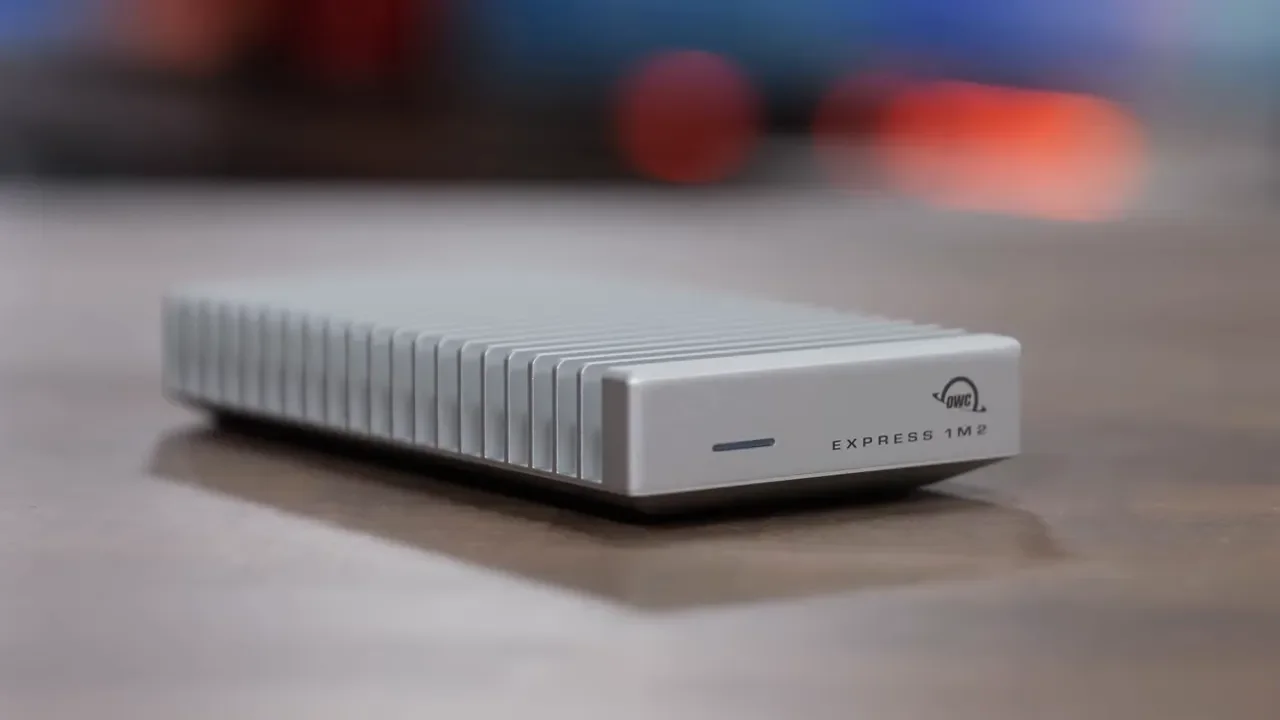
If you have a Thunderbolt 5 Mac and your workflow justifies it, this is the highest-performance tier. The top recommendation is the OWC Express 1M2 80G.
This is the standout choice for heavy-duty use because it is:
Excellent for all-day video editing
Very reliable in day-to-day use
Fast even with huge transfers
Backward compatible with slower systems
For the NVMe inside, the preferred pairing is the Samsung 9100 Pro. Other recommended NVMe options include the Samsung 990 Pro and WD Black SN850X. You can also buy the OWC unit preconfigured, but it will cost more than building it yourself.
Two more strong Thunderbolt 5 choices are the OWC Envoy Ultra and the LaCie SSD5. Between those two, the LaCie gets a slight edge because:
It is smaller
It is a bit more durable
The cable is removable
The OWC Envoy Ultra does better with heat dissipation thanks to its large aluminum body, but the fixed cable is annoying. Real-world performance between the Envoy Ultra and LaCie SSD5 was basically identical, though both slowed down a little sooner than the OWC Express 1M2 80G because the SSD cache sizes were smaller.
One Important Reality Check: Every SSD Can Fail
No matter which brand you buy, if the files matter, back them up to multiple drives. That applies to Samsung, SanDisk, LaCie, OWC, Crucial, all of them. SSDs are fast and convenient, but none are immune to failure. If losing the data would be a problem, one copy is not enough.
The Best Format For An External SSD On Mac
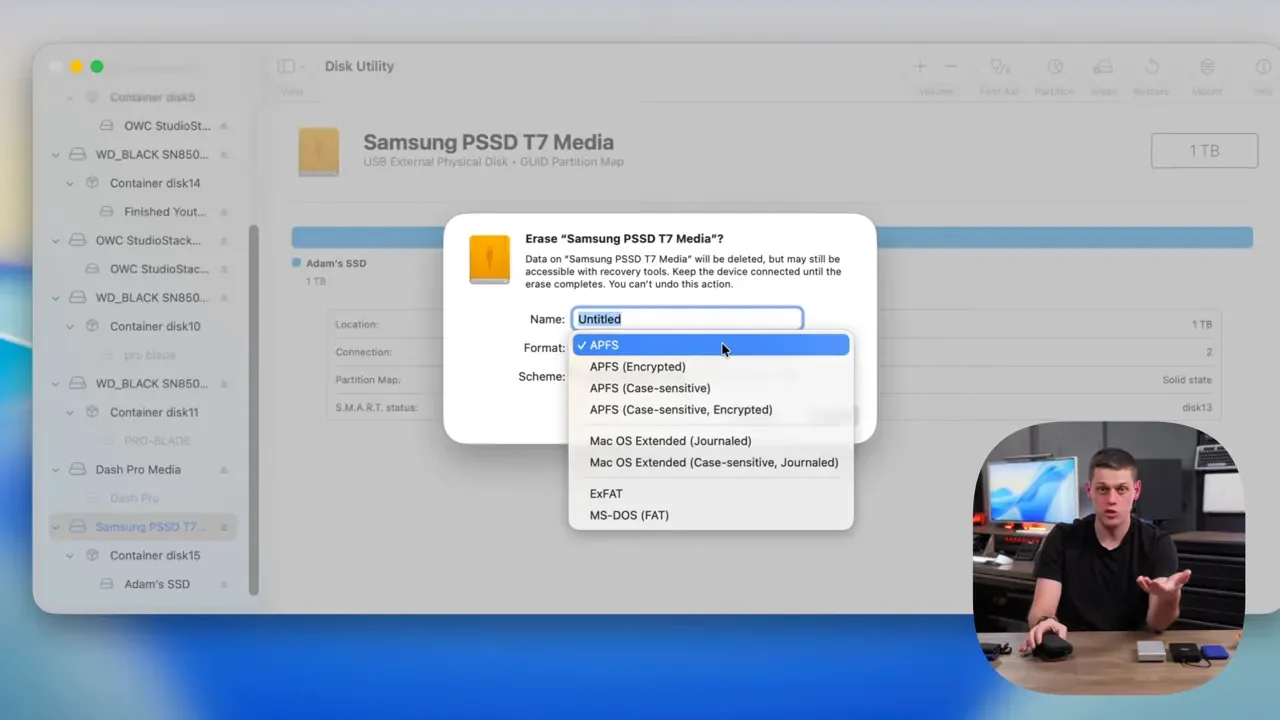
A lot of external SSDs ship formatted as exFAT so they work with both Windows and macOS right out of the box. If you are using the drive primarily with a Mac, it is usually better to reformat it to APFS in Disk Utility.
APFS gives you:
Better compatibility with macOS
Better performance on Mac
Compatibility with iPads and iPhones as well
Just remember that formatting erases the drive, so do it before you start loading files onto it, or offload anything important first.
Do not use APFS if you need the drive to work with:
Windows computers
Camera gear that expects other file systems
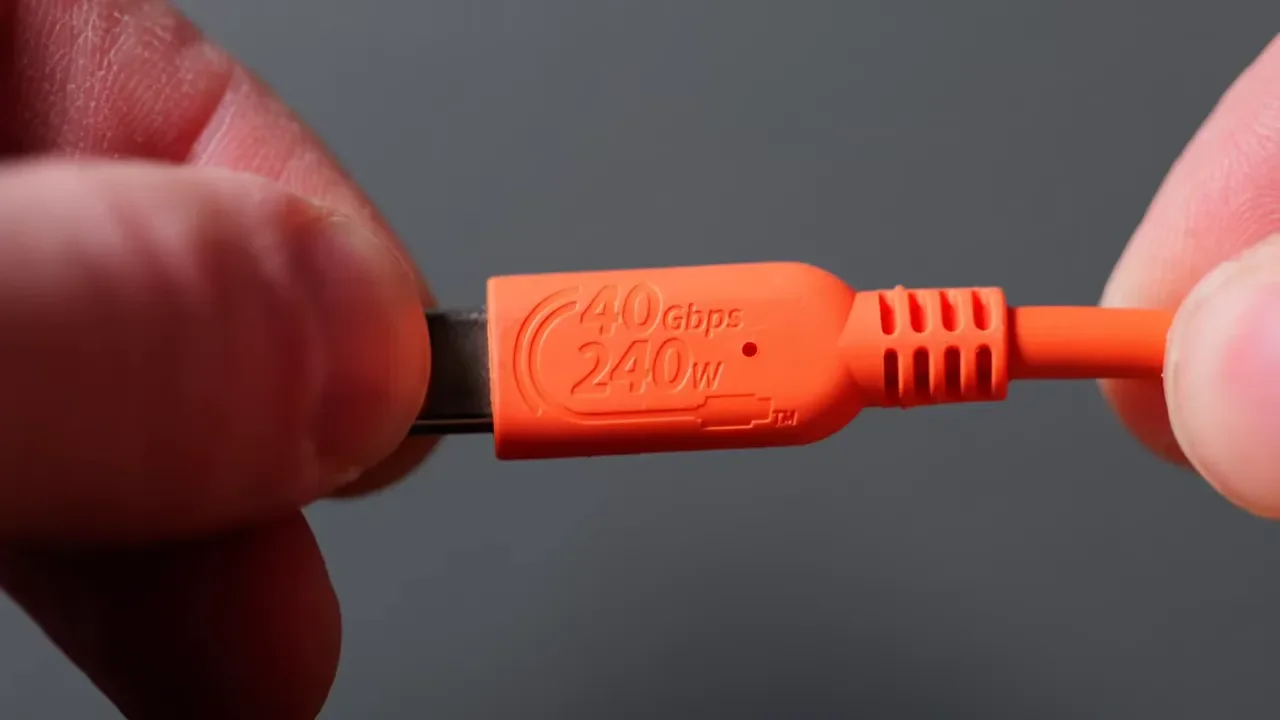
Your Cable Matters More Than Most People Think
A fast SSD is only as good as the cable connecting it.
Always use either:
The cable included with the drive
A replacement cable rated for the same speed or faster
A favorite option here is the Satechi USB4 V2 cable. It supports 80Gbps speeds, is backward compatible with slower standards, works with Thunderbolt drives, and at around four feet long it hits a really practical sweet spot.
What you should not do is grab a random charging cable, especially an iPhone charging cable, and expect full SSD performance. In the best case, the drive will run very slowly. In the worst case, it may not work properly at all.
Docking Stations And Ports: Where To Plug Your SSD In
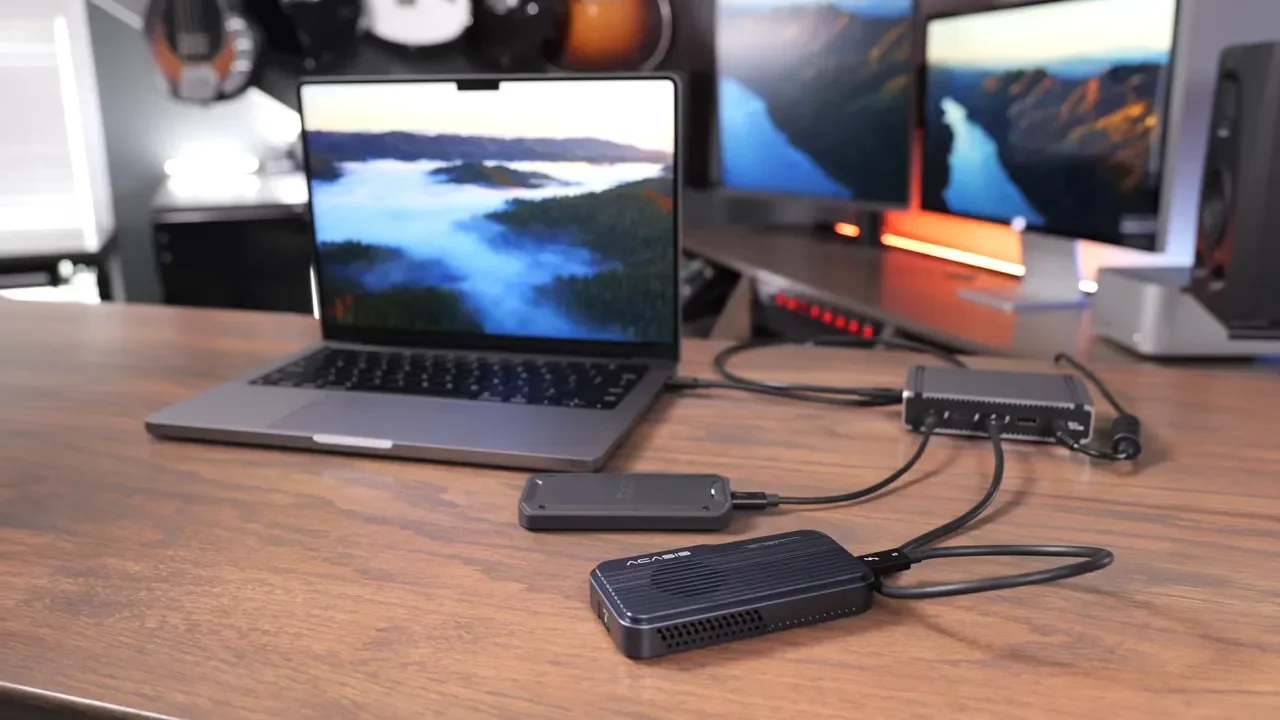
If you want maximum performance, the best option is simple: plug the SSD directly into your Mac. If you need a dock or hub, use a Thunderbolt dock, not a basic USB dock. This is especially important for 40Gbps and 80Gbps drives. If you plug those into a 10Gbps USB dock, they will not come close to full speed. You’ll immediately hit the dock’s bottleneck.
A good rule is to avoid using these faster SSDs with anything below Thunderbolt 4, and ideally use Thunderbolt 5 if your setup supports it. Thunderbolt 5 is especially interesting because while it supports 80Gbps data transfer, it can go up to 120Gbps total bandwidth in certain display-heavy situations, with extra bandwidth reserved for monitors. That helps leave more room for fast storage devices.
Even so, if you connect too many drives to one dock, bottlenecks can still happen. As a practical rule, it is best not to overload a Thunderbolt dock with more than one or two high-speed SSDs if top performance matters.
Quick Buying Recommendations
If you want the short version, here’s the cheat sheet:
Best for backups, photos, apps, and general use: Samsung T7 Shield or Samsung T9
Best for audio and video production: SanDisk Pro-G40
Best USB4/40Gbps enclosure option: OWC Express 1M2 USB4
Best if you also want phone compatibility in this class: LaCie SSD4
Best Thunderbolt 5 SSD overall: OWC Express 1M2 80G with a Samsung 9100 Pro
Best compact Thunderbolt 5 alternative: LaCie SSD5
How To Choose The Right Mac External SSD
If you are stuck between two or three drives, make the decision this way:
Start with your workflow. Backups and office files do not need Thunderbolt 5.
Buy for sustained performance, not just spec-sheet speed. Big transfers and editing sessions tell the real story.
Pick capacity based on active projects, not idealized minimalism. Running out of room early is expensive and annoying.
Use APFS on Mac-only drives. It is the better fit for macOS.
Do not cheap out on cables or docks. They absolutely can cripple performance.
Back up anything important to multiple drives. No SSD is failure-proof.
For a lot of Mac users, a Samsung T7 Shield or T9 is going to be more than enough. For serious creators, the SanDisk Pro-G40 and the better USB4 options are where things start to feel much smoother. And if you have a Thunderbolt 5 machine and genuinely demanding workflows, the OWC Express 1M2 80G is one of the most compelling external SSD setups available right now.